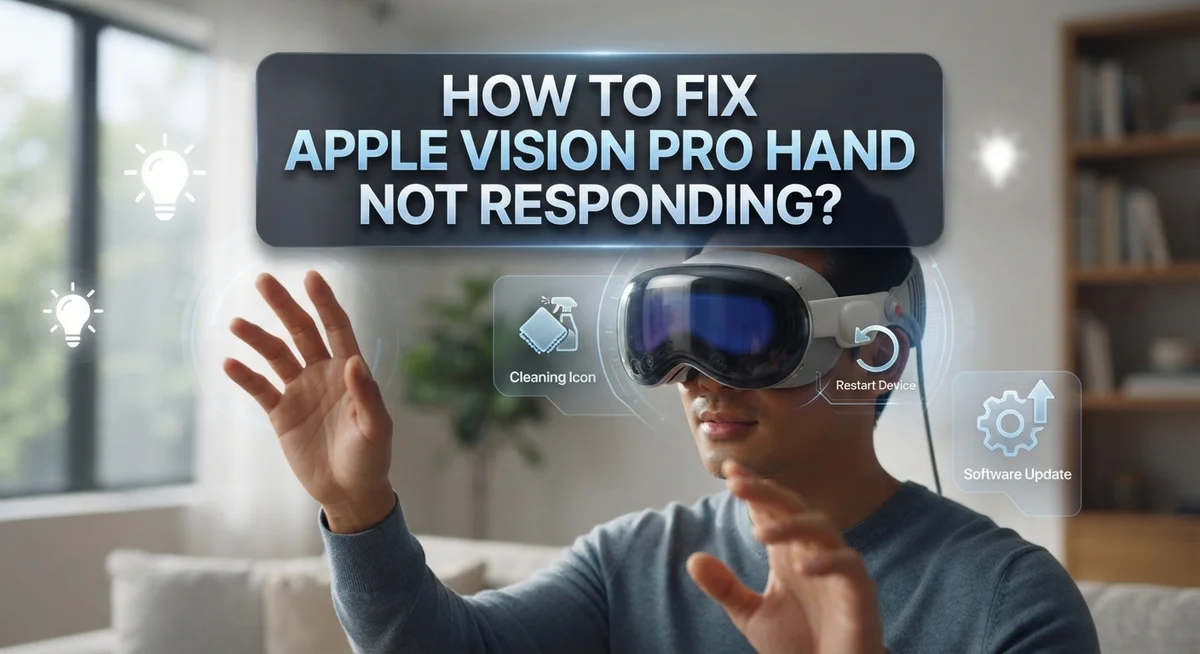
How To Fix Apple Vision Pro Hand Tracking Not Responding?
Your hands are the controller for Apple Vision Pro. So when hand tracking stops responding, the whole experience breaks down fast.
This is a frustrating problem, but it happens more often than you might think. The cameras under the device need clear visibility of your hands to work properly. Lighting, positioning, and calibration all play a role in whether tracking works or fails.
The good news is that most hand tracking issues are fixable at home, without any technical expertise or trips to a repair center.
This guide walks you through every proven fix, from simple re-enrollment steps to full recalibration methods. You will learn why hand tracking fails in the first place, and exactly what to do when it does.
In a Nutshell
- Hand tracking on Apple Vision Pro stops working for a few common reasons, including poor lighting, hand obstruction, or calibration drift.
- The fastest fix is to say “Siri, enroll hands” or go to Settings → Eyes & Hands and redo the hand setup from scratch.
- Lighting matters more than most people think. The underside cameras cannot detect your hands properly in dim or dark environments.
- Keep your hands visible to the cameras at all times. Blocked or awkwardly positioned hands will break tracking instantly.
- If tracking feels off-direction, you may need to recalibrate by looking slightly opposite to the center dots during the setup process.
- A full restart or battery removal (wait 5 minutes before reinserting) can clear deeper software glitches causing the issue.
Why Apple Vision Pro Hand Tracking Stops Working
Hand tracking stops working on Apple Vision Pro for several reasons. Understanding what causes the problem helps you fix it faster.
Lighting is the most common culprit. The cameras on the underside of your device need adequate light to see your hands. Low light, dim rooms, or nighttime use makes hand detection nearly impossible. Your hands become invisible to the sensors when shadows cover them or when you sit in dark areas.
Hand obstruction blocks the cameras. If your hands are behind your body, tucked into your lap too low, or covered by clothing, the device cannot track them. The cameras have a specific viewing angle. Hands outside that angle disappear from detection instantly.
Calibration drift causes tracking errors. Over time, your hand tracking calibration can shift. This happens naturally through regular use. When calibration drifts, your hands track in the wrong direction or feel offset from where you actually position them.
Software glitches create temporary failures. Beta updates or minor software bugs sometimes break hand tracking without warning. These issues are usually temporary but annoying. A simple restart often clears them up.
Hand enrollment problems trigger detection failures. If your hand enrollment was incomplete or rushed during setup, the device struggles to recognize your hand movements. Poor enrollment data means poor tracking performance.
Multiple issues can stack together. You might have dim lighting combined with hands positioned outside the camera view. You could have calibration drift happening alongside incomplete enrollment. These combinations make hand tracking feel completely broken.
The good news is that each cause has a straightforward fix. Most solutions take just minutes to complete at home.
How Lighting Conditions Affect Hand Tracking Performance
Lighting conditions play a huge role in whether your Apple Vision Pro hand tracking works properly. The cameras on the underside of your device need sufficient light to detect your hands accurately.
Low light environments are your biggest enemy. When you’re in a dim room or dark space, the cameras struggle to see your hands clearly. This causes detection to fail completely or become inconsistent. Your device simply cannot process what it cannot see.
Move to a brighter area immediately. Natural daylight near a window works best. If natural light isn’t available, turn on overhead lights or use a desk lamp. Aim for even lighting across your hands and the space in front of you.
Position yourself strategically. Make sure your hands stay visible to the underside cameras at all times. This means keeping your hands in front of you and slightly to the sides. Avoid positioning your hands too low, too high, or directly behind your body.
Shadows also cause problems. If bright light creates harsh shadows on your hands, the cameras get confused. Adjust your position or light source to minimize shadows on your hands and arms.
Test different lighting setups. Some people find that multiple light sources work better than one bright light. Experiment with overhead lighting combined with side lighting. Pay attention to what works best in your space.
Never attempt hand tracking fixes in low light conditions. You’ll waste time troubleshooting when the real problem is simply insufficient lighting. Brighten your environment first, then check if tracking improves. This single step resolves most hand tracking issues before you need to try other solutions.
How To Re-Enroll Your Hands Using Siri and Settings
Re-enrolling your hands fixes most tracking problems quickly. You have two main methods to do this.
The first method uses voice commands. Say “Siri, enroll hands” directly to your device. Siri will guide you through the enrollment process step by step. Follow the on-screen instructions carefully. This method works best when your device is already responsive to voice input.
The second method uses the settings menu. Open Settings on your device. Navigate to Eyes and Hands. Select Redo Hand Setup. Your device will walk you through the enrollment sequence again. This approach gives you more control over each step.
You can also use the physical button method. Press the top button four times quickly. Your device will launch the hand enrollment interface. Follow the prompts that appear on your screen.
During re-enrollment, keep these points in mind. Make sure you’re in a well-lit area. The cameras need good lighting to recognize your hands properly. Hold your hands in front of you naturally. Avoid unusual positions or angles. Move your hands slowly and deliberately. Let the device track your movements without rushing.
The process typically takes two to three minutes. Your device will confirm when enrollment is complete. Test your hand tracking immediately after finishing. Make simple gestures like pinching and swiping. If tracking still feels off, you may need to recalibrate your view by looking slightly opposite to the center dots.
Re-enrollment solves hand detection failures in most cases. If problems persist after re-enrolling, try restarting your entire device. A full restart clears deeper software issues that enrollment alone cannot fix.
How To Recalibrate Hand Tracking for Accurate Detection
Recalibrating your hand tracking brings accuracy back to your Apple Vision Pro. This process resets how your device understands your hand position and movement patterns.
Start with the Siri voice command method. Say “Siri, enroll hands” and follow the on-screen instructions. Your device will ask you to position your hands in specific locations. Keep your hands steady and visible to the cameras underneath your headset. This typically takes two to three minutes.
If the voice method doesn’t work, use the settings menu instead. Go to Settings, then select Eyes & Hands. Find the option to redo your hand setup and tap it. Your device will guide you through the same enrollment process with visual cues on screen.
The physical button method offers a third option. Press and hold the top button four times in quick succession. This triggers the hand recalibration sequence without needing voice or menu navigation.
During recalibration, ensure you’re in a well-lit space. Poor lighting causes recalibration to fail. Position yourself so both hands remain visible to the underside cameras throughout the entire process.
If your hand tracking consistently points in the wrong direction, try looking slightly opposite to where the center dots appear. This helps your device recalibrate its directional understanding.
Complete recalibration only takes minutes. Most users see immediate improvements in tracking accuracy after finishing. If problems persist after recalibration, try restarting your device completely. A full restart clears software conflicts that might interfere with hand tracking performance.
How To Restart and Reset Your Apple Vision Pro
A full restart clears temporary software issues that block hand tracking. Press and hold the top button until the power menu appears. Slide to power off completely, then wait 30 seconds before turning it back on.
If a restart doesn’t work, try a battery reset. Remove the battery pack from your device and wait five minutes. This gives the system time to fully discharge. Reinsert the battery and power on normally.
For a deeper reset, access Settings on your device. Navigate to System, then select Reset. Choose the option to reset all settings. This removes any corrupted calibration data without erasing your apps or files.
Re-enroll your hands after any reset. Go to Settings, find Eyes and Hands, then select Redo Hand Setup. Follow the on-screen prompts carefully. Make sure you’re in a well-lit space during this process.
The physical button method offers a quick alternative. Press the top button four times rapidly. Your device will guide you through hand enrollment automatically.
Pay attention to positioning during resets. Keep your hands visible to the underside cameras. Avoid shadows or angles that block the sensors. Move slowly and deliberately through each step.
If tracking still fails after these resets, check your software version. Go to Settings, select System, then About. Outdated software sometimes causes persistent hand tracking problems. Install any available updates and restart again.
Document what happens before and after each reset. Note whether tracking improves, stays the same, or worsens. This information helps you identify whether the issue is software related or hardware related. Most hand tracking problems resolve after a complete restart and fresh hand enrollment.
How To Fix Hand Occlusion and Camera Visibility Issues
Hand occlusion happens when your hands block the device’s view of itself. The underside cameras on your Apple Vision Pro need a clear line of sight to track your hands properly. When your fingers or palms cover these cameras, tracking fails immediately.
Camera visibility issues occur in two main situations. First, your hands move outside the device’s field of view. Second, environmental factors like poor lighting make it hard for cameras to see your hands clearly. Both problems stop hand tracking from working.
Move to a brighter area first. Low light is the biggest culprit behind camera visibility problems. The underside cameras struggle to detect your hands when shadows dominate your space. Add overhead lights, desk lamps, or natural window light to improve detection instantly.
Keep your hands visible to the underside cameras at all times. This means positioning your hands in front of your body, not behind your head or tucked against your torso. Your hands should stay in the device’s natural viewing range throughout your session.
Avoid crossing your arms or placing one hand over the other. These positions create occlusion that blocks camera access. Instead, keep both hands separated and open whenever possible.
Check your hand positioning during use. If tracking drops suddenly, look down at where your hands sit. Are they pointing toward the device? Can you see your palms facing forward? Adjust immediately if they’re not.
If visibility issues persist after repositioning and adding light, restart your device. Sometimes the camera feed gets stuck or frozen temporarily. A fresh start clears these glitches and restores proper camera function.
Test your setup by moving slowly in different positions. This helps you find the optimal hand placement for consistent tracking performance in your space.
Common Mistakes That Make Hand Tracking Worse
Many people make simple mistakes that actually make hand tracking worse instead of better. Understanding these errors helps you avoid them and get faster results.
Attempting fixes in dim lighting is the biggest mistake. Hand tracking relies on cameras under your device to see your hands clearly. Low light conditions make it nearly impossible for these cameras to detect your hand position. You might try recalibrating or restarting your device while sitting in poor lighting, but nothing will work. Always move to a bright room before you start any troubleshooting steps.
Another common error is keeping your hands too close to your body or hidden. Your hands need a clear view to the underside cameras on your device. When you cross your arms or tuck your hands near your chest, the cameras cannot see them properly. This creates tracking failures that feel like a technical problem when it’s actually a positioning issue.
People also rush through the enrollment process without paying attention. During hand setup, you need to follow the on-screen instructions carefully and move your hands exactly as shown. Skipping steps or moving too quickly causes calibration errors that persist for days.
Don’t attempt fixes while wearing accessories that cover your hands. Rings, bracelets, or gloves can confuse the camera system. Remove these items before you recalibrate.
Finally, avoid troubleshooting immediately after software updates. Your device needs time to process changes. Wait a few minutes, then try hand tracking again before you start resetting or re-enrolling.
These mistakes waste your time and create frustration. Simple awareness prevents most hand tracking problems from becoming serious issues.
When Hand Tracking Issues Are Caused by Software Bugs
Software bugs can prevent your Apple Vision Pro from recognizing hand movements. These bugs are different from lighting or positioning problems. The device’s software occasionally contains glitches that block hand tracking even when everything else works perfectly.
Beta software versions often trigger these bugs. If you recently updated your device or enrolled in a beta program, software issues may be responsible. Check your current software version in Settings to confirm whether you’re running a stable release or a test version.
The most effective fix starts with a complete device restart. Power off your Apple Vision Pro completely, then wait 30 seconds before turning it back on. This clears temporary software conflicts that interfere with hand tracking systems.
If restarting doesn’t solve the problem, try re-enrolling your hands through voice command. Say “Siri, enroll hands” and follow the on-screen prompts carefully. This resets the hand recognition software without affecting other device functions.
For deeper software issues, access Settings on your device. Navigate to Eyes and Hands, then select Redo Hand Setup. Work through the entire setup process without skipping steps, as incomplete enrollment causes tracking failures.
Document what happens during each attempt. Note whether tracking improves, stays the same, or gets worse. This information helps you identify whether the issue is software related or caused by environmental factors.
If these software fixes don’t work, the problem likely stems from hardware, lighting, or positioning issues instead. Contact Apple Support if hand tracking remains unresponsive after trying all software solutions. They can run diagnostics to determine whether your device needs repair or replacement.
Final Thoughts
Hand tracking problems on Apple Vision Pro are almost always fixable with the right approach. Most issues come down to three things: lighting, positioning, and calibration.
Start with the simplest fix first. Move to a well-lit space before trying anything else. The underside cameras need clear visibility of your hands to work properly.
If lighting is fine, check your hand position. Keep your hands in front of you and away from your body. Avoid crossing your arms or blocking one hand with the other.
Re-enrollment solves a surprising number of persistent tracking issues. Say “Siri, enroll hands” or go to Settings, then Eyes & Hands, and redo the setup. This refreshes how the device reads your specific hand movements.
For calibration drift, look slightly in the opposite direction of where tracking seems off. This small adjustment can realign the system quickly. A full restart also clears most software-related glitches.
If the problem started after a software update, give the device time. Beta-related bugs often get patched in the next release. Restart, re-enroll, and document what changes after each step.
Troubleshooting works best when you go step by step. Jumping between fixes randomly makes it harder to identify what actually solved the problem.
The key takeaway is this: lighting and positioning fix most cases, while re-enrollment and restarts handle the rest. Hardware faults are rare and usually require professional support.
With patience and a clear process, hand tracking on Apple Vision Pro can be fully restored in most situations. Stick to the basics, stay in good lighting, and work through each fix methodically.
Frequently Asked Questions
Why does my hand tracking stop working in certain rooms?
Hand tracking relies on the underside cameras detecting your hands clearly. Low light conditions make it nearly impossible for these cameras to see your hands. Move to a brighter area or turn on additional lights. Natural sunlight works best. If you stay in dim lighting, the device cannot process hand movements, no matter what other fixes you try.
Also check if your hands are blocked from the cameras. Keep your hands visible and away from your body. Hands hidden behind furniture or tucked against your chest won’t register.
Should I restart my device before trying other fixes?
Yes. A complete restart solves many hand tracking problems quickly. Simply power off your Apple Vision Pro completely, wait 30 seconds, then power it back on.
This clears temporary software glitches that interfere with hand detection. If restarting alone doesn’t work, move to the next step. But skipping this step means you might miss an easy solution.
How do I re-enroll my hands properly?
You can re-enroll using your voice or the settings menu. Say “Siri, enroll hands” and follow the on-screen prompts carefully. Alternatively, go to Settings, select Eyes and Hands, then choose Redo Hand Setup.
During re-enrollment, hold your hands steady in front of the device. Don’t rush through the process. Pay close attention to each instruction. Proper re-enrollment fixes most persistent tracking issues.
What if my hand tracking points in the wrong direction?
This suggests calibration drift. Look slightly in the opposite direction of where tracking seems off. Your eyes and hands work together for tracking accuracy. When they misalign, directional problems occur.
If this persists, try re-enrollment again or restart the device.

Hi, I’m Suzy — the voice behind RapidGenLab. I’m a tech enthusiast who loves breaking down complex products into simple, honest reviews and comparisons. Got a question? Feel free to reach out!