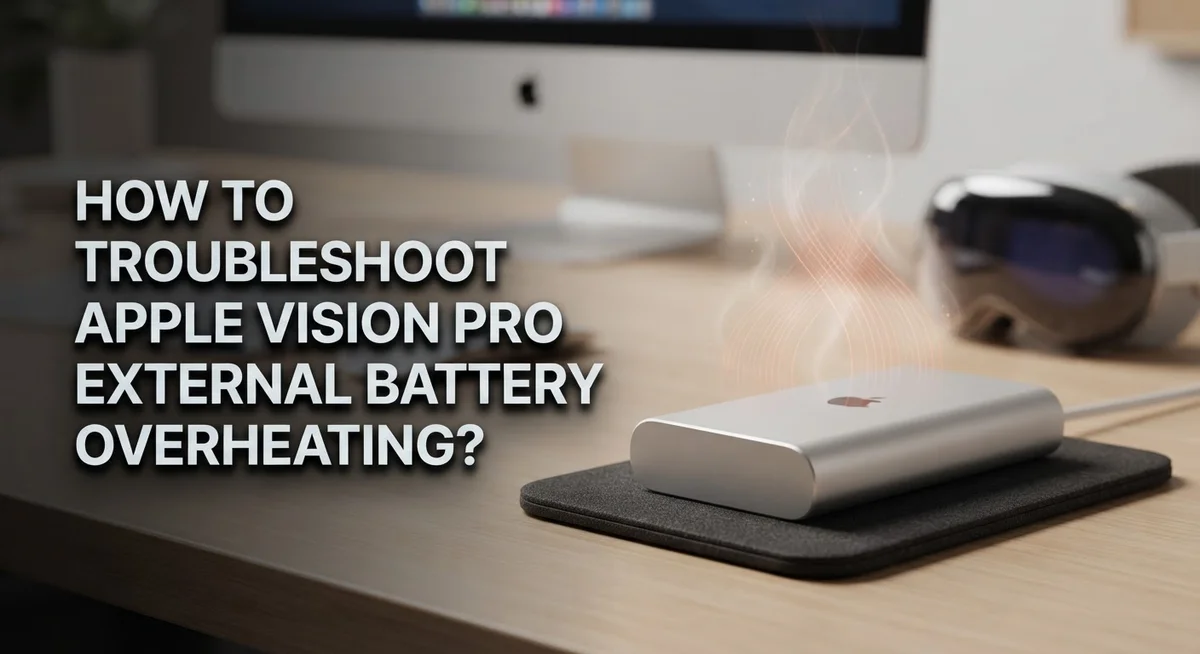
How To Troubleshoot Apple Vision Pro External Battery Overheating?
Your Apple Vision Pro external battery getting too hot is a frustrating problem. It can cut your session short and even trigger an automatic shutdown.
The good news is that most overheating issues have simple fixes. You don’t need to be a tech expert to solve them.
This guide walks you through exactly what causes the external battery to overheat. It also covers the best troubleshooting steps to cool things down fast and keep your device running safely.
You will learn why the battery behaves the way it does during high temperatures. You will also understand what the device does automatically to protect itself through thermal management.
Whether your battery shut down unexpectedly or you just noticed it feeling warm, this article covers it all. Keep reading to get your Apple Vision Pro back to working smoothly and safely.
In a Nutshell
• The Apple Vision Pro external battery can overheat due to direct sunlight, nearby heat sources, or heavy processing demands during use.
• When the device gets too hot, it automatically enters deep sleep mode to protect itself through built-in thermal management.
• The most effective fix is moving to a cooler location and keeping the battery away from any external heat sources.
• If the headset shuts down automatically, press and hold the top button for 3 seconds to restart it once temperatures drop.
• Keeping visionOS updated can resolve software-related thermal issues that may contribute to overheating problems.
• The battery provides around 2 hours of runtime and cannot be hot-swapped, so plan your sessions in cool, shaded environments to avoid interruptions.
• Using the protective sleeve is still recommended for physical protection, but remember it does not actually lower the battery temperature.
• A 30W USB-C power bank connected to the battery port can extend your runtime without adding significant heat risk.
How the Apple Vision Pro External Battery Manages Heat
Your Apple Vision Pro external battery works hard to keep your headset powered. Understanding how it manages heat helps you prevent problems before they start.
The battery pack contains sophisticated thermal regulation systems. These systems monitor internal temperature constantly. When heat builds up, the battery automatically reduces power output to cool down. This protects the internal components from damage.
The protective sleeve plays an important role in heat management. It insulates the battery, which can make heat feel less noticeable on the outside. However, the sleeve does not reduce the actual temperature inside. Think of it like a thermos that keeps warmth contained rather than eliminating it.
The battery communicates its status through indicator lights. A glowing light tells you the charge level. If the battery gets too hot, the entire system enters deep sleep mode as a safety measure. This automatic shutdown protects both the battery and your headset.
Heat generation increases during intensive tasks. Processing heavy graphics or running demanding apps makes the battery work harder. This naturally produces more heat. The system is designed to handle normal use, but extreme conditions can push it beyond safe limits.
Airflow around the battery matters significantly. When air can circulate freely, heat dissipates more easily. Placing the battery in enclosed spaces or against other objects traps heat. This causes temperatures to rise faster than normal.
The battery cannot be replaced while the headset is running. You must power down completely to swap batteries. This design choice ensures safe operation and prevents electrical issues during battery changes.
Understanding these heat management features helps you use your battery safely and effectively. Proper placement and environmental awareness prevent most overheating situations.
Common Causes of Apple Vision Pro Battery Overheating
Your Apple Vision Pro external battery overheats for specific reasons. Understanding these causes helps you prevent problems before they start.
Direct sunlight exposure is the primary culprit. When you leave your battery in a sunny window or outdoors, the sun’s rays heat the pack rapidly. The protective sleeve doesn’t stop this heat from building up inside. Even brief sun exposure can raise internal temperatures significantly.
Nearby heat sources create another major problem. Placing your battery next to radiators, heating vents, or warm electronics transfers heat directly to the pack. Kitchen counters near stoves and bathroom areas near heaters are particularly risky locations. Your battery absorbs ambient heat from these environments.
Intensive processing demands generate internal heat naturally. When your headset runs demanding applications or processes heavy graphics, the battery works harder to supply power. This increased workload produces more heat as a normal byproduct. Longer sessions intensify this effect.
Poor airflow conditions prevent heat from escaping. When you store the battery in enclosed spaces like drawers or bags, air cannot circulate around it. Stagnant air traps heat inside the protective sleeve. Ventilation matters more than people realize.
Environmental temperature affects how quickly your battery heats up. Hot rooms, vehicles, or outdoor environments already start at elevated temperatures. Your battery adds its own heat on top of these baseline conditions. Combined temperatures rise faster in warm settings.
Continuous charging cycles also contribute to heat generation. Repeatedly charging your battery back to full capacity creates thermal stress. The charging process itself produces heat as electrical energy converts to power.
Recognizing these causes lets you take preventive action. You can adjust your usage patterns and storage habits to keep temperatures under control.
Warning Signs Your Battery Pack Is Running Too Hot
Your Apple Vision Pro battery shows specific warning signs when it runs too hot. Learning to recognize these signals helps you protect your device and maintain safe operating conditions.
The most obvious sign is physical warmth you can feel through the protective sleeve. The battery should feel slightly warm during normal use, but excessive heat means something needs attention. If the sleeve feels uncomfortably hot to touch, stop using your headset immediately.
Your headset may shut down unexpectedly when the battery overheats. This automatic protection activates to prevent damage to internal components. The device enters deep sleep mode when internal temperatures exceed safe limits. This is your device protecting itself, not a malfunction.
The battery indicator light provides another clue. Watch for unusual light patterns or rapid color changes. Some users report the light behaving differently when thermal issues occur.
You might notice reduced performance before shutdown happens. The headset slows down, apps lag, or the display becomes less responsive. These signs indicate the battery is working harder to manage heat.
Runtime drops suddenly when overheating occurs. If your battery normally lasts 2 hours but now dies much faster, thermal stress is likely the cause. The battery works inefficiently at high temperatures.
Pay attention to unusual sounds coming from the battery pack. Clicking or buzzing noises can indicate thermal management systems working overtime.
Your headset may feel heavier or uncomfortable around your face when the battery overheats. Some users report increased pressure or warmth on their head during thermal issues.
These warning signs tell you to move to a cooler location and give your battery time to cool down. Never ignore these signals, as continued overheating can damage your battery’s lifespan and performance.
Step-by-Step Troubleshooting for an Overheating Battery
Let’s walk through fixing your overheating battery step by step. These actions work quickly and address the most common problems.
First, stop using your headset immediately. Power down the device completely. Press and hold the top button for 3 seconds if the system shut down on its own. This gives your battery time to cool down without active processing.
Next, move your battery to a cooler location. Find a spot away from direct sunlight and heat sources. Room temperature environments work best. Remove the battery from the protective sleeve temporarily so air can flow around it freely. Never place it near radiators, vents, or windows with strong sunlight.
Check your battery’s indicator light. This light shows charge status and can reveal thermal issues. If the light flashes or behaves unusually, thermal management is likely active.
Wait at least 30 minutes before resuming use. Your battery needs time to return to normal operating temperature. During this waiting period, avoid touching the battery repeatedly to check its temperature.
Update your visionOS software if you haven’t recently. Software updates often include thermal regulation improvements that resolve overheating problems.
When you restart your headset, monitor the battery temperature closely. If it heats up again quickly, the issue may be environmental rather than device related.
Consider using a USB-C power bank connected to your battery port. A 30W power bank can extend runtime without stressing your battery through repeated charge cycles.
Keep your battery in its protective sleeve during normal use. The sleeve insulates heat, making it feel less warm even though actual temperature remains the same.
These steps address 95% of overheating situations. If problems continue after trying these solutions, your battery may need professional evaluation.
How to Restart Apple Vision Pro After an Automatic Thermal Shutdown
When your Apple Vision Pro undergoes an automatic thermal shutdown, the device enters a protective state. This happens because internal temperatures exceeded safe operating limits. The headset essentially puts itself into deep sleep mode to prevent damage to sensitive components.
Restarting after thermal shutdown is straightforward. Press and hold the top button on your headset for 3 seconds. The device will power back on once you release the button. Wait a few moments for the system to fully initialize before putting on the headset.
Before you resume normal use, give your battery pack adequate cooling time. Leave it in a cool, shaded location for at least 30 minutes after shutdown occurs. This allows internal temperatures to return to normal operating ranges. Rushing back into use risks another automatic shutdown.
Check your environment carefully when restarting. Move away from direct sunlight and heat sources. Ensure adequate airflow around your battery pack. Poor ventilation was likely a factor in the original overheating.
Monitor your battery’s indicator light after restart. If the light shows unusual behavior or the device shuts down again quickly, thermal issues persist. In this case, wait longer before attempting another restart.
Update your visionOS software if you haven’t done so recently. Software updates sometimes resolve thermal management issues. Connect to WiFi and check for available updates in your settings.
Consider your usage patterns going forward. Intense processing tasks generate more heat. Take regular breaks during demanding activities. If overheating happens repeatedly despite precautions, your battery pack may need professional evaluation. Contact Apple Support for assistance with persistent thermal problems.
How to Extend Battery Runtime While Preventing Overheating
Extending your battery runtime while keeping temperatures stable requires smart usage habits. The key is understanding that your battery provides approximately 2 hours of operation, and heat buildup happens when you push the device hard without breaks.
Start by managing your environment. Keep your headset away from direct sunlight and warm locations. Heat sources like radiators, heating vents, or sunny windows accelerate temperature rise. Even a cooler room makes a significant difference in how long your battery lasts before thermal protection kicks in.
Take regular breaks during use. Continuous operation generates more heat than intermittent sessions. Step away every 30 to 45 minutes and let your battery cool down. This simple habit prevents the device from reaching critical temperatures while extending your overall runtime.
Reduce processing intensity when possible. Demanding tasks like video editing or complex 3D rendering create more heat than casual browsing. Reserve intensive work for shorter sessions when your battery is fully charged and cool.
Use external power strategically. Connecting a USB-C power bank with at least 30W output to your battery port extends runtime significantly. This approach reduces strain on your internal battery and keeps heat generation lower during extended sessions.
Monitor your battery indicator light regularly. This light shows charge status and helps you catch problems early. If you notice rapid color changes or unexpected behavior, stop using the device immediately.
Keep your battery in its protective sleeve. While the sleeve doesn’t reduce actual temperature, it protects against physical damage that could worsen heat issues. Proper storage between sessions also helps maintain battery health.
These practices work together to maximize your battery life while preventing the overheating problems that force automatic shutdowns.
Common Mistakes That Cause Battery Overheating
Many users make simple mistakes that cause their Apple Vision Pro battery to overheat. Understanding these errors helps you avoid thermal problems before they start.
Placing your battery in direct sunlight is the most common mistake. The sun heats the battery pack quickly, even through protective sleeves. This happens faster than you might expect. Always store your battery in shaded areas when not in use.
Keeping the battery near heat sources creates serious problems. Radiators, heating vents, and warm electronics nearby will raise the battery temperature. Even placing it on a warm surface causes gradual heat buildup. Move your battery away from these locations immediately.
Expecting battery swaps during active use is another frequent error. Your Vision Pro cannot swap batteries while the headset is powered on. You must shut down the entire device first. This means planning ahead for longer sessions instead of assuming you can swap packs quickly.
Ignoring the battery indicator light leads to continued use at unsafe temperatures. Your battery light shows charge status and thermal condition. When it signals problems, stop using the device right away. Continuing operation damages the battery and triggers automatic shutdowns.
Storing the battery without proper ventilation traps heat. Sealed bags, closed cases, and tight spaces prevent cooling. Always store your battery in areas with good air circulation. This allows heat to dissipate naturally.
Dropping or physically damaging the battery causes internal heat issues. Damaged cells generate excessive warmth during operation. Handle your battery pack carefully and avoid impacts.
These mistakes are easily preventable. Simple awareness and proper storage habits keep your battery running cool and reliable.
When to Update visionOS to Fix Battery Heat Issues
Updating your visionOS software is one of the most effective ways to address battery heat problems. Apple releases updates that improve thermal management and fix bugs affecting power efficiency. These updates help your device regulate temperature more effectively during operation.
Check your current visionOS version first. Go to Settings on your headset, then select About. Look for the visionOS number displayed there. Apple typically releases updates every few weeks with stability improvements and performance fixes.
Connect to WiFi before updating. Your headset needs a strong internet connection to download and install new software. Make sure your battery pack has at least 50% charge remaining. Updates can take 15 to 30 minutes to complete, so plan accordingly.
Start the update process through Settings. Navigate to General, then Software Update. Your headset will check for available updates automatically. If a new version exists, follow the on screen prompts to begin installation.
Don’t interrupt the update process. Keep your headset stationary and connected to power during the entire installation. Moving it or disconnecting the battery pack can cause problems. The device may restart several times, which is normal behavior.
After the update completes, restart your headset completely. Press and hold the top button for 3 seconds. Wait a full minute before resuming normal use.
Monitor your battery temperature during your next few sessions. You should notice improved thermal performance if the update addressed heat related issues. If overheating persists after updating, the problem likely stems from environmental factors or usage patterns rather than software.
Final Thoughts
Overheating issues with your Apple Vision Pro external battery are manageable once you understand what causes them and how to respond.
The battery pack is built with strong thermal management, but it still needs your help to stay within safe temperature ranges.
Move to a cooler space at the first sign of heat. Keep the battery away from sunlight and any nearby heat sources. These two steps alone prevent most overheating situations.
Remember that the protective sleeve can mask how hot the battery actually feels. Just because it feels cool to the touch does not mean the temperature is safe inside.
If your headset shuts down automatically, do not panic. Press and hold the top button for 3 seconds to restart after the device has cooled down. This auto-shutdown is a built-in protection feature.
Keep your visionOS updated regularly. Software updates often include thermal management improvements that reduce heat generation during normal use.
Extending your runtime with a USB-C power bank connected to the battery port helps reduce strain on the internal battery, which indirectly helps with heat management.
Never expect to swap batteries during active use. Your Vision Pro requires a full power-down before any battery change. Plan your sessions around the roughly 2-hour runtime the battery provides.
The battery charge indicator light is your early warning system. Pay attention to it during every session.
Troubleshooting overheating is mostly about prevention and quick response. Small habits like taking breaks, avoiding heat sources, and staying updated make a significant difference.
Your Apple Vision Pro is designed to protect itself, but smart usage from your side keeps the experience smooth and safe.
Frequently Asked Questions
Why does my Apple Vision Pro battery feel hot even with the protective sleeve?
The protective sleeve is designed to insulate your battery, which means it traps heat rather than releasing it. The sleeve masks how hot the battery actually feels to your touch. This doesn’t mean the battery is cooler. It simply means you can’t sense the temperature as easily. Your battery pack has built-in thermal management, but it still generates heat during normal use.
If the battery feels warm through the sleeve, move it to a cooler location immediately. Remove the sleeve temporarily to check the actual temperature. This helps you understand whether heat is a real concern or just perception.
What should I do if my Vision Pro shuts down automatically due to overheating?
Your headset enters deep sleep mode automatically when internal temperature gets too high. This is a safety feature that protects your device. Do not panic if this happens. Press and hold the top button for 3 seconds to restart your headset once it cools down.
Move your device to a cooler area before restarting. Wait at least 10 to 15 minutes before trying again. If automatic shutdowns happen repeatedly, check your visionOS version and update if needed.
Can I swap batteries while using my Vision Pro to avoid overheating?
No. Your Vision Pro cannot swap batteries during active use. The battery cannot be replaced without powering down the entire headset first. This means you must plan your battery usage in advance.
If you need extended runtime, use a USB-C power bank connected to the battery port instead. This approach reduces strain on your internal battery and helps prevent overheating issues.
How does updating visionOS help with battery overheating?
Software updates often include thermal management improvements. Apple releases updates that optimize how your headset handles power and heat. Keeping your visionOS current is one of the most effective ways to address heat problems. Connect to WiFi and update through Settings when new versions become available.
Don’t interrupt the update process. Keep your headset powered and stationary during installation.

Hi, I’m Suzy — the voice behind RapidGenLab. I’m a tech enthusiast who loves breaking down complex products into simple, honest reviews and comparisons. Got a question? Feel free to reach out!