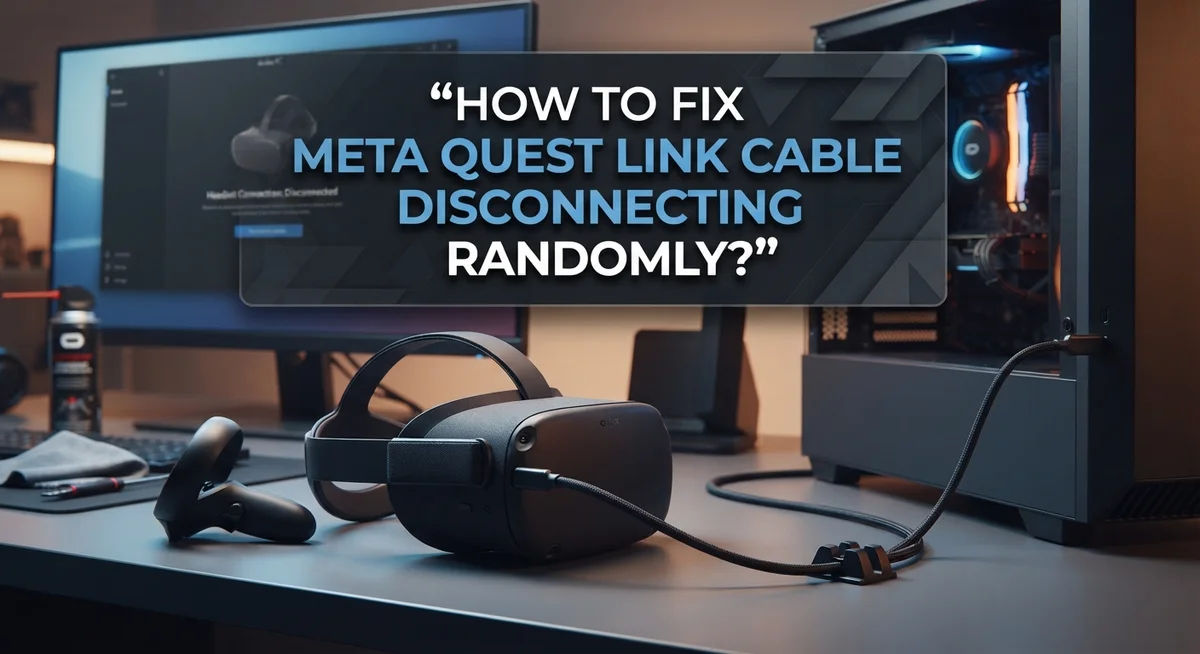
How To Fix Meta Quest Link Cable Disconnecting Randomly?
Your Meta Quest keeps dropping the PC connection at the worst moments. You’re deep in a game or a VR experience, and suddenly the link cuts out. It’s frustrating, and it happens more often than it should.
The good news is that most random disconnection issues are fixable. They usually come down to a few common causes like Air Link interference, cable problems, or simple settings conflicts between your headset and PC.
This guide walks you through every practical fix for the Meta Quest Link cable disconnecting randomly. Whether you’re using a Quest 3 or an older model with Oculus Link support, the steps here apply to you.
By the end, you’ll understand why the disconnections happen and exactly what to do to stop them. From toggling off Air Link to restarting and re-pairing your devices, we cover it all in the right order so you can get back to a stable, uninterrupted connection fast.
In a Nutshell
Air Link interference is one of the most common reasons your Meta Quest Link cable keeps disconnecting randomly. Disabling it often solves the problem immediately.
A full restart of both your Quest headset and your PC clears connection conflicts that cause random drops.
Re-pairing your devices after a restart helps re-establish a clean, stable wired connection.
Using a non-genuine or low-quality cable is a frequent cause of disconnections. Stick to a proper Link-compatible cable for the best results.
Basic settings matter too. Make sure Bluetooth and Wi-Fi are both enabled on your headset before troubleshooting further.
This issue can happen even on brand-new headsets, so don’t assume something is physically wrong with your device right away.
Why Does Your Meta Quest Link Cable Keep Disconnecting?
Your Meta Quest Link cable disconnects randomly for several specific reasons. Understanding these causes helps you fix the problem faster.
Air Link interference is the primary culprit. When Air Link stays enabled, it conflicts with your wired USB connection. Your headset tries to use both wireless and wired connections simultaneously, creating unstable communication. This causes sudden drops even when you have the cable plugged in properly.
Cable quality matters significantly. Low quality or damaged USB cables don’t maintain stable power and data transfer. The connection weakens over time, especially with repeated use. Poor cables show symptoms like random disconnects that happen at unpredictable moments.
Connection conflicts occur when your PC and headset aren’t properly synced. If they were previously paired through Air Link or had interrupted connections, leftover settings can cause issues. Your devices may try to reconnect using old or conflicting protocols instead of establishing a fresh wired connection.
Basic connectivity settings play a role too. If Bluetooth or Wi-Fi aren’t enabled on your headset, the system struggles to maintain stable communication with your PC. These features support the overall connection stability even during wired use.
Hardware positioning affects signal quality. If your cable is bent sharply, twisted, or placed near interference sources like routers or microwaves, disconnections increase. Poor cable routing creates physical stress that degrades the connection.
New headsets aren’t immune to this problem. Even recently purchased devices experience random disconnects due to software conflicts or initial pairing issues. The problem isn’t necessarily a defective unit. Most cases resolve through proper troubleshooting steps rather than hardware replacement.
How To Check Your Cable and USB Port Before Troubleshooting
Before you start troubleshooting complex fixes, inspect your cable and USB port first. This simple step saves you hours of frustration.
Check your cable for visible damage. Look along the entire length for cuts, fraying, or bent connectors. Pay special attention to where the cable meets the connector on both ends. Damaged cables cause immediate disconnections. Gently flex the cable while looking for cracks in the outer coating. If you see any damage, the cable needs replacement.
Examine your USB port closely. Use a flashlight to look inside the port on your PC. Look for bent pins, corrosion, or debris inside. Dust and lint accumulate in ports over time. A small brush or compressed air can remove loose particles safely. Never insert metal objects into the port.
Test the cable connection itself. Unplug the cable completely from both your Quest headset and your PC. Wait five seconds. Plug it back in firmly. You should hear a click or feel resistance when it seats properly. A loose connection causes frequent drops.
Try a different USB port. Your PC has multiple USB ports. Plug the cable into another port on the same computer. Sometimes individual ports fail while others work fine. Test at least two different ports to identify if one specific port is the problem.
Check your headset’s USB port. Look at the charging port on your Quest. Inspect it the same way you checked your PC port. Clean any visible dust gently.
These checks take just five minutes. They often reveal the actual problem before you waste time on software fixes. A damaged cable or dirty port is responsible for most random disconnections.
How To Disable Air Link To Prevent Connection Conflicts
Air Link is a wireless connection feature on your Meta Quest headset. When Air Link stays enabled, it can conflict with your wired USB cable connection. This conflict causes random disconnections even when you’re using the cable.
Think of it this way: your headset tries to communicate through both wireless and wired paths at the same time. This creates confusion, and your connection drops. Disabling Air Link removes this conflict entirely.
Here’s how to disable Air Link on your Quest headset. First, put on your headset and look at the main menu. Find and tap the Settings icon. Look for a menu option called Device or Connection settings. Scroll down until you see Air Link listed.
Once you find Air Link, tap it to open the settings. You’ll see a toggle switch next to it. Make sure this toggle is turned off (it should appear gray or inactive). This disables the wireless connection feature completely.
After you disable Air Link, restart both your headset and your PC. Power down your Quest completely by holding the power button. Wait about 30 seconds, then turn it back on. Do the same with your computer.
Once both devices restart, reconnect your USB cable. Plug it into your Quest first, then into your PC. Your headset should recognize the wired connection without Air Link interference now.
This single step fixes the problem for many users. The key is ensuring Air Link stays disabled while you use the wired cable. Check your Air Link setting occasionally to confirm it remains off. This prevents disconnection issues from returning.
How To Restart Your Quest Headset and PC To Reset the Connection
A full restart of both your Quest headset and PC often resolves random disconnection issues. This process clears temporary connection errors and resets how your devices communicate with each other.
Start by powering down your Quest headset completely. Press and hold the power button on the side of your headset until you see the shutdown menu. Select the power off option and wait about 30 seconds before turning it back on.
Next, restart your PC using the standard shutdown process. Click the start menu, select shut down, and wait for your computer to fully power off. This complete restart clears any stuck connection processes on your computer.
Once your PC restarts, wait for it to load completely. Open your Quest companion app on your PC. This app manages the connection between your headset and computer.
Now turn your Quest headset back on by pressing the power button. The headset will take a minute or two to fully boot up. You’ll see the Quest home screen when it’s ready.
After both devices are fully powered on, plug your USB cable into your PC’s USB port first. Then connect the cable to your Quest headset’s charging port. The connection should establish automatically.
Look for the Air Link prompt on your headset. If it appears, make sure you don’t enable it. The wired connection works best when Air Link remains off.
Your PC should recognize the headset connection within a few seconds. The Oculus Link interface will appear on your PC screen. Test the connection by launching a VR app to confirm the random disconnections have stopped.
This restart method works because it forces both devices to establish a fresh connection from scratch.
How To Re-Pair Your Meta Quest With Your PC After a Restart
After your Quest headset and PC restart, you need to re-pair them properly. This process tells your devices how to communicate with each other again.
Start by keeping your USB cable unplugged for now. On your Quest headset, put on the device and navigate to the Settings menu. Look for the option labeled “System” or “Device Settings.” This is where your connection preferences live.
Find the “USB Connection” or “Connection Preferences” section. Your headset may ask you to confirm that you want to establish a wired connection. Select “Yes” or “Allow” when this prompt appears on your screen.
Now take your USB cable and plug it directly into your PC’s USB port first. Use a port that worked well during your earlier testing. Wait about five seconds before connecting the other end to your Quest headset’s charging port.
Your PC should recognize the connection immediately. You may see a notification pop up on your screen. Your headset will also display a message asking if you trust this computer. Tap “Allow” or “Yes” to confirm the pairing.
Once your PC recognizes the headset, open your Meta Quest app on your computer. The app should show your device as connected. You can now launch your VR applications through the Link connection.
If the connection still drops randomly, try a different USB port on your PC. Some ports deliver more stable power than others. Front ports sometimes work better than rear ports, or vice versa depending on your PC’s setup.
The re-pairing process essentially resets the relationship between your two devices. This fresh start often eliminates the random disconnection problems you were experiencing before.
How To Verify Bluetooth and Wi-Fi Settings on Your Quest
Bluetooth and Wi-Fi settings on your Quest headset can cause connection conflicts. Even though you’re using a wired USB cable, these wireless features sometimes interfere with the connection. Let’s check and adjust them properly.
First, open your Quest headset settings menu. Look for the “System” or “Device” section. You’ll find options for both Bluetooth and Wi-Fi connectivity here. These settings matter because your headset may try to stay connected to other devices while you use the Link cable.
Disable Bluetooth first. Your Quest might be attempting to connect to speakers, controllers, or other wireless devices simultaneously. This splits the headset’s attention and causes the cable connection to drop. Turn off Bluetooth completely while using the wired connection.
Next, check your Wi-Fi settings. Some users keep Wi-Fi enabled even during wired sessions. This creates a dual connection scenario where your headset processes both wireless and wired signals at once. Turn off Wi-Fi when using the USB cable. Your connection becomes much more stable when the headset focuses only on the wired link.
After disabling both Bluetooth and Wi-Fi, restart your headset. Wait for it to fully power back on. Then reconnect your USB cable to your PC.
These wireless features can re-enable automatically after updates or restarts. Check them again if disconnections return later. Make disabling Bluetooth and Wi-Fi part of your regular routine before each wired session.
This simple step prevents your Quest from splitting its resources between multiple connection types. You’ll notice significantly fewer random disconnections once these wireless features stay off during cable use.
Common Mistakes That Cause Meta Quest Link Cable Disconnections
Many people make simple mistakes that trigger random disconnections. Understanding these errors helps you avoid frustrating connection drops.
Using third party cables instead of genuine ones is the most common mistake. Non genuine cables often have poor shielding or inconsistent power delivery. Your Quest headset needs stable power to maintain a connection. Budget cables cut corners on internal wiring quality. The result is intermittent disconnections that seem random but actually stem from power fluctuations.
Leaving Air Link enabled while using a wired connection creates a major conflict. Your Quest tries to maintain both wireless and wired connections simultaneously. This splits your headset’s processing power between two connection types. The system becomes confused about which connection to prioritize. Your cable connection drops as your Quest switches between Air Link and USB mode.
Skipping the full restart process is another frequent error. Many people unplug the cable and plug it back in without restarting either device. This doesn’t clear the connection cache or reset the pairing information. Your devices remember the old, corrupted connection state. A true restart clears this memory and forces a fresh connection.
Not checking USB port quality causes problems too. Some USB ports on your PC deliver inconsistent power. Damaged ports or loose connections lead to sudden disconnections. Your Quest needs steady power throughout your session.
Ignoring Bluetooth interference is often overlooked. Active Bluetooth devices near your setup can disrupt the USB connection. Controllers, headphones, or wireless mice compete for bandwidth. These wireless signals create electromagnetic noise that affects your cable connection quality.
Avoiding these mistakes prevents most random disconnection issues. Focus on genuine cables, proper restarts, and clean connection settings for stable performance.
Advanced Troubleshooting Steps If Disconnections Persist
When disconnections continue after basic steps, you need to dig deeper into your system settings. Start by checking your USB driver status on your PC. Open your device manager and look for any yellow warning symbols next to USB controllers. These symbols mean your drivers need updates.
Download the latest USB drivers from your PC manufacturer’s website. Restart your computer after installing updates. This refreshes the connection between your headset and PC.
Next, test different USB ports on your computer. Not all ports deliver equal power or speed. Try USB 3.0 ports first, as they provide better stability than USB 2.0 ports. Avoid USB hubs or extension cables during testing. Connect your Quest cable directly to your PC’s back panel ports for the strongest connection.
Check your PC’s power settings as well. Some computers reduce USB power during sleep mode or battery saving. Go into your power options and disable any USB selective suspend settings. This prevents your PC from cutting power to USB devices unexpectedly.
Verify your Meta Quest app is fully updated on your PC. Open your app store and check for pending updates. Outdated app versions often cause connection conflicts with newer headset firmware.
If your headset recently received a firmware update, your PC app might not recognize it properly. Uninstall and reinstall your Meta Quest app completely. This forces your system to re-establish the connection from scratch.
Test the cable itself by trying a different genuine cable if available. Damaged cables develop internal breaks that cause random disconnections. Even small physical damage can trigger intermittent failures.
These advanced steps target the underlying causes that basic troubleshooting misses.
Final Thoughts
Fixing a Meta Quest Link cable that keeps disconnecting randomly is completely manageable once you understand the root causes.
The most important thing to remember is that Air Link interference is often the silent culprit. Disabling it before using your wired connection removes the biggest source of conflict.
Always start with the basics. Check your cable, verify your Bluetooth and Wi-Fi settings, and restart both your headset and PC. These simple steps resolve the majority of disconnection problems.
Your USB port quality matters more than most people realize. Not every port on your computer delivers the same power and data speed. Testing different ports can make an immediate difference.
Driver updates and Meta Quest app updates are easy to overlook. Keeping both current ensures your PC and headset communicate properly without recognition errors.
Third-party cables remain one of the most common reasons for random drops. A genuine cable designed for this connection type maintains a stable and consistent signal throughout your session.
Power management settings on your PC can quietly cut USB connections to save energy. Adjusting these settings prevents your computer from interrupting an active session.
If you have worked through every step and disconnections still happen, the issue likely sits with a specific hardware conflict or a recent firmware mismatch. Revisiting your USB drivers and checking for headset firmware updates usually catches these edge cases.
Patience and a step-by-step approach are your best tools here. Most users resolve this issue within a few attempts by following the troubleshooting process carefully.
A stable wired connection transforms your VR experience, and getting there is worth the effort.
Frequently Asked Questions
Why does my Meta Quest Link cable disconnect randomly?
Random disconnections happen for a few main reasons. Air Link interference is the biggest culprit. When Air Link stays enabled while you use a wired cable, both connection methods fight each other. Your headset gets confused about which connection to use.
Cable quality also matters. Third-party cables don’t always meet the same standards as genuine ones. USB port problems on your PC can cause drops too. Some ports deliver less power than others.
How do I fix a disconnecting Meta Quest Link cable?
Start with the basics first. Check that your cable connects firmly to both your headset and PC. Navigate to your Quest settings and disable Air Link completely.
Restart both your headset and PC fully. This clears any connection conflicts. After restart, re-pair your devices. Check that Bluetooth and Wi-Fi are turned on.
If disconnections continue, update your USB drivers from your PC manufacturer’s website. Test different USB ports on your computer as well.
Can a new Meta Quest headset have this problem?
Yes, even brand new headsets can disconnect randomly. A recent firmware update on your headset might not match your PC app version. Update your Meta Quest app on your PC to fix this mismatch.
Test a different genuine cable if you have one available. This tells you if the cable itself is faulty.
What should I avoid when troubleshooting?
Never skip the full restart of both devices. Partial restarts leave connection conflicts in place. Don’t use third-party cables during troubleshooting since they add another variable.
Keep Air Link disabled while using the wired connection. Check your PC’s power settings too. Some computers cut USB power to save energy, which breaks your connection.

Hi, I’m Suzy — the voice behind RapidGenLab. I’m a tech enthusiast who loves breaking down complex products into simple, honest reviews and comparisons. Got a question? Feel free to reach out!