How To Resolve Foldable Phone Crease Touch Sensitivity Issues?
Foldable phones feel like magic. You get a big screen that folds into a small pocket sized device. But that fold line can cause a real headache.
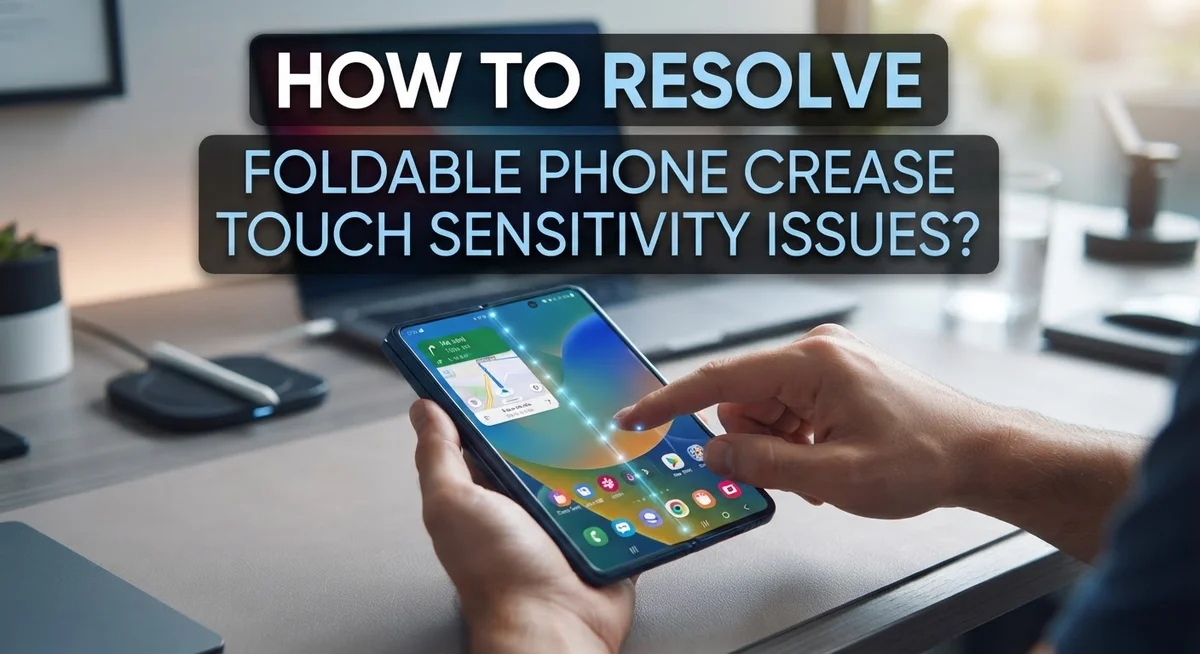
Many users notice their screen ignores taps near the crease. Typing feels off. Scrolling stutters right at the fold. This touch sensitivity issue frustrates Samsung Galaxy Z Fold owners the most.
The good news is that this problem often has a simple fix. It usually comes down to software glitches, cache buildup, or sensitivity settings that need a small adjustment.
This guide walks you through practical steps to fix touch sensitivity problems on your foldable device. You will learn how to update your software, clear keyboard cache, and adjust display settings.
In a Nutshell
- Update your software first. Check for the latest Android OS and keyboard app updates. Old software often causes touch response problems near the fold.
- Clear your keyboard cache. Go to Settings and reset the keyboard data. This simple step fixes many unresponsive touch issues instantly.
- Adjust touch sensitivity settings. Open Display settings and increase touch sensitivity. This helps your screen detect taps along the crease better.
- Restart your device when needed. A simple restart clears temporary glitches. Try this before assuming your screen is damaged.
- Check your screen protector. Many creases look worse because of the protector, not the actual screen. Removing it can reduce visible crease lines.
- Use your outer screen as backup. If the inner screen misbehaves, switch to the outer display temporarily. This keeps you connected while you troubleshoot.
Understanding the Crease and Why It Affects Touch Sensitivity
The crease on your foldable phone is where the screen folds in half. This area sits directly on the fold line of your device. When you fold and unfold your phone repeatedly, the screen material stretches slightly across this crease.
Touch sensitivity problems happen because the crease creates a physical dip in the screen surface. Your finger doesn’t make clean contact with the sensor underneath. The sensor sits below the display layer, and the crease disrupts the normal distance between your touch and that sensor.
The crease affects touch responsiveness most noticeably along the fold line itself. When you tap near the crease, your device may not register the touch. Sometimes it registers the touch late or inaccurately. This happens because the screen protector sitting on top of the crease makes the problem worse visually.
The crease is actually a normal part of foldable phone design. Manufacturers expect this to happen over time. The screen material must bend thousands of times, so some visible creasing is unavoidable. However, this visual crease doesn’t mean your screen is broken.
Touch sensitivity issues occur separately from the visual crease. A software glitch or sensor miscalibration can cause your device to ignore taps in the crease area. This is different from permanent screen damage. Most touch sensitivity problems can be fixed with software updates and settings adjustments.
Your device has built in touch sensitivity controls in the Display settings menu. These controls let you increase sensitivity across your entire screen. Adjusting these settings helps compensate for the crease’s natural impact on touch detection.
Understanding this connection between the physical crease and touch problems helps you troubleshoot effectively. Software fixes often resolve the issue without needing hardware repairs.
Preparing Your Device: Software Updates and Initial Checks
Before you start fixing touch sensitivity issues, prepare your device properly. This means checking for software updates and running basic tests to identify the real problem.
Start with software updates first. Open your Settings app and look for System Updates. Your foldable phone needs the latest Android OS version to function correctly. Software updates often include fixes for touch sensitivity problems that manufacturers discover after release. Check your keyboard app separately too, as keyboard updates can affect how your device processes touch input across the screen.
After updating, restart your device completely. Power it off fully, wait 10 seconds, then turn it back on. This simple step clears temporary glitches that might make the crease area seem unresponsive when it actually works fine.
Next, clear your keyboard cache. Go to Settings, find Apps, then locate your keyboard application. Tap Storage and select Clear Cache. This resets keyboard preferences without deleting your personal data. Cached files sometimes interfere with touch recognition along the fold line.
Now test your touch sensitivity by opening a notes app. Tap gently across the entire inner screen, paying special attention to the crease area. Does the screen respond everywhere, or only in certain spots? This tells you whether the problem is software related or hardware related.
Check your screen protector too. Remove it temporarily and test again. Many users find that the protector itself makes the crease appear worse and can reduce touch responsiveness. If removing it fixes your issue, you know the protector needs replacement.
These preparation steps take just 15 minutes but save you hours of frustration later.
Step-by-Step Fixes for Crease Touch Sensitivity Problems
When touch sensitivity problems persist after your initial updates and cache clears, you need a more focused approach. Gently fold and unfold your device several times with slightly firmer pressure than normal. This physical recalibration helps your sensors readjust to the crease area.
Open your Display settings and locate the Touch Sensitivity option. Increase the sensitivity level incrementally and test after each adjustment. Many users find that raising sensitivity by one or two levels eliminates dead zones along the fold line. Test by tapping slowly across the crease area in a notes app to identify problem spots.
If sensitivity adjustments don’t work, restart your device completely. Hold the power button, turn off your phone, wait 30 seconds, then power it back on. This clears temporary sensor glitches that cause unresponsive areas.
Check whether the issue affects only your inner screen or both displays. If your inner screen remains unresponsive after these steps, temporarily switch to your outer screen for daily tasks. This prevents frustration while you continue troubleshooting.
Avoid pressing or applying pressure directly on the crease area. Extra pressure can worsen touch detection problems. Instead, tap gently and deliberately when testing the fold line.
If you notice actual physical damage like cracks along the crease, stop folding immediately and seek professional evaluation. Physical damage requires different solutions than software fixes.
Document which areas respond poorly. Take notes about whether problems occur on the left side, right side, or center of the crease. This information helps you identify whether the issue is localized or widespread across the entire fold line.
Adjusting Display and Touch Sensitivity Settings
Your foldable phone has built in controls to adjust how your screen responds to touches. These settings live in your Display menu and work directly with your device’s sensors.
Start by opening Settings on your device. Look for Display or Screen options. Scroll down until you find Touch Sensitivity or a similar option. This control lets you increase or decrease how responsive your screen is to your finger presses.
Increase the sensitivity level if your touches near the crease aren’t registering. Move the slider up one or two notches and test by tapping in the problem area. Open a notes app and type to see if responsiveness improves. Make small adjustments rather than jumping to maximum sensitivity right away.
If you increase sensitivity too much, your phone may register accidental touches. This creates frustration when your screen responds to pocket touches or brush marks. Find the middle ground where the crease area works but unwanted touches don’t trigger.
Some devices offer separate sensitivity controls for each screen. Your inner foldable screen might need different settings than your outer display. Test both screens independently to find what works best.
After adjusting settings, fold and unfold your device a few times. This gentle motion helps recalibrate how your sensors read touch input along the crease. Wait a minute between folds to let your device stabilize.
Keep your settings adjustment modest at first. You can always increase sensitivity more if needed. Most users find their ideal setting within two or three attempts. Once you find the right level, your crease area should respond more reliably to your touches during normal daily use.
Recalibrating the Fold Line Through Proper Folding Technique
Proper folding technique plays a key role in recalibrating your foldable phone’s touch sensitivity along the crease. Your device learns how you fold it, and consistent, gentle movements help train the sensors to respond better.
Start by folding your phone slowly and deliberately. Don’t rush the motion or apply excessive force. A smooth, controlled fold allows the hinge mechanism and touch sensors to register the movement pattern correctly. This repetition helps your phone adapt to your specific folding style.
When you unfold your device, use the same deliberate approach. Move at a steady pace without jerking or snapping the screen open. The sensors need time to recognize the transition from folded to flat position. Rushed movements can confuse the calibration.
Try applying slightly firmer pressure than you normally would when folding, but stay within safe limits. Your phone’s touch sensors respond to pressure patterns. A consistent, moderately firm fold helps them distinguish intentional touches from accidental contact along the crease.
Perform this recalibration routine several times daily for about three to five days. Fold and unfold your phone 10 to 15 times per session. This repetition teaches your device’s sensors to recognize the crease area more accurately.
Pay attention to how the screen responds during this process. You may notice improvement in touch registration gradually. Some users report that their phones adapt within a week of consistent, proper folding techniques.
Avoid forcing the fold or folding at unusual angles. Stick to the natural folding motion designed for your specific model. Improper technique can actually worsen sensitivity issues rather than improve them.
Helpful Tips for Maintaining Consistent Touch Response
Software updates fix many touch sensitivity problems along your foldable phone’s crease. Update your Android OS first, then check for keyboard app updates in your app store. These updates include fixes that improve how your screen recognizes touches near the fold line.
Clear your keyboard cache and data after updating. Go to Settings, find Apps or Application Manager, select your keyboard app, and choose Storage. Tap Clear Cache, then Clear Data. This resets your keyboard preferences and often resolves unresponsive areas.
Restart your device completely after making these changes. Power off your phone entirely, wait 10 seconds, then power it back on. This helps your system apply the updates properly and recalibrate touch detection.
If problems continue, check your Touch Sensitivity settings in Display options. Most foldable phones let you adjust sensitivity levels separately for each screen. Increase the sensitivity slightly, but avoid pushing it too high. High sensitivity causes accidental touch registration, which creates more frustration than the original problem.
Test your changes by folding and unfolding your phone several times. Pay attention to how the screen responds in different areas along the crease. Make small adjustments rather than big jumps in sensitivity levels.
Use your outer screen temporarily if your inner screen remains unresponsive. This gives your phone time to process updates while you still stay connected. Many users find that combining software updates with gentle recalibration through regular folding improves touch response significantly within a few days.
Document which specific areas respond poorly. Note whether problems happen on the left side, right side, or center of the crease. This information helps you identify patterns and determine if your issue needs professional attention.
Common Mistakes That Worsen Crease Sensitivity Issues
Pressing or applying pressure directly to the crease area is one of the biggest mistakes you can make. Many people instinctively push harder when touches don’t register along the fold line. This actually damages the screen protector and worsens the problem. Stop pressing immediately if you notice unresponsiveness.
Ignoring software updates is another critical error. Your foldable phone’s touch sensitivity depends on the latest Android OS and keyboard app versions. When you skip updates, you miss important fixes designed to improve crease performance. Update your device as soon as notifications appear.
Not clearing cached data before troubleshooting creates unnecessary confusion. Old keyboard cache and app data can interfere with touch responsiveness settings. You might adjust sensitivity multiple times without seeing real improvements because the cache is still causing problems. Clear this data in your Settings before making any changes.
Folding your phone at unusual angles or forcing the fold damages the internal structure. This directly impacts how well the screen responds near the crease. Always fold slowly and deliberately. Avoid applying extreme pressure or bending the device in ways it wasn’t designed for.
Expecting immediate results is unrealistic. Touch sensitivity recalibration takes time. Many users give up after one or two attempts. You need to perform the folding routine several times daily for three to five days to see real changes.
Using only the inner screen instead of switching to your outer screen temporarily prevents you from identifying whether the problem is hardware or software related. Test both screens to understand what’s actually happening.
Finally, never ignore physical crease damage. If your phone develops visible damage along the fold line, stop using it and seek professional help immediately.
Troubleshooting When Basic Fixes Don’t Work
When basic fixes don’t work, your foldable phone’s touch sensitivity issue needs a deeper approach. Start by checking your Android OS version in Settings. Go to About Phone and look for system updates. Install any available updates immediately, as manufacturers release patches specifically for crease sensitivity problems.
Next, clear your keyboard app’s cache and data. Open Settings, find Apps, and locate your keyboard application. Tap Storage and select Clear Cache, then Clear Data. This resets your keyboard preferences and often resolves unresponsive touch areas along the fold line.
Adjust your Touch Sensitivity settings directly. Navigate to Display settings and look for Touch Sensitivity or Touch Response options. Increase the sensitivity level slightly and test by tapping along the crease area multiple times. Some users find that moving the slider to maximum helps the phone recognize touches better on the fold line.
Perform a complete device restart. Hold your power button and select Restart. This clears temporary software glitches that may cause persistent touch problems.
If your inner screen remains unresponsive, switch to your outer screen for daily tasks. This lets you identify whether the problem is truly localized to the crease or affects your entire device. Use your outer display for calls, messages, and browsing while your inner screen recovers.
Document which specific areas along the crease respond poorly. Note whether the problem occurs on the left side, right side, or center of the fold line. This information helps you understand the scope of the issue.
If these steps fail, your phone may have hardware damage requiring professional inspection. Contact the manufacturer’s support team with your documentation of the problem areas.
Final Thoughts
Crease touch sensitivity issues feel frustrating at first. But most problems have simple solutions.
Software updates solve many touch response problems. Clearing your keyboard cache often fixes the rest. These two steps handle a large percentage of cases.
Your foldable phone needs gentle care around the crease. Avoid pressing hard on this delicate area. Treat it the same way you treat any sensitive screen surface.
Remember that a visible crease is normal for foldable phones. This appearance does not mean your device is broken. Many users adapt to the tactile feel over time.
Your screen protector often makes the crease look worse than it is. Removing it sometimes improves both appearance and touch response. This simple change surprises many foldable phone owners.
Patience matters throughout this troubleshooting process. Touch sensitivity recalibration does not happen instantly. Give your device time after each adjustment you make.
Switch to your outer screen whenever the inner display struggles. This practical workaround keeps your phone useful during troubleshooting. You lose no functionality by making this temporary switch.
Pay attention to warning signs from your device. Stop folding immediately if you notice new damage. Physical crease problems need professional attention right away.
Most touch sensitivity issues resolve through basic troubleshooting steps. Software updates, cache clearing, and sensitivity adjustments fix common problems. Hardware damage represents a smaller percentage of cases.
Your foldable phone can serve you well for years. Proper care and quick troubleshooting keep touch response reliable. Stay proactive about updates and gentle handling.
Foldable technology continues improving with each device generation. Manufacturers work to reduce crease related problems constantly. Your patience with current devices pays off as this technology matures.
Frequently Asked Questions
Why does my foldable phone’s touch sensitivity get worse along the crease?
The crease area experiences reduced touch responsiveness because the screen protector layer sits unevenly across the fold line. This creates a slight gap between your finger and the actual display surface. The inner screen’s flexible nature means the crease is more pronounced than flat areas, making consistent contact harder.
Additionally, dust and debris can settle along the fold over time. This buildup blocks proper signal transmission between your touch and the screen sensor. Software calibration also plays a role – your phone may not recognize touches in this specific zone as accurately as other areas.
Can I fix crease touch issues without visiting a repair center?
Yes, most crease touch problems resolve through software adjustments. Start by updating your Android operating system to the latest version available. Next, open your Display settings and increase the Touch Sensitivity slider slightly.
Clear your keyboard app’s cache and data through Settings. Then restart your device completely. These steps recalibrate how your phone detects touches across the entire display, including the crease area. If problems persist after these fixes, the issue may involve hardware damage requiring professional inspection.
Is the crease permanent, and will it affect my phone long term?
The visible crease is completely normal and permanent on foldable phones. It’s part of the design and doesn’t indicate a defect. The crease itself won’t spread or worsen with regular use.
However, avoid applying pressure directly to the crease area. This can damage internal components beneath the screen. Use your outer display temporarily if the inner screen remains unresponsive. Most users adapt to the crease within weeks of ownership.
Should I remove my screen protector to improve touch sensitivity?
Removing the screen protector will reduce the crease’s visual appearance and may improve touch response slightly. However, this leaves your screen more vulnerable to scratches and damage.
If you choose to keep the protector, focus on software fixes instead. These typically solve the problem without sacrificing screen protection.

Hi, I’m Suzy — the voice behind RapidGenLab. I’m a tech enthusiast who loves breaking down complex products into simple, honest reviews and comparisons. Got a question? Feel free to reach out!