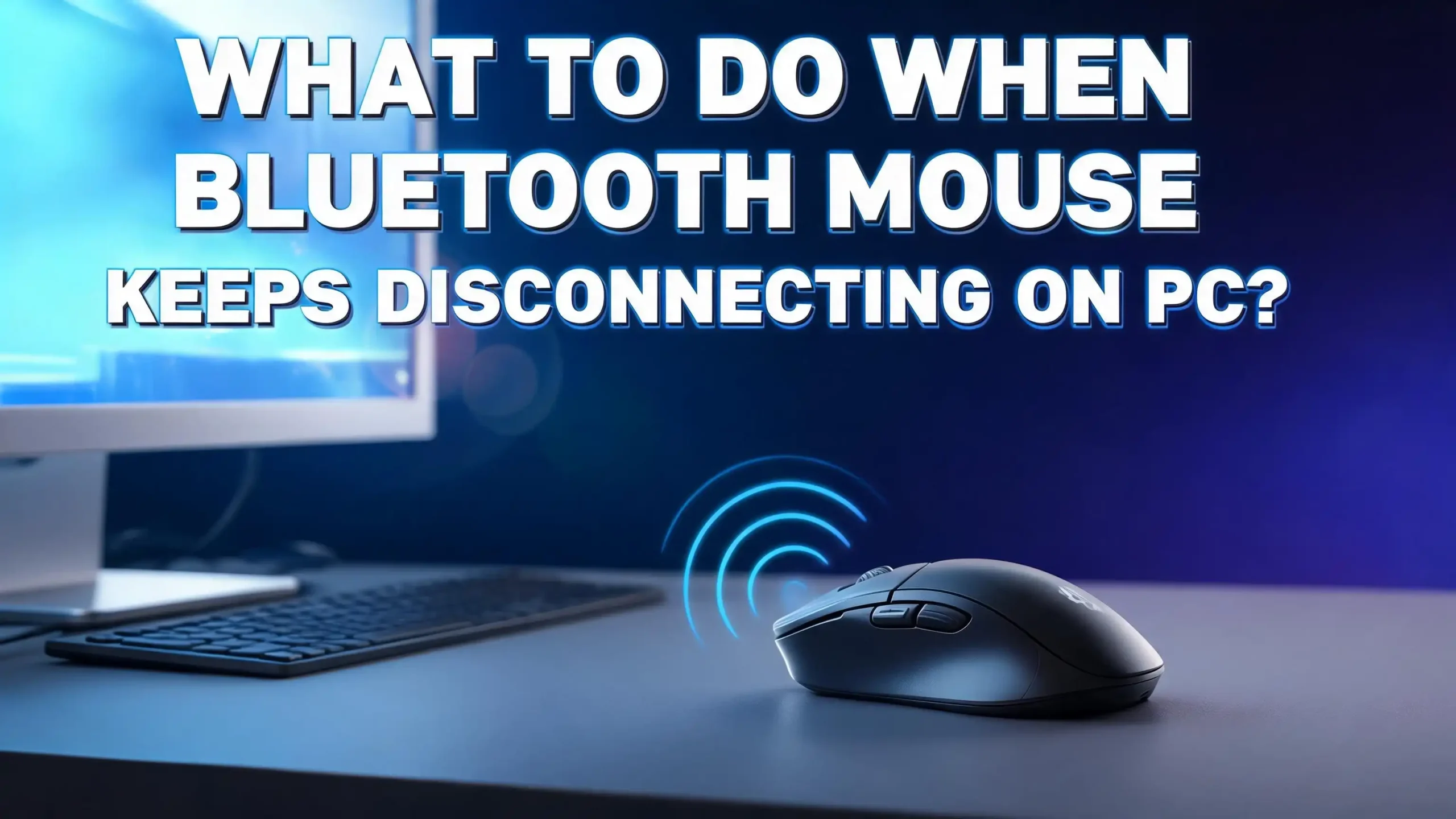
What to Do When Your Bluetooth Mouse Keeps Disconnecting on PC?
Few things are more frustrating than a Bluetooth mouse that keeps dropping its connection in the middle of work or gaming. One second you are clicking smoothly, and the next second your cursor freezes or disappears. You wiggle the mouse, wait, click the button, and nothing happens. Sound familiar?
This problem is actually very common on both Windows 10 and Windows 11 PCs. It can happen with any brand of Bluetooth mouse, and it can show up out of nowhere even after months of perfect use. The good news is that this issue almost always has a fixable cause.
This guide walks you through every known fix in plain, simple steps. You do not need to be a tech expert to follow along. Just start from the first fix and work your way down until your mouse stays connected.
Key Takeaways
- Windows power management is the most common culprit. Your PC is programmed to shut off Bluetooth devices to save energy. This causes the mouse to disconnect without warning. Turning off this setting in Device Manager usually solves the problem fast.
- Outdated or corrupt Bluetooth drivers cause random disconnections. Drivers are the software bridge between your mouse and your PC. When they are old or broken, the connection becomes unstable. Updating or reinstalling drivers is a high-impact fix.
- Wireless interference from Wi-Fi routers and other 2.4GHz devices disrupts the Bluetooth signal. Bluetooth and most home Wi-Fi networks share the same 2.4GHz frequency band. Placing too many wireless devices near your PC can break the signal regularly.
- Low battery in the mouse triggers disconnections. When battery power drops below a certain level, the mouse starts sending weaker signals. Replacing or recharging the battery often solves the disconnection issue immediately.
- The Bluetooth Support Service must always be running. Windows depends on this background service to maintain Bluetooth connections. If the service is stopped or set to manual, your mouse will drop its link frequently.
- Re-pairing the mouse clears corrupted pairing data. Old or damaged pairing records stored in Windows can cause unstable connections. Removing the device and pairing it fresh is a simple but very effective reset.
Understanding Why Your Bluetooth Mouse Keeps Disconnecting
Before jumping into fixes, it helps to understand what is actually happening. Your Bluetooth mouse communicates with your PC using short-range radio signals on the 2.4GHz frequency band. This connection depends on several layers working together: the mouse hardware, its battery, the Bluetooth adapter in your PC, the Windows driver for that adapter, and several Windows background services.
When any one of these layers fails or behaves poorly, the connection drops. Sometimes the disconnection is random. Sometimes it happens only after the mouse sits idle for a few seconds. Sometimes it disconnects and immediately reconnects on its own. Each pattern points to a different root cause.
Understanding the pattern of your disconnection gives you a head start on the right fix. For example, if the mouse disconnects only after being idle, that almost always points to a power management setting. If it disconnects randomly during active use, interference or a driver issue is more likely the cause.
The fixes below cover all of these scenarios. They are arranged from simplest to more advanced so you can resolve the problem as quickly as possible.
Check and Replace the Mouse Battery First
This step takes thirty seconds and is worth doing before anything else. A low or dying battery is one of the most overlooked reasons why a Bluetooth mouse keeps disconnecting. When the battery voltage drops, the mouse cannot maintain a strong enough signal to stay paired.
Many people spend an hour troubleshooting drivers when all they needed was a fresh set of batteries.
If your mouse uses replaceable AA or AAA batteries, swap them out for brand new ones. Do not use rechargeable batteries that are only half-charged. Use fresh alkaline batteries for the best signal strength. If your mouse has a built-in rechargeable battery, charge it fully using its USB cable before testing again.
After replacing or charging the battery, turn the mouse off, wait five seconds, and turn it back on. Check if the connection is now stable. If the disconnections stop, you found your culprit. If the problem continues, move on to the next fix.
Steps to check battery level on Windows:
- Open Settings and go to Bluetooth and devices.
- Find your mouse in the list of connected devices.
- Click on the device name to see if Windows shows a battery percentage.
- If the battery shows below 20%, replace or recharge it immediately.
Some mice also have a small LED indicator that blinks rapidly when the battery is low. Check your mouse manual to understand what the LED signals mean for your specific model.
Disable the Power Management Setting for Your Bluetooth Adapter
This is the single most effective fix for the majority of Bluetooth mouse disconnection problems on Windows. Windows has a feature that automatically shuts off the Bluetooth adapter to save power when it thinks the device is not in active use. This feature works well on paper but causes constant drop-outs in real-world use.
You need to disable this setting in Device Manager. Here is exactly how to do it:
- Press Windows + X on your keyboard and click Device Manager.
- Look for the Bluetooth section and click the arrow to expand it.
- Right-click your Bluetooth adapter. It usually has a name like “Intel Bluetooth” or “Realtek Bluetooth.”
- Click Properties.
- Click the Power Management tab at the top.
- Uncheck the box that says “Allow the computer to turn off this device to save power.”
- Click OK to save.
This one change solves the disconnecting problem for the majority of Windows 10 and Windows 11 users.
After applying this change, restart your PC. Test the mouse by leaving it idle for a minute or two and then moving it. If it responds normally without dropping the connection, the fix worked. This setting often resets itself after a major Windows update, so remember to check it again if the problem ever comes back.
Turn Off USB Selective Suspend and Power Plan Settings
Windows also controls power at the system level through something called the Power Plan. Inside the Power Plan settings, there is an option called USB Selective Suspend that tells Windows to cut power to USB controllers when they are not in active use. Even though your Bluetooth mouse connects wirelessly, it still depends on the USB-based Bluetooth adapter inside your PC. When that adapter loses power, your mouse disconnects.
Here is how to turn off USB Selective Suspend:
- Press Windows + S and search for “Edit power plan.”
- Click “Change advanced power settings.”
- Scroll down to find USB Settings and expand it.
- Expand USB selective suspend setting.
- Change the setting from Enabled to Disabled.
- Click Apply and then OK.
This step is especially important for laptop users who run on battery power, because Windows aggressively cuts power to wireless adapters to extend battery life.
You should also make sure you are using a power plan that does not restrict hardware performance. Go to Settings > System > Power and Sleep > Additional Power Settings and select the High Performance or Balanced power plan. Avoid using any custom “Power Saver” plan, as these plans restrict Bluetooth adapter performance heavily.
Update Your Bluetooth Driver
An outdated Bluetooth driver is a very common reason for random disconnections. Drivers are updated regularly by manufacturers to fix bugs, improve stability, and add support for newer Windows versions. If your driver is months or years out of date, it may not handle the connection correctly.
Here is how to update the Bluetooth driver through Device Manager:
- Press Windows + X and open Device Manager.
- Expand the Bluetooth section.
- Right-click your Bluetooth adapter and click Update driver.
- Click “Search automatically for drivers.”
- Windows will find and install the latest available driver.
- Restart your PC after the update finishes.
If Windows says your driver is already up to date, do not stop there. Windows does not always have the latest version available through its own update system. Visit the website of your PC manufacturer or your Bluetooth adapter manufacturer directly. Search for your specific model and download the latest driver from their support page. Install it manually by running the downloaded file.
For laptops from Dell, HP, Lenovo, or ASUS, the manufacturer’s support page often has newer Bluetooth drivers than Windows Update provides. Downloading directly from them is the most reliable way to get the freshest driver.
Reinstall the Bluetooth Driver Completely
Sometimes updating the driver is not enough because the existing driver files are already corrupted. In that case, the best approach is to remove the driver entirely and let Windows reinstall it fresh. This clears out any corrupted data and gives you a clean starting point.
Here is how to uninstall and reinstall the Bluetooth driver:
- Open Device Manager using Windows + X.
- Expand Bluetooth and right-click your adapter.
- Click “Uninstall device.”
- Check the box that says “Delete the driver software for this device” if that option appears.
- Click Uninstall to confirm.
- Restart your PC.
When Windows restarts, it will automatically detect the Bluetooth adapter and reinstall a basic driver for it. In most cases this is enough to restore stable connectivity. If the reinstalled driver is still old, use the steps from the previous section to update it to the latest version.
After reinstalling the driver, re-pair your mouse before testing. Go to Settings > Bluetooth and devices and add the mouse again as a new device.
Restart the Bluetooth Support Service
Windows runs a background service called the Bluetooth Support Service that manages all Bluetooth connections. If this service is stopped, disabled, or crashed, your mouse will disconnect and stay disconnected. This service needs to be set to start automatically every time Windows boots.
Here is how to check and restart the Bluetooth Support Service:
- Press Windows + R on your keyboard to open the Run dialog.
- Type services.msc and press Enter.
- Scroll down the list to find Bluetooth Support Service.
- Right-click it and click Properties.
- Change the Startup type to Automatic.
- If the service is not running, click the Start button.
- Click Apply and OK.
Setting this service to “Automatic” ensures it always starts when your PC boots up. If the service was set to “Manual” or “Disabled,” that alone could have been causing your mouse to drop its connection at random times.
After restarting the service, test your mouse. You can also restart your PC to make sure the service launches properly at startup. This fix is quick and often overlooked, but it solves the problem reliably for many users.
Remove and Re-Pair the Bluetooth Mouse
Corrupted pairing data stored in Windows can cause the mouse connection to be unstable even when everything else looks normal. The pairing process creates a record that Windows and the mouse both store. When that record gets corrupted, the two devices struggle to maintain a reliable link.
Removing the mouse and pairing it fresh gives both devices a clean record to work with.
Here is how to remove and re-pair the mouse:
- Open Settings and go to Bluetooth and devices.
- Find your mouse in the device list.
- Click the three-dot menu next to it and click “Remove device.”
- Confirm the removal.
- Turn your mouse off completely.
- Wait ten seconds, then turn the mouse back on.
- Put the mouse into pairing mode. (Usually done by holding the pairing button until the LED flashes.)
- On your PC, click “Add device” and choose Bluetooth.
- Select your mouse from the list and complete the pairing.
Always put the mouse into pairing mode before starting the Windows pairing process. If you try to add the device without the mouse actively broadcasting, Windows will not find it.
After re-pairing, test the connection over the next few minutes. Check if the disconnections have stopped. This fix resolves many cases where the mouse worked fine before and suddenly started dropping out.
Reduce Wireless Interference Around Your PC
Bluetooth uses the 2.4GHz radio frequency, which is the same frequency used by most home Wi-Fi routers, cordless phones, baby monitors, and even microwave ovens. When too many devices broadcast on this frequency at the same time, they interfere with each other. Your Bluetooth mouse can lose its connection because its signal gets drowned out by nearby devices.
Interference is a very common but invisible cause of Bluetooth disconnections.
Here are the most effective ways to reduce wireless interference:
- Move your Wi-Fi router away from your PC. Even a distance of one to two meters can make a significant difference.
- Switch your Wi-Fi router to the 5GHz band. The 5GHz band does not interfere with Bluetooth at all. Most modern routers support dual-band operation. Connect your PC to the 5GHz Wi-Fi network instead of 2.4GHz.
- Keep your mouse closer to the PC. Bluetooth has a maximum range of about ten meters in ideal conditions, but walls and interference cut that range significantly. Keeping the mouse within one meter of the PC gives the strongest signal.
- Remove other Bluetooth devices from the area temporarily to see if the disconnections stop. Too many Bluetooth devices paired to one adapter can cause instability.
- Unplug USB 3.0 devices from ports near the Bluetooth adapter. USB 3.0 cables and devices are known to emit radio interference that disrupts Bluetooth signals on nearby adapters.
The USB 3.0 interference issue is surprisingly well-documented. If you have a USB 3.0 hard drive, thumb drive, or hub plugged in close to where your Bluetooth adapter sits, try unplugging it and testing your mouse. This fix alone has solved the problem for many users.
Run the Built-In Windows Bluetooth Troubleshooter
Windows includes a built-in troubleshooter that can automatically detect and fix common Bluetooth problems. It is not always powerful enough to solve every issue, but it is worth running because it can identify and apply quick fixes with no manual steps needed.
On Windows 11:
- Open Settings using Windows + I.
- Go to System > Troubleshoot > Other troubleshooters.
- Find Bluetooth in the list and click Run.
- Follow the instructions on screen and apply any recommended fixes.
On Windows 10:
- Open Settings and go to Update and Security.
- Click Troubleshoot on the left, then click Additional troubleshooters.
- Find Bluetooth and click Run the troubleshooter.
Let the troubleshooter complete its full scan before closing it. After the scan, it will either apply a fix automatically or give you a report describing what it found. Even if it does not fix the problem directly, the report can point you in the right direction for the next step.
This tool is quick to run and does not change any major settings, so it is safe to use at any point during your troubleshooting process.
Disable Fast Startup in Windows
Windows Fast Startup is a feature designed to make your PC start up quicker. It works by saving a partial system state to disk when you shut down, then loading that state on the next boot instead of starting fresh. While this speeds up boot times, it can cause problems with hardware devices including Bluetooth adapters.
When Fast Startup is on, the Bluetooth adapter does not go through a proper reset during shutdown and restart. This can leave corrupted state data in memory that makes the adapter behave unreliably after boot. Turning off Fast Startup forces Windows to do a full, clean hardware initialization on every boot.
Here is how to disable Fast Startup:
- Press Windows + S and search for “Control Panel.”
- Go to Hardware and Sound > Power Options.
- Click “Choose what the power buttons do” on the left side.
- Click “Change settings that are currently unavailable.”
- Uncheck the box labeled “Turn on fast startup (recommended).”
- Click Save changes.
After making this change, fully shut down your PC. Do not restart. Turn it back on from a powered-off state. This ensures the Bluetooth adapter goes through a complete reset. Test your mouse after booting up to see if stability has improved.
Check and Update Windows Itself
Pending Windows updates can leave your system in a state where certain hardware drivers conflict with old system files. Microsoft regularly releases patches that fix Bluetooth stability issues, especially after major feature updates. Running on an outdated version of Windows can cause a Bluetooth mouse to disconnect.
Here is how to check for and install Windows updates:
- Press Windows + I to open Settings.
- Go to Windows Update (on Windows 11) or Update and Security (on Windows 10).
- Click “Check for updates.”
- If updates are available, click Download and install.
- Restart your PC when prompted.
After updating, check Device Manager again to make sure the Bluetooth driver was not reverted to an older version. Windows updates sometimes replace manufacturer-installed drivers with generic versions that are less stable. If that happens, reinstall the manufacturer driver using the steps from the earlier section.
Keeping Windows fully updated is also important for security, so this step is worth doing regardless of whether it fixes the Bluetooth issue directly.
Adjust Mouse-Specific HID Settings in Device Manager
Inside Device Manager, your Bluetooth mouse appears as an HID (Human Interface Device) in addition to appearing under Bluetooth devices. The HID entry also has its own power management setting that can cause disconnections independently of the Bluetooth adapter settings. Many users miss this second set of settings and wonder why their fix did not work completely.
Here is how to find and adjust the mouse HID settings:
- Open Device Manager with Windows + X.
- Expand Human Interface Devices (HID) in the list.
- Find your Bluetooth mouse listed there. It may appear as “Bluetooth Low Energy GATT compliant HID device” or similar.
- Right-click it and select Properties.
- Click the Power Management tab.
- Uncheck “Allow the computer to turn off this device to save power.”
- Click OK.
Do this for every HID entry that appears to be related to your Bluetooth mouse. Some mice create two or three HID entries. Apply the power management change to all of them to be thorough.
This fix works especially well when the mouse disconnects during idle periods and reconnects when you move it again. That specific behavior is almost always caused by the HID power management setting cutting the device off rather than the Bluetooth adapter setting.
Test the Bluetooth Adapter Hardwar
If none of the software fixes have worked so far, the Bluetooth adapter hardware itself may be the problem. Built-in Bluetooth adapters on laptops and desktop PCs can fail or degrade over time, especially on older machines. The adapter may still function well enough to pair devices but struggle to maintain a stable connection.
Testing the hardware is straightforward and requires no special tools.
Start by using a USB Bluetooth dongle. These small adapters plug into any USB port and add a dedicated Bluetooth radio to your PC. They are inexpensive and available at most electronics stores. Plug the dongle in, let Windows install the driver for it, and pair your mouse to the new adapter instead of the built-in one.
If your mouse works perfectly with the USB dongle, the built-in Bluetooth adapter is defective or failing. If the problem persists even with a new adapter, the issue is most likely software-based and not hardware-related.
You can also test the mouse on a different PC to rule out the mouse itself as the problem. If the mouse disconnects on another computer too, the mouse hardware or firmware may be faulty. If it works perfectly on the other PC, the issue is definitely with your PC’s Bluetooth setup.
Reset Network and Bluetooth Settings
If you have tried multiple fixes with no consistent improvement, doing a network reset on Windows can clear corrupted wireless configuration data that may be affecting Bluetooth. Network reset reinstalls all network adapters and resets all network and Bluetooth settings back to default.
Be aware that this will also remove your saved Wi-Fi passwords, so have those ready before proceeding.
Here is how to do a network reset:
- Open Settings and go to System (Windows 11) or Network and Internet (Windows 10).
- Scroll down and find Network reset or Advanced network settings.
- Click Network reset and then click Reset now.
- Click Yes to confirm.
- Your PC will restart automatically.
After restarting, reinstall your Bluetooth drivers using the steps from the earlier section, re-pair your mouse, and configure the power management settings again. This approach gives you a truly fresh start for all wireless hardware on the machine.
This step is most useful when the Bluetooth issues started after a Windows update or a failed driver installation, as those events commonly corrupt wireless settings.
Consider the Mouse Firmware and Manufacturer Support
Your mouse also has its own firmware, which is the internal software the mouse itself runs. Some manufacturers release firmware updates that improve Bluetooth stability, fix known disconnection bugs, or improve battery efficiency. Checking for firmware updates is a step many users never think of, but it can make a real difference.
Visit the official website of your mouse manufacturer and search for your model. Look in the support or downloads section for firmware updates or companion software. Many mice from major manufacturers come with desktop software that manages firmware updates automatically.
For example, many modern mice require a companion app to be installed on the PC. This app manages the firmware and connection settings. If you never installed this app, do it now and check if a firmware update is available for your mouse.
If your mouse continues to disconnect after all software and hardware fixes have been tried, contact the manufacturer’s support team directly. Describe the problem clearly, including the pattern of disconnections and every fix you have already tried. Many manufacturers will replace a defective unit under warranty if the issue cannot be resolved through software.
Frequently Asked Questions
Why does my Bluetooth mouse keep disconnecting after a few seconds of inactivity?
This is almost always caused by the Windows power management feature. Windows is programmed to shut off the Bluetooth adapter or the HID device after a short period of inactivity to save energy. Go to Device Manager, open the properties of your Bluetooth adapter and your mouse’s HID device, and uncheck the option that says “Allow the computer to turn off this device to save power.” This fix works for the vast majority of users experiencing idle disconnections.
Can my Wi-Fi connection cause my Bluetooth mouse to disconnect?
Yes, it can. Bluetooth and 2.4GHz Wi-Fi operate on the same frequency band, and they can interfere with each other. If your router is on the 2.4GHz band and is placed close to your PC, it can disrupt the Bluetooth signal. Switching your router to 5GHz or moving it further away from your PC usually reduces or eliminates this interference.
Will reinstalling Windows fix Bluetooth mouse disconnection issues?
Reinstalling Windows is a last-resort option that should only be considered after all other fixes have been tried. In most cases, the disconnection issue is caused by specific settings, drivers, or services that can be fixed without reinstalling the entire OS. The fixes in this guide cover all the most common causes and resolve the problem for the overwhelming majority of users.
Does a USB Bluetooth dongle work better than the built-in Bluetooth adapter?
In many cases, yes. USB Bluetooth dongles often use newer Bluetooth chipsets and more recent drivers than built-in adapters, especially on older PCs. They also allow you to position the adapter closer to the mouse for a stronger signal. If your built-in adapter is old or showing signs of hardware failure, a USB Bluetooth dongle is a practical and affordable solution.
How do I know if the problem is with the mouse or with my PC?
Test the mouse on a second PC or laptop. If the mouse connects and stays connected without any drops on the other machine, the problem is with your PC’s Bluetooth setup. If the mouse also disconnects on the second PC, the mouse itself is likely the problem, either due to a dying battery, hardware defect, or outdated firmware.
Should I keep multiple Bluetooth devices connected at the same time?
You can, but having many Bluetooth devices connected simultaneously can strain the adapter and cause instability for all of them. If you have Bluetooth speakers, headphones, a keyboard, and a mouse all paired at the same time, try disconnecting the ones you are not actively using. Reducing the number of active connections often improves stability for the devices you do need.
Does low PC battery affect Bluetooth mouse stability on laptops?
Yes. When a laptop runs on battery power, Windows activates aggressive power-saving behavior that cuts performance to wireless adapters. The Bluetooth adapter may drop its signal strength to save power, causing the mouse to disconnect. Plugging your laptop into a power source and switching to a High Performance power plan often improves Bluetooth stability significantly.

Hi, I’m Suzy — the voice behind RapidGenLab. I’m a tech enthusiast who loves breaking down complex products into simple, honest reviews and comparisons. Got a question? Feel free to reach out!