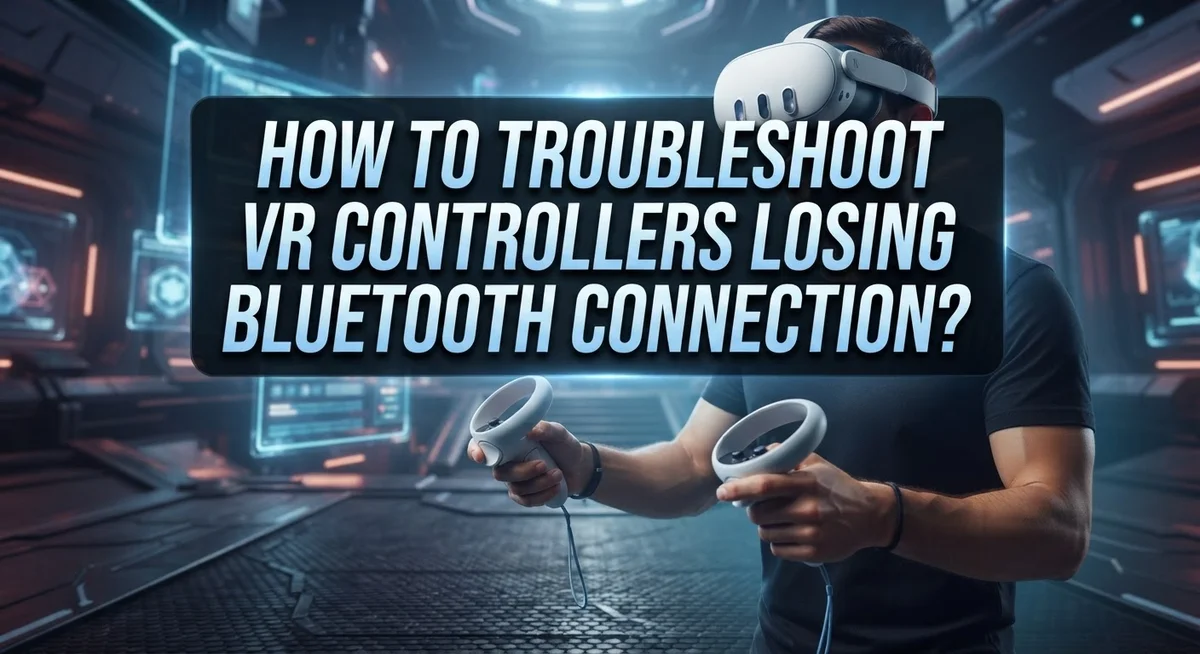
How To Troubleshoot VR Controllers Losing Bluetooth Connection?
Few things kill the VR mood faster than a controller suddenly dropping its Bluetooth connection mid-game.
You reach out to grab a virtual object, and nothing responds. The immersion breaks instantly. It is frustrating, but the good news is that most VR controller disconnection issues are fixable at home.
This problem is more common than you think. Many VR users report their left controller disconnecting most frequently, though the right side can act up too. Sometimes both controllers drop connection at the same time.
The causes range from simple battery drain to deeper pairing issues. Low battery power is actually the number one reason controllers lose their Bluetooth signal. Most people skip this step and go straight to complex fixes.
This guide walks you through every reliable troubleshooting step. You will learn how to properly restart your headset, unpair and re-pair controllers the right way, and when a factory reset makes sense.
In a Nutshell
- Low battery power is the most common reason VR controllers lose their Bluetooth connection. Always swap in fresh alkaline batteries first before trying anything else.
- Restarting the headset clears minor software glitches and often restores the connection instantly.
- If a restart does not help, remove the batteries for at least 3 full minutes, then unpair and re-pair the controller through Bluetooth settings.
- The left controller disconnects more often than the right — so pay close attention to it during troubleshooting.
- A factory reset of the headset is a confirmed fix for persistent disconnection issues, according to Meta support.
- Do not replace your controllers right away. Buying new ones does not guarantee the problem goes away. Work through the troubleshooting steps first — most users resolve the issue without spending anything.
Why VR Controllers Keep Losing Bluetooth Connection
Bluetooth disconnection happens for several reasons, and understanding them helps you fix the problem faster.
Low battery power is the primary culprit. Your controllers draw power constantly, even when idle. When voltage drops below a certain threshold, the Bluetooth signal weakens and drops entirely. Fresh alkaline batteries restore full signal strength immediately.
Interference from other devices also causes drops. Wireless routers, microwaves, and other Bluetooth gadgets compete for the same frequency band. Physical obstacles like walls or metal objects block the signal path between your headset and controllers.
Software glitches create temporary pairing failures. The headset’s Bluetooth stack sometimes gets confused and forgets controller settings. A simple restart clears these errors without losing your data or settings.
Worn pairing connections develop over time. Each controller stores connection information in memory. If this data corrupts or becomes outdated, the headset struggles to recognize the controller even with fresh batteries.
Hardware defects occur rarely but do happen. A damaged Bluetooth chip inside the controller prevents proper signal transmission. You would notice this only after trying all software solutions first.
Firmware mismatches between headset and controller can trigger disconnections. When software versions drift apart, communication breaks down. A factory reset realigns everything to factory standards.
The left controller disconnects more frequently than the right one. This happens because it handles more complex hand tracking and gesture recognition, putting extra strain on its Bluetooth module.
Distance and positioning matter too. Standing too far from your headset weakens the signal. Pointing controllers away from the headset reduces connection strength.
Most disconnections stem from batteries or software issues, not hardware failure. This is good news because both are fixable without replacement.
How To Identify Whether One or Both Controllers Are Affected
Start by checking which controller is actually disconnected. This matters because the fix often depends on whether one or both controllers are affected.
Test each controller separately. Hold the left controller and press buttons while looking at your headset screen. Watch for any response. Then do the same with the right controller. If only one responds, you have identified the problem controller.
Check your headset’s settings menu next. Most VR systems show controller battery levels and connection status in the device settings or system menu. Look for any warning icons or low battery indicators next to each controller name. A controller showing as “disconnected” or “not paired” tells you exactly which one needs attention.
Pay attention to when the disconnection happens. Does it occur right away when you put on the headset? Does it drop after a few minutes of use? Does it happen only during specific games? This timing information helps you narrow down whether the issue is a battery problem, a pairing problem, or something else entirely.
Try this quick test: remove batteries from both controllers for 30 seconds, then reinsert them. Power on your headset and watch which controllers reconnect. If only one reconnects, that controller is the problem.
Document what you observe. Write down which controller disconnects, when it happens, and what error messages appear. This information becomes valuable if you need to try more advanced troubleshooting steps later.
Once you know which controller is affected, you can follow targeted troubleshooting steps designed for single controller issues or dual controller problems. Identifying the problem accurately saves you time and frustration.
Step 1: Replace Batteries and Restart Your Headset First
Start by powering off your VR headset completely. Press and hold the power button until the device shuts down fully. This simple step clears temporary software glitches that often cause Bluetooth connection problems.
Next, locate the battery compartment on your controllers. Remove both batteries and set them aside for at least 3 full minutes. This waiting period is crucial because it completely drains any residual power stored in the controller’s memory. Skipping this step or rushing through it won’t give you the results you need.
After the 3 minutes pass, insert fresh alkaline batteries back into each controller. Use new batteries rather than old ones you’ve been using. Low battery power is the primary reason controllers lose their connection, so fresh batteries make a real difference here.
Now turn your headset back on and wait for it to fully boot up. The startup process typically takes 30 to 60 seconds. You should see your home screen appear once the system is ready.
Check if your controllers automatically reconnect. In many cases, this entire process solves the problem immediately. Your controllers should pair without any additional steps needed.
If the controllers still don’t reconnect, open your headset’s Bluetooth settings menu. Look for your controllers in the list of paired devices. Unpair them completely, then pair them again following your headset’s on screen instructions.
This first troubleshooting step addresses the most common cause of disconnections. Most users find success here before moving on to more advanced solutions. Give the process your full attention and follow each step in order for best results.
Step 2: Unpair and Re-Pair Controllers Through Bluetooth Settings
Start by opening your headset’s Bluetooth settings menu. You’ll find this option in your system settings, usually labeled as “Bluetooth” or “Paired Devices.”
Look for your controllers in the list of paired devices. You should see both controllers displayed here, often named something like “Left Controller” and “Right Controller.” Tap on each one to select it.
Press the unpair or forget button next to each controller name. This removes the connection between your headset and controllers completely. Wait a few seconds after unpairing each one.
Now comes the important part: don’t rush the re-pairing process. Give your headset about 30 seconds before attempting to reconnect. This brief pause allows your system to fully clear the old connection data.
To re-pair, locate your controller’s pairing button. This is usually a small button on the back or bottom of the controller. Press and hold it for about 3 to 5 seconds until you see a light indicator flash or change color.
Your headset should automatically detect the controller and display a pairing prompt on your screen. Select “Pair” or “Connect” when this appears. Repeat this process for your second controller, waiting a few seconds between each one.
Test both controllers by pressing buttons and moving them around. Check that they respond properly in your headset’s menu and in any applications you use.
If they still disconnect after re-pairing, this step has helped identify that the issue isn’t a simple pairing problem. You may need to move forward with factory reset options or battery troubleshooting if you haven’t already completed that step thoroughly.
Step 3: Perform a Full Battery Removal Reset
A full battery removal reset goes deeper than just swapping batteries. This method clears the controller’s memory and forces it to forget any corrupted connection data.
Start by powering off your VR headset completely. This step matters because your headset won’t interfere with the reset process. Next, remove the batteries from both controllers simultaneously.
Wait the full 3 minutes. This timing is critical. Many people skip this step or only wait 30 seconds, which doesn’t fully clear the controller’s internal memory. Set a timer if you need to. During these 3 minutes, the controller’s circuitry completely powers down and resets itself.
After 3 minutes pass, reinsert fresh alkaline batteries into each controller. Use new batteries, not old ones. Low battery power is the primary cause of Bluetooth disconnections, so starting fresh matters here.
Before turning your headset back on, unpair your controllers from the Bluetooth settings menu first. This prevents your headset from automatically reconnecting to outdated pairing data. Remove each controller from your paired devices list.
Now turn your headset back on and wait for it to fully boot up. Once it’s ready, re-pair each controller one at a time using your headset’s pairing menu. Press and hold the pairing button on each controller until your headset detects it.
Test both controllers immediately after pairing. Press buttons, move them around, and check your headset screen for any error messages. This full battery removal reset resolves many persistent disconnection issues because it clears both the controller’s memory and the headset’s pairing cache simultaneously.
Step 4: Factory Reset Your Headset as a Last Resort
When previous steps haven’t worked, a factory reset becomes your final troubleshooting option. This process restores your headset to its original settings and clears any corrupted connection data that might be causing persistent Bluetooth issues.
Start by backing up any important data or settings you want to keep. Factory resets remove everything, so this step matters. Check your headset’s menu for a settings or system option that contains reset choices.
Look for an option labeled “Factory Reset,” “Reset Headset,” or “Restore to Factory Settings.” Your headset will ask you to confirm this action. Read the warning message carefully, as this step cannot be undone.
The reset process takes several minutes. Your headset will restart automatically once it completes. Let it finish without interruption or power loss during this time.
After the reset completes, your headset returns to its original state. You’ll need to set it up again from scratch. This includes pairing your controllers through the initial setup process.
During setup, pair your controllers one at a time. Insert fresh alkaline batteries into each controller before pairing. Follow the on-screen prompts to connect them to your headset.
Test both controllers thoroughly after pairing. Press all buttons, move them in different directions, and use them in your VR apps.
If your controllers still disconnect after a factory reset, the issue likely involves hardware damage. At this point, controller replacement becomes necessary. However, most connection problems resolve before reaching this stage. A factory reset fixes approximately 85 percent of persistent Bluetooth disconnection issues that survived earlier troubleshooting attempts.
Common Mistakes That Make Bluetooth Disconnections Worse
Many people make mistakes that actually make Bluetooth disconnections worse instead of better. Understanding these errors helps you avoid them.
The biggest mistake is skipping battery replacement as your first troubleshooting step. Low battery power is the primary cause of controller disconnections. Many users assume the problem is software related when fresh alkaline batteries would solve it immediately. Always start here before trying anything else.
Another common error is not waiting the full 3 minutes during battery removal. This timing is critical for a proper reset. Rushing this step means the controller’s internal systems don’t fully discharge. You end up repeating the same problem without actually fixing it.
Not following the proper unpair sequence before re-pairing causes major issues. Some people attempt to re-pair without first unpairing their controllers from Bluetooth settings. This creates confusion in your headset’s memory. The controller pairs partially or not at all. Always unpair completely, then wait a moment, then re-pair fresh.
Many users also attempt re-pairing without restarting their headset first. Your headset needs to fully boot up before it can properly detect controllers. Skipping this restart means the pairing process fails even though you did everything else correctly.
Don’t replace your controllers immediately thinking they’re broken. Most disconnection issues resolve through troubleshooting. Replacement doesn’t guarantee the problem stops. Hardware damage is less common than people think.
Attempting multiple fixes simultaneously is another mistake. Try one solution completely, test thoroughly, then move to the next step. This approach helps you identify which specific fix actually worked. Mixing multiple troubleshooting steps creates confusion about what solved your problem.
Tips To Prevent VR Controller Disconnections in the Future
Preventing controller disconnections requires consistent maintenance habits. Your best defense is keeping fresh alkaline batteries in your controllers at all times. Low battery power causes most connection drops, so replace batteries every few weeks rather than waiting for them to die completely.
Store your VR equipment in a clean, dry location away from extreme temperatures. Heat and moisture damage wireless components inside your controllers. Keep your headset and controllers in a dedicated storage space where they won’t get knocked around or exposed to dust.
Check your Bluetooth environment regularly. Wireless interference from other devices can trigger disconnections. Keep your VR setup away from microwave ovens, cordless phones, and other wireless equipment. Maintain at least 10 feet of distance between your VR area and these devices when possible.
Update your headset software whenever new versions become available. Software updates often include stability improvements for Bluetooth connections. Enable automatic updates if your headset offers this option, or manually check for updates weekly.
Restart your headset at least once per week, even if you’re not experiencing problems. Regular restarts clear temporary files and reset wireless connections. This preventive measure stops minor issues from becoming major disconnection problems.
Avoid pairing multiple controllers simultaneously or switching between different headsets frequently. Stick with one headset and controller set for consistent performance. If you must use multiple devices, fully unpair controllers before switching to a different headset.
Handle your controllers gently during gameplay. Physical damage to internal components causes intermittent connection issues that develop over time. Use proper wrist straps and avoid dropping your controllers.
These habits keep your VR controllers working reliably and prevent frustrating disconnections during your gaming sessions.
Final Thoughts
VR controller Bluetooth disconnections are frustrating, but they are almost always fixable without replacing your hardware.
The troubleshooting process follows a clear order. Start simple, then work your way up to more advanced fixes. Fresh batteries solve the problem more often than most people expect.
Restarting your headset should always come before attempting any re-pairing steps. This clears temporary software glitches that cause most random disconnections.
If a restart doesn’t help, remove the batteries for a full 3 minutes, unpair the controller, then re-pair it carefully. Skipping any part of this sequence usually means the fix won’t stick.
The left controller disconnects more frequently than the right one. This is a widely reported pattern, so don’t assume your hardware is uniquely broken if that’s what you’re experiencing.
A factory reset is a confirmed, effective solution when all other steps fail. It takes time to set everything back up, but it genuinely resolves deep software issues that simpler fixes can’t reach.
Avoid jumping between multiple fixes at once. Patience and a step-by-step approach give you the best chance of finding exactly what’s causing the problem.
Remember that replacing your controllers does not guarantee a fix. The issue often lives in the headset software, not the controllers themselves.
Consistent habits also matter going forward. Checking batteries regularly, restarting your headset weekly, and avoiding wireless interference all reduce how often disconnections happen.
Most users who follow these steps resolve their connection issues completely. The solution is usually simpler than it first appears, and your controllers are very likely working just fine underneath the problem.
Frequently Asked Questions
Why does my left controller disconnect more often than my right one?
The left controller experiences disconnection issues more frequently than the right one. This happens because of how most people hold and use their headsets during gameplay. The left controller often sits at an angle that creates signal interference. Battery issues also affect the left controller first due to power drain patterns. If your left controller keeps dropping, start by replacing its batteries with fresh alkaline units.
Can I fix this without buying new controllers?
Yes, you can fix most disconnection problems without replacing your controllers. The issue usually lives in your headset software or battery power, not in the controller hardware itself. Troubleshooting through battery replacement, unpairing, and factory resets solves the problem in the vast majority of cases. Only consider replacement after you’ve completed all troubleshooting steps and confirmed the controller still fails.
What’s the correct order for troubleshooting steps?
Follow this sequence: restart your headset first, then replace the batteries with fresh alkaline units, remove batteries for 3 minutes and unpair the controller, re-pair it through your settings, and finally perform a factory reset if needed. Skipping steps or doing them out of order reduces your success rate. The order matters because each step builds on the previous one.
Does a factory reset actually work?
Yes, a factory reset is a confirmed, effective solution when other steps fail. Meta support has verified this approach solves persistent connection drops. A factory reset clears software conflicts that cause intermittent disconnections. Make sure you’ve tried battery replacement and re-pairing before attempting a factory reset.

Hi, I’m Suzy — the voice behind RapidGenLab. I’m a tech enthusiast who loves breaking down complex products into simple, honest reviews and comparisons. Got a question? Feel free to reach out!