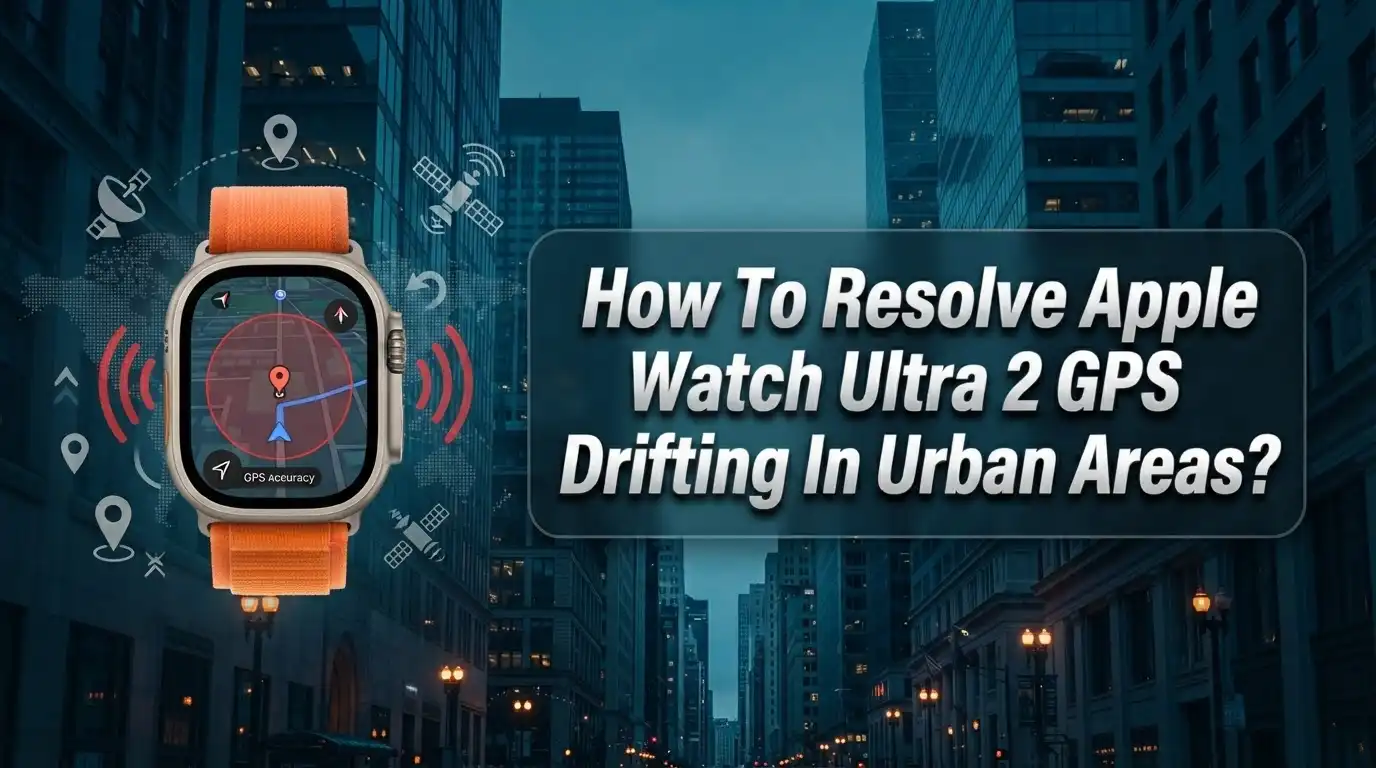
How To Resolve Apple Watch Ultra 2 GPS Drifting In Urban Areas?
Do you love running or cycling in the city with your Apple Watch Ultra 2? Then you have probably seen your GPS track jump around on the map. Buildings, bridges, and tunnels can confuse the signal.
This is called GPS drifting. It happens when signals bounce off tall structures. Your watch gets confused about where you really are.
The good news is that you can fix this problem. Urban GPS drift is common, but it is not permanent. Small changes to your settings can make a big difference.
This guide will show you exactly how to solve GPS drifting on your Apple Watch Ultra 2. We will cover simple fixes like calibrating your watch outdoors and updating watchOS.
In a Nutshell
- Calibrate outdoors first. Stand in an open area with a clear sky view. Wait 60 seconds before you start your workout.
- Turn off Bluetooth from your iPhone during activity. This forces your watch to use standalone GPS, which is more accurate in cities.
- Update watchOS regularly. Apple often improves GPS algorithms with software updates. Check for updates in your Watch app.
- Avoid Low Power Mode when tracking runs or rides. This mode reduces GPS accuracy to save battery life.
- Leave your phone at home if possible. Your watch works better alone than when paired with your iPhone.
- Reset settings if problems continue. Go to Privacy & Security and reset location settings on your watch.
- Unpair and repair your watch as a last resort. This clears any deep software glitches causing drift.
Why GPS Drifting Happens in Urban Environments
GPS drifting happens in cities because tall buildings, metal structures, and dense construction block satellite signals. Your Apple Watch Ultra 2 struggles to receive clear signals from multiple satellites when they are hidden behind urban obstacles.
Multipath errors occur when GPS signals bounce off buildings before reaching your watch. The device receives the same signal multiple times with slight delays. This confuses the GPS receiver about your actual location, causing it to show you on the wrong street or sidewalk.
Bluetooth interference adds another layer of complexity. When your iPhone connects to your watch via Bluetooth, the two devices compete for radio frequency space. This connection actually reduces standalone GPS accuracy because the watch splits its attention between maintaining the Bluetooth link and acquiring satellite signals.
Low Power Mode intensifies drift problems. When you enable this setting, your watch reduces GPS acquisition power to save battery. The device takes longer to lock onto satellites and maintains weaker signal connections throughout your activity.
Signal obstruction happens fastest in urban canyons. These are narrow streets surrounded by tall buildings on both sides. Your watch cannot see enough sky to triangulate your position accurately.
Insufficient calibration time before starting an activity causes immediate drift. Your watch needs 60 or more seconds of clear sky exposure to establish accurate positioning. Starting your run or ride before this initialization period completes guarantees poor tracking.
The combination of these factors creates the frustrating GPS drifting you experience in cities. Understanding what causes the problem helps you prevent it through proper setup and settings adjustments.
Checking and Configuring Location Services Settings
Location Services is the foundation of GPS accuracy on your Apple Watch Ultra 2. You must enable this feature first, or your watch cannot access satellite signals at all.
Open the Settings app on your watch. Tap Privacy & Security, then select Location Services. Toggle the switch to ON. This action allows your watch to request location permission from apps that need GPS data.
Next, check which apps have location access. Tap Location Services again and scroll through the list. You will see apps marked as “Always,” “While Using,” or “Never.” For fitness and navigation apps, ensure they show “Always” or “While Using” status.
Disable any apps you don’t use regularly. Remove location permission from apps that don’t need GPS. This reduces background processes that can interfere with GPS accuracy.
Now adjust your location accuracy settings. Some watches allow you to toggle between “High Accuracy” and “Battery Saving” modes. Select High Accuracy for your fitness activities. This setting forces your watch to use GPS instead of relying on Bluetooth from your iPhone.
Reset your location settings if drift persists. Go to Settings > General > Reset > Reset Location & Privacy. Your watch will restore default location settings. You must then re-enable Location Services and grant permissions to your apps again.
This reset often fixes persistent GPS problems because it clears corrupted permission files. After resetting, calibrate your GPS outdoors with clear sky visibility for at least 60 seconds before starting any activity.
Take time to verify these settings match your needs. Proper configuration prevents most GPS drifting issues before they start affecting your workouts.
Properly Calibrating Your Apple Watch Ultra 2 GPS
GPS calibration works by teaching your Apple Watch Ultra 2 where it is in relation to satellite signals. Your watch uses this information to improve tracking accuracy during activities.
Start by opening the Settings app on your watch. Tap Privacy & Security, then select Location Services. Make sure Location Services is enabled. This setting must stay on for GPS calibration to work properly.
Next, go outdoors to an open area. Find a spot with a clear view of the sky. Avoid standing between tall buildings or under trees. Urban canyons block satellite signals, so open spaces work best for calibration.
Stand still in this location for at least 60 seconds. Your watch needs time to connect with multiple satellites. During this time, keep your wrist steady and avoid moving around. The longer you wait, the more accurate your calibration becomes.
After 60 seconds, you can start moving. Walk in a straight line for about 100 meters, then return to your starting point. This movement helps your watch map the GPS signals in your area. Repeat this process in different locations if you use your watch in multiple neighborhoods.
Check your watchOS version before calibrating. Open Settings, go to General, then select About. If an update is available, install it first. Updated software includes better GPS algorithms that improve calibration results.
Once calibration is complete, test your watch with a short activity. Start a walk or run and compare the distance your watch records to your actual route. If accuracy improves, your calibration worked. If drift continues, you may need to reset your location settings or recalibrate in different conditions.
Optimizing Bluetooth and Phone Connection for Standalone Accuracy
Your Apple Watch Ultra 2 performs best when it operates independently from your iPhone. The Bluetooth connection between your devices actually reduces GPS accuracy in urban areas. Here’s how to optimize this relationship for better standalone performance.
Disconnect Bluetooth when you need accurate GPS tracking. Go to your watch Settings, then Bluetooth, and toggle off the connection to your iPhone. This forces your watch to rely solely on satellite signals instead of splitting focus between two connection types. Standalone mode eliminates the interference that Bluetooth creates with GPS acquisition.
When Bluetooth stays active, your watch processes data from both your phone and satellites simultaneously. This dual connection confuses the GPS system in cities where signals already bounce off buildings. Urban environments amplify this problem because multipath errors combine with Bluetooth noise.
Test your watch without your iPhone nearby. Leave your phone at home during short walks or runs. This removes all Bluetooth interference and lets you see real standalone accuracy. You’ll notice cleaner tracking paths without the erratic jumps that happen when your phone connects wirelessly.
Re pair your watch and iPhone only when you need features like notifications or music. The pairing itself doesn’t cause drift, but the active Bluetooth connection does. Toggle it off before activities that require precise GPS data.
Allow your watch 60 seconds to acquire satellites after disabling Bluetooth. This initialization period is crucial for accuracy. Your watch needs time to lock onto enough satellite signals for reliable positioning.
Update your watchOS to the latest version before making these changes. Software updates often improve GPS performance and Bluetooth efficiency. Check Settings > General > About > Software Update on your watch regularly.
These adjustments work together to eliminate the connection conflicts that cause urban GPS drifting.
Updating watchOS and Resetting Privacy Settings
Keeping your watchOS current is one of the most effective ways to fix GPS drifting. Apple releases updates that improve satellite signal processing and fix bugs affecting accuracy in cities.
Open Settings on your Apple Watch Ultra 2. Scroll down and tap General. Select Software Update. Your watch will check for available versions. If an update exists, tap Download and Install. Make sure your watch has at least 50% battery before starting this process.
The update may take several minutes to complete. Your watch will restart during installation. Keep it nearby during this time. Once finished, your watch will display the new version number in Settings > General > About.
After updating watchOS, reset your privacy settings to clear any corrupted location data. Go to Settings > General > Reset. Tap Reset Location & Privacy. This action removes all location permissions from apps and returns GPS settings to factory defaults.
Your watch will restart after this reset. You’ll need to grant location access again to apps that require GPS. This fresh start often resolves persistent drifting because corrupted permission files no longer interfere with satellite signals.
Test your watch after resetting. Go outdoors to an open area with clear sky visibility. Stand still for 60 seconds to allow proper satellite acquisition. Then take a short walk or run to verify accuracy has improved.
Combining a fresh watchOS update with a privacy reset gives your GPS system the best chance to work correctly. If drifting continues after both steps, the issue may involve your Bluetooth connection to your iPhone or require a full watch unpair and repair cycle.
Best Practices for Tracking Routes in Dense City Areas
Urban areas present unique challenges for GPS tracking because tall buildings, narrow streets, and dense infrastructure block satellite signals. Your Apple Watch Ultra 2 needs a clear view of the sky to receive accurate positioning data. When signals bounce off buildings instead of reaching your watch directly, you get what’s called multipath error, which causes your location to drift.
Start your route tracking with proper preparation. Open your watch at least 60 seconds before you begin moving. This waiting period allows your watch to lock onto multiple satellites and establish a strong connection. Position yourself in an open area if possible, even if just for this initial acquisition time.
During your route, stay aware of your surroundings and how they affect GPS. Wide streets and open plazas provide better accuracy than narrow alleyways. If you’re tracking in a downtown area, try to follow routes with periodic open spaces rather than staying under building overhangs.
Disable Low Power Mode before tracking. This mode reduces GPS accuracy to save battery. Your watch needs full processing power to maintain a strong satellite connection in challenging urban environments.
Keep your watch face exposed to the sky throughout your activity. Wearing your watch under long sleeves or jackets can interfere with signal reception. Make sure your watchOS version is current, as updates often include GPS improvements.
Test your tracking on a familiar route first. This helps you understand how your specific watch performs in your local urban environment. You’ll quickly learn which areas provide reliable tracking and which spots tend to show drift. This knowledge helps you plan better routes and set realistic expectations for accuracy in dense city zones.
Common Mistakes That Worsen GPS Accuracy
Many Apple Watch Ultra 2 users accidentally make choices that hurt GPS accuracy in cities. Understanding these mistakes helps you avoid them.
Using GPS while Bluetooth connects to your iPhone is a major error. Your watch tries to process satellite signals AND data from your phone at the same time. This creates confusion in your GPS system. The watch doesn’t know which signal source to trust, so accuracy drops significantly. Your standalone GPS works much better when your phone stays disconnected.
Attempting GPS calibration indoors or between tall buildings wastes your time. GPS needs a clear view of the sky to work properly. Urban canyons (narrow streets surrounded by buildings) block satellite signals. You must calibrate outdoors in an open area with at least 60 seconds of sky visibility. Calibrating in your apartment or on a crowded city street won’t help.
Running GPS with Low Power Mode active reduces accuracy on purpose. This power saving feature limits GPS performance to extend battery life. Your watch sacrifices precision for battery conservation. Always disable Low Power Mode before tracking activities in cities.
Rushing into activities without proper GPS acquisition time causes immediate drifting. Your watch needs 60 seconds minimum to lock onto satellites. Starting your run or walk before this happens means your first few minutes will show incorrect locations.
Ignoring watchOS updates leaves your GPS system outdated. Apple releases fixes for GPS issues in new versions. An old watchOS version may contain known bugs that worsen urban drifting. Keep your watch current to access the latest GPS improvements.
These mistakes compound each other. Avoiding all of them together gives you the best accuracy possible in dense urban environments.
Troubleshooting Persistent Drift Issues
GPS drifting in urban areas often persists because multiple issues work together. Your watch may struggle even after basic fixes. Here’s how to resolve stubborn drift problems that keep happening.
First, check if your Location Services setting is actually enabled. Go to Settings on your watch, then tap Privacy & Security, then Location Services. Make sure the toggle is on. Sometimes this setting resets unexpectedly, which stops your GPS from working properly.
Next, perform a proper GPS calibration outdoors. Stand in an open area with clear sky visibility for at least 60 seconds. Buildings and trees block satellite signals, so find a spot away from structures. Your watch needs this time to lock onto satellites accurately.
If drift continues, reset your location and privacy settings completely. Open Settings, go to Privacy & Security, and select Reset. Your watch will restart. This clears corrupted data that might confuse your GPS system.
For persistent issues, try disconnecting your iPhone’s Bluetooth temporarily. When your phone and watch both use GPS, they interfere with each other. Your watch performs better using standalone GPS only. After testing, you can reconnect Bluetooth if needed.
One final step involves unpairing and repairing your watch with your iPhone. This process refreshes the entire connection between devices. Go to the Watch app on your phone, select your device, tap the info icon, then choose Unpair Apple Watch. After repairing, test your GPS in an open outdoor space.
These steps address deeper system issues that simple resets miss. Most users see improvement after completing this full troubleshooting sequence.
Final Thoughts
GPS drifting on your Apple Watch Ultra 2 doesn’t have to ruin your city runs or walks. Urban environments create real challenges, but most drifting problems have clear solutions.
Buildings block satellite signals. Bluetooth connections interfere with standalone tracking. Low Power Mode sacrifices accuracy for battery life. Each factor plays a role in what you see on your screen.
The good news is simple. Small adjustments make a big difference. Giving your watch time to connect with satellites before you move changes everything. Keeping your wrist visible to open sky helps signals reach your device clearly.
Software matters too. Regular watchOS updates fix bugs that affect location tracking. Apple continues improving GPS algorithms with each release, so staying current helps your watch perform better over time.
Think about your daily habits. Do you check Bluetooth status before starting a workout? Do you disable Low Power Mode when tracking matters most? These small checks prevent most drifting issues before they start.
If problems continue after basic fixes, deeper troubleshooting steps exist. Resetting settings or reconnecting your devices addresses issues that simple adjustments cannot solve.
Patience helps during this process. GPS technology works with physics and satellite signals, not instant perfection. Give your watch the conditions it needs, and accuracy improves naturally.
Urban GPS tracking will likely never match open field precision completely. Tall buildings and dense streets create physical barriers that even the best technology struggles with sometimes.
Still, understanding these causes puts you in control. Apply the right settings, follow good habits, and troubleshoot systematically when needed. Your Apple Watch Ultra 2 can deliver reliable tracking, even in busy city areas, once you know how it really works.
Frequently Asked Questions
Why does my Apple Watch Ultra 2 lose GPS accuracy between tall buildings?
Tall buildings create what experts call “urban canyons.” These structures block satellite signals from reaching your watch. Your device then struggles to calculate your exact position. The GPS signal bounces off building surfaces instead of traveling directly to your watch. This bouncing creates errors in your location data. Clear sky visibility matters most for accurate GPS.
Can I improve GPS accuracy while my watch connects to my iPhone via Bluetooth?
No. Bluetooth connection to your iPhone actually reduces standalone GPS accuracy. Your watch tries to use both the phone’s location and satellite signals at the same time. This dual connection creates confusion in the positioning system. For the best results, leave your iPhone at home when tracking activities. Your watch will then rely only on satellite signals, which provides better accuracy in urban areas.
How long should I wait before starting an activity for GPS to work properly?
Allow at least 60 seconds for your watch to acquire satellite signals. Stand outdoors with a clear view of the sky during this time. Your watch needs time to connect with multiple satellites. Rushing into your activity before this acquisition period causes immediate drifting. Patience during startup prevents tracking errors later.
What should I do if GPS drifting continues after basic fixes?
Try unparing your watch completely from your iPhone. Then repair them together as a fresh connection. This process resets the GPS communication system. If problems persist after this step, reset your location and privacy settings in your watch settings menu. These deeper fixes address system issues that simple troubleshooting misses.

Hi, I’m Suzy — the voice behind RapidGenLab. I’m a tech enthusiast who loves breaking down complex products into simple, honest reviews and comparisons. Got a question? Feel free to reach out!