How To Troubleshoot VisionOS Software Update Getting Stuck?
Is your visionOS software update stuck on the progress screen? You are not alone. Many Apple Vision Pro users face this frustrating issue, especially during the “preparing update” phase.
A stuck update can feel alarming, but it is usually fixable with a few simple steps. The most common causes are storage issues, incomplete downloads, and poor Wi-Fi connections.
This guide will walk you through everything you need to know. You will learn how to identify why your update is stuck and how to resolve it quickly.
We cover practical fixes like deleting the stuck update file, checking your storage, and restarting your device safely. We also explain when a factory reset might be necessary.
By the end of this article, you will have a clear action plan to get your visionOS update running smoothly again.
Whether your update has been frozen for a few minutes or several hours, these troubleshooting steps will help. Let’s get your Apple Vision Pro back up to date.
In a Nutshell
• Stuck visionOS updates most often happen during the “preparing update” phase due to storage issues or incomplete downloads.
• The fastest fix is to delete the stuck update file by going to Settings > Storage, scrolling down, tapping “Show More,” finding the update, and selecting “Delete Update.”
• A strong and stable Wi-Fi connection is essential. Poor network connectivity is one of the most common reasons an update freezes or fails to complete.
• Always wait at least 5 minutes before force-restarting your Apple Vision Pro. Interrupting the process too early can make things worse.
• If deleting the update does not work, a factory reset through Settings > General > Transfer or Reset > Erase All Content and Settings is the next option.
• To prevent this from happening again, enable automatic visionOS updates and automatic security responses in Settings > General > Software Update. This keeps your device updated smoothly in the background.
Why Does VisionOS Software Update Get Stuck?
Your visionOS update gets stuck for several specific reasons. Understanding these causes helps you fix the problem faster and prevent it from happening again.
Storage space is the most common culprit. Your Apple Vision Pro needs enough free storage to download and install the update. When storage fills up, the update process pauses or fails completely. The device cannot proceed without adequate room for the new system files.
Incomplete downloads also cause stuck updates. If your Wi-Fi connection drops during the download phase, the update file becomes corrupted or partial. Your device then tries to use a broken file, which halts the entire process. This is why connection stability matters so much.
Poor network connectivity creates ongoing problems. Slow or unstable Wi-Fi means the download takes longer and risks interruption. Your device may appear frozen while struggling to pull data from Apple’s servers.
The “preparing update” phase is particularly vulnerable. This stage happens before installation begins. Your device verifies files, checks compatibility, and prepares system changes. Any disruption here leaves the update stuck indefinitely.
Interrupting the process prematurely damages the update too. Force-restarting your device mid-update or disconnecting from Wi-Fi stops the installation. Your Vision Pro then cannot resume or restart the process cleanly.
Software conflicts occasionally play a role. Existing system bugs or incompatible settings can prevent smooth updates. This happens less often but remains a possibility.
External devices connected to your Vision Pro sometimes interfere. Accessories or peripherals may cause communication problems during the update sequence.
Knowing these causes helps you troubleshoot systematically. Each reason has a specific solution, and most fixes take just minutes to complete.
How To Identify a Stuck VisionOS Update
A stuck visionOS update shows specific signs you can recognize. The most obvious indicator is a progress bar that stops moving for more than 10 minutes. Your screen may display “preparing update” or “installing update” without any change.
Another key sign is when your Apple Vision Pro becomes unresponsive during the update process. The device may feel frozen, and you cannot swipe or tap to interact with it. This differs from normal updates, which show steady progress.
Check if your device is extremely hot to the touch. Overheating sometimes causes updates to pause or freeze entirely. The device should feel warm but not uncomfortably hot during normal update operations.
Listen for unusual sounds from your device. A stuck update may cause continuous spinning or grinding noises as the system tries repeatedly to complete the installation. Normal updates operate quietly.
Look at your Wi-Fi connection status. If your internet keeps dropping or shows weak signal strength, your update will stall. Weak connectivity is a major culprit behind stuck updates.
Pay attention to battery levels too. A stuck update often drains your battery faster than normal. If your battery drops suddenly, the update may have encountered problems.
You can also check the Settings app to confirm an update is stuck. Navigate to Settings > General > Software Update and see if the same update version appears repeatedly. A genuinely stuck update will not progress past the same percentage point.
These signs help you distinguish a stuck update from a slow one. Once you identify the problem, you can move forward with specific fixes to resolve it.
How To Delete a Stuck VisionOS Update From Storage
Deleting a stuck visionOS update from storage is straightforward and takes just a few minutes. This method removes the incomplete update file so you can start fresh.
First, open the Settings app on your Apple Vision Pro. Look for the Storage option in the main menu. Tap on Storage to see how much space your device is using.
Scroll down through the storage information until you find a button labeled “Show More”. This reveals additional details about what’s taking up space on your device. You’ll see various apps and files listed here.
Look carefully for your stuck update file. It typically appears with a version number, such as visionOS 1.1.2 or similar. The update file usually shows a large file size compared to regular apps.
Tap directly on the stuck update entry. A menu will appear with several options. Select “Delete Update” from this menu. The system will ask you to confirm this action.
Confirm the deletion when prompted. Your device will remove the incomplete update file from storage. This process happens quickly and frees up valuable space on your Vision Pro.
After deletion completes successfully, restart your device. You can do this by going to Settings, then General, then Shut Down. Wait a few seconds, then turn your device back on.
Once your device restarts, return to Settings > General > Software Update. Check for available updates and attempt the installation again. Your device should now download and install the update without the previous issues.
This deletion method works because it removes the corrupted or incomplete file causing the problem. A fresh download often succeeds where the previous attempt failed.
How To Retry the VisionOS Software Update Successfully
Retrying your visionOS software update successfully requires a few simple steps. After you delete the stuck update file, your Apple Vision Pro is ready for a fresh attempt.
Start with your network connection. Connect to a strong Wi-Fi network before you begin. A weak signal causes downloads to fail halfway through. Move closer to your router if needed. Test your connection speed to ensure it’s stable.
Check your storage space next. Go to Settings and look at your available storage. Your device needs at least 3 to 5 gigabytes of free space for the update to work properly. Delete old videos or apps if you’re running low on space.
Restart your device completely. Power off your Apple Vision Pro entirely. Wait at least 30 seconds before turning it back on. This clears temporary files and refreshes your system.
Navigate back to the Software Update screen. Open Settings, then go to General, then Software Update. Your device should detect the latest visionOS version available.
Tap the update button and let it run. Do not interrupt the process once it starts. Keep your device plugged in during the entire update. Leave it undisturbed while it downloads and installs.
Monitor the progress carefully. Watch for the percentage counter to advance steadily. The update typically takes 15 to 45 minutes depending on file size.
If your update gets stuck again at the same point, enable automatic updates in your settings. This allows your device to retry updates automatically when conditions improve. You can also try the update during off peak hours when network traffic is lighter.
Network and Storage Requirements for a Smooth VisionOS Update
Your Apple Vision Pro needs two main things to update smoothly. These are a strong internet connection and enough storage space. Without both, your update will likely get stuck.
Wi-Fi connection strength matters most during the download phase. A weak signal causes incomplete downloads, which is the primary reason updates fail. Position your device near your router for the strongest signal. Avoid areas with many walls between you and the Wi-Fi source. Check your connection speed before starting any update. You want at least 5 megabits per second for reliable downloading.
Storage space is equally important. Your device needs room to download the new software and temporarily hold both the old and new files during installation. Go to Settings and check your available storage before updating. Look for at least 5 to 10 gigabytes of free space to be safe. If you’re running low, delete old photos, videos, or apps first.
Network interruptions are common culprits too. Your Wi-Fi might drop during the download without you noticing. Stay within range of your router throughout the entire process. Don’t move your device to another room mid-update.
Disconnecting external devices helps maintain connection stability. Remove any connected accessories that might interfere with your device’s performance.
Enable automatic updates in Settings > General > Software Update. This feature downloads updates during off-peak hours when your network is typically stronger. Automatic updates also complete in the background, reducing the chance of user interruption.
These network and storage requirements prevent most update failures before they happen. Taking time to prepare properly saves you from troubleshooting stuck updates later.
When To Force Restart Your Apple Vision Pro During an Update
A force restart becomes necessary when your Apple Vision Pro stops responding during an update. This action forces your device to shut down completely and restart fresh.
When should you force restart? If your device freezes on a loading screen for more than 10 minutes, a force restart helps. If the progress bar stops advancing, this is your signal to act. If the screen goes black and nothing happens, force restart is appropriate.
Wait before you force restart. Give your device at least 5 to 10 minutes of waiting time first. Updates sometimes pause temporarily while processing files in the background. Interrupting too early can cause more problems.
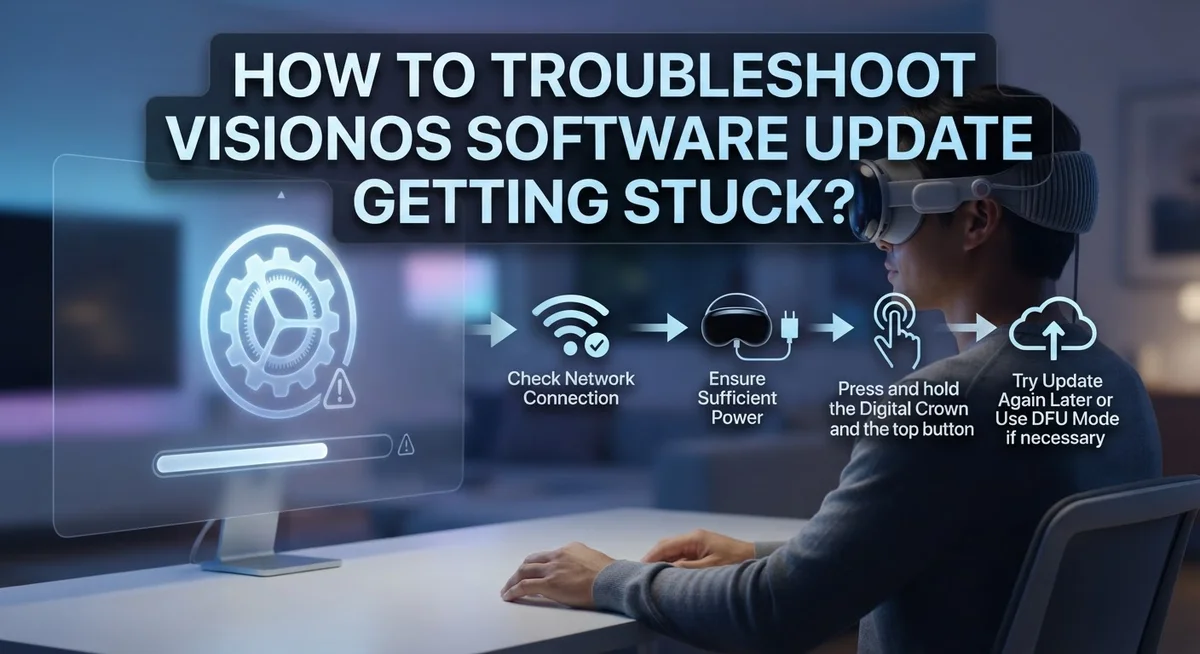
How to force restart your Apple Vision Pro involves using the physical buttons on your device. Press and hold the top button along with the digital crown simultaneously. Keep holding both buttons for about 10 seconds until the screen goes dark. You will see the Apple logo appear on the display. Release the buttons once you see this logo. Your device will restart completely.
What happens after the force restart is important to understand. Your device will boot up normally. The update process may resume automatically, or you might need to manually restart it. Return to Settings > General > Software Update to check the status.
Important note about force restart is that it rarely causes permanent damage. Force restart is a safe troubleshooting step designed by Apple. It simply powers down your device without saving current processes. Your personal data stays protected because the force restart doesn’t erase anything.
If your update remains stuck even after force restarting, you may need to delete the update file and try again from the beginning.
How To Factory Reset Apple Vision Pro If the Update Remains Stuck
A factory reset becomes your last option when the stuck update refuses to clear after you delete it from storage. This process erases all content and settings on your Apple Vision Pro, so use it only when other solutions fail.
Start by backing up your data. Connect your device to a computer or use cloud storage to save anything important. You cannot recover files after a factory reset completes.
Access the reset menu properly. Open Settings on your Apple Vision Pro. Tap General, then scroll down to find Transfer or Reset. Select Erase All Content and Settings from the menu options.
Confirm your choice carefully. Your device will ask you to verify the reset action. Read the warning message completely before proceeding. You may need to enter your Apple ID password to continue.
Wait for the process to finish. The factory reset takes several minutes to complete. Do not interrupt it or power off your device during this time. Your Apple Vision Pro will restart automatically when done.
Set up your device fresh. After the reset completes, you’ll see the setup screen. Follow the on-screen instructions to configure your device again. Connect to Wi-Fi during setup to download the latest visionOS version.
Update immediately after setup. Once your device is ready, go to Settings > General > Software Update right away. Download and install the current visionOS version without delay.
A factory reset solves most stuck update problems because it removes corrupted files and clears storage completely. Your device functions like new after this process, giving the update a clean environment to install successfully.
How To Prevent VisionOS Updates From Getting Stuck in the Future
Preventing stuck updates requires a few simple habits you can build into your routine. Start by keeping your device’s storage clean before any update arrives. Remove old apps, photos, and videos you no longer need. Your Apple Vision Pro needs at least 5 to 10 gigabytes of free space to download and install updates smoothly.
Enable automatic updates in your settings. Go to Settings, then General, then Software Update. Turn on automatic updates so your device installs new versions during idle hours when you’re not using it. This reduces the chance of interruptions that cause stuck updates.
Maintain a strong Wi-Fi connection at all times. Use a network close to your device and avoid crowded Wi-Fi channels. Keep your router within line of sight of your Apple Vision Pro during the entire update process. Poor connections cause incomplete downloads, which lead to stuck updates.
Restart your device regularly. A weekly restart clears temporary files and refreshes your system. This simple step prevents software conflicts that sometimes trigger stuck updates.
Disconnect external devices before updating. Unplug any connected accessories, controllers, or cables. External devices can interfere with the update process and cause failures.
Check your Wi-Fi stability. Run a speed test on your network to confirm it meets minimum requirements. A stable connection with at least 5 megabits per second upload and download speeds works best.
Monitor your update progress. Watch the percentage counter advance steadily. If it stops moving for more than 10 minutes, your update may be stuck.
These prevention steps take just a few minutes to implement but save you hours of troubleshooting later.
Final Thoughts
Troubleshooting a stuck visionOS update does not have to be stressful. Most issues come down to three things: storage, Wi-Fi, and patience.
Start by checking your storage space before anything else. Go to Settings > Storage, scroll down, and tap “Show More” to find the stuck update file. Delete it, then try downloading the update again fresh.
A strong Wi-Fi connection matters more than most people realize. A weak or unstable signal is one of the most common reasons an update stalls mid-download. Always update on a reliable network.
Give your device time before you take action. Jumping in too quickly and interrupting the process is a frequent mistake. Wait at least 5 to 10 minutes before deciding the update is truly stuck.
If deleting the update and retrying does not work, a force restart is your next step. Use the physical buttons on your Apple Vision Pro to perform this safely.
Factory reset is always available as a last resort. Go to Settings > General > Transfer or Reset > Erase All Content and Settings if nothing else resolves the issue. Back up your data first.
Prevention is the easiest fix of all. Enable automatic updates under Settings > General > Software Update so your device stays current without manual downloads. Also enable automatic security responses to keep your system files updated in the background.
Disconnect external accessories before starting any update. This simple habit removes one more potential source of interference.
Follow these steps in order and you will resolve most stuck update situations quickly. Your Apple Vision Pro is designed to update smoothly when the right conditions are in place.
Frequently Asked Questions
Why does my VisionOS update get stuck during the preparing phase?
Updates get stuck most often because your device runs low on storage space. The system needs room to download and install files. A weak Wi-Fi connection also causes this problem. If your internet drops during download, the update freezes and cannot continue.
What should I do if the update stays stuck after I delete it?
Delete the update first from Settings > Storage > Show More. Then try the update again with a strong Wi-Fi connection nearby. If it gets stuck once more, force restart your device by holding the power button for 10 seconds. Wait 5 minutes before attempting the update again.
When should I perform a factory reset for a stuck update?
Use a factory reset only after other steps fail. Go to Settings > General > Transfer or Reset > Erase All Content and Settings. This removes everything on your device, so back up important data first using cloud storage or a computer. The reset takes several minutes to finish.
How can I stop updates from getting stuck in the future?
Enable automatic updates under Settings > General > Software Update. This lets your device install updates at the best time. Keep your Wi-Fi signal strong and stable near your device. Restart your device weekly to clear temporary files. Disconnect any external accessories before updates begin.
Does poor Wi-Fi really cause update problems?
Yes. A weak or unstable connection is one of the top reasons updates fail. Your device needs consistent speed to download large files. Move closer to your router and avoid crowded Wi-Fi channels. Run a speed test to confirm your network meets basic requirements.

Hi, I’m Suzy — the voice behind RapidGenLab. I’m a tech enthusiast who loves breaking down complex products into simple, honest reviews and comparisons. Got a question? Feel free to reach out!