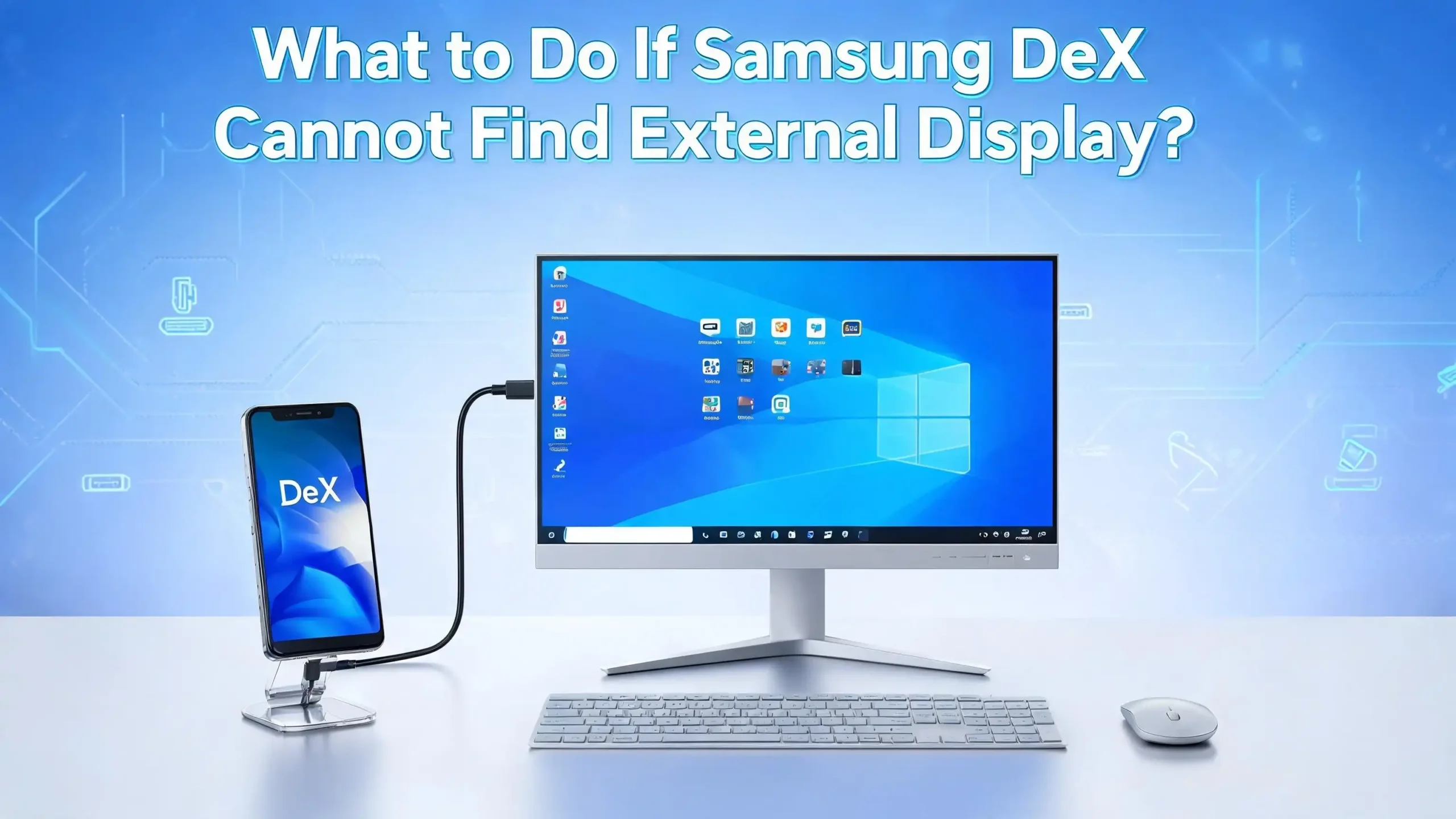
What to Do If Samsung DeX Cannot Find External Display?
You finally set up your Samsung Galaxy device with a monitor, plugged everything in, and… nothing happens. Samsung DeX just cannot find the external display. It is one of the most frustrating tech moments, especially when you are ready to work.
The good news? This problem is almost always fixable. Whether you are using a wired cable, a USB hub, or a wireless TV connection, there are clear and direct steps you can take to get DeX working again.
This guide walks you through every possible fix, from the simplest cable check to more advanced software settings, so you can get back to your desktop experience fast.
Key Takeaways
- Check device compatibility first. Samsung DeX works only on specific Galaxy devices, starting from the Galaxy S8 and Galaxy Tab S4. If your device is not on the supported list, DeX will not work at all.
- The cable and adapter matter a lot. Not all USB-C cables support DisplayPort Alt Mode, which is required for DeX to send video to an external display. Using the wrong cable is the number one reason DeX fails to detect a monitor.
- The monitor’s input source must be set correctly. If your TV or monitor is not set to the correct HDMI input, DeX will not appear, even if the connection is working perfectly on the hardware side.
- Software settings can block DeX silently. Power saving mode, Safe mode, Kids mode, or Emergency mode on your Galaxy device can prevent DeX from launching. Checking your phone’s current mode is a quick and easy step.
- Wireless DeX requires Miracast compatibility. If you are trying to connect to a TV without a cable, both your Galaxy device and the TV must support Miracast, and they must be on the same Wi-Fi network.
- Restarting the device while connected often solves the problem. Many users across Samsung community forums report that simply restarting the Galaxy device while the cable is already plugged into the monitor triggers DeX to launch correctly.
Confirm That Your Samsung Device Supports DeX
Before spending time on troubleshooting, the first thing to check is whether your device actually supports Samsung DeX. Not every Galaxy phone or tablet has this feature built in.
For Galaxy smartphones, DeX is supported starting from the Galaxy S8 series and includes all S9, S10, S20, S21, S22, S23, S24, and S25 series devices. The feature is also available on the Note 8 and all later Note models. One important exception: the Galaxy Z Flip series does not support DeX, so if you own that model, external display output will not work.
For Galaxy tablets, DeX support starts with the Galaxy Tab S4 and extends to the Tab S5e, Tab S6, Tab S7 series, Tab S8 series, Tab S9 series, Tab S10 series, and beyond.
If your device is not in these categories, no amount of troubleshooting will get DeX to work. You would need an eligible device to use the feature. You can visit Samsung’s official DeX page to view the complete and updated compatibility list. Confirming this one detail can save you a lot of time before you try anything else.
Inspect the Cable and Adapter You Are Using
The cable is the most common cause of the “DeX cannot find external display” problem. Not every USB-C cable is created equal. Many USB-C cables only support data transfer or charging. They do not carry video signals.
For wired DeX to work, your cable or adapter must support DisplayPort Alt Mode over USB-C. This is the protocol that allows a USB-C port to output video. If your cable does not support this, DeX will simply not detect the display, no matter how many times you plug it in.
Here is what you should check:
- Make sure you are using a USB-C to HDMI cable or a certified USB-C hub that includes an HDMI port.
- If you are using a multiport hub, confirm that the hub itself supports video output and not just USB data transfer.
- Inspect the cable for any physical damage. A bent connector or frayed cable can break the video signal even if the cable type is correct.
- Try a different cable if possible. This single step resolves the problem for many users.
- Samsung recommends using official Samsung-branded HDMI adapters or cables for the most reliable DeX experience.
Even a cable that looks fine on the outside can have internal damage that disrupts the video signal. Swapping out the cable is always worth doing early in the troubleshooting process.
Set the Correct Input Source on Your Monitor or TV
This step sounds obvious, but it is a surprisingly common fix. Your monitor or TV may be physically receiving the DeX signal, but if it is displaying the wrong input source, nothing will appear on screen.
Every external display has multiple input sources, such as HDMI 1, HDMI 2, DisplayPort, or VGA. When you plug your Galaxy device into the HDMI port, your display needs to be set to that specific HDMI input.
Here is how to fix this:
- Pick up your TV or monitor remote.
- Press the Source or Input button.
- Select the HDMI port that your cable is connected to. For example, if the cable is in HDMI 2, select HDMI 2.
- Wait a few seconds for the display to detect the incoming signal.
If you are using a Samsung TV, go to Settings, then select All Settings, then Picture, and then Picture Size Settings. Some Samsung TVs have picture fitting options that may cause the display to look incorrect or blank. Adjusting the picture size to “Screen Fit” or “16:9” can help.
For third-party monitors, refer to the display’s own menu by pressing the Menu or OSD button on the monitor itself. The exact steps will depend on the brand, so check the monitor’s manual if needed.
Enable DeX Mode Manually from Quick Settings
Sometimes your Galaxy device connects to a display but shows a mirrored screen instead of launching the full DeX desktop. This happens when the DeX mode toggle is not enabled.
Samsung gives you a quick way to switch this. Swipe down from the top of your phone’s screen with two fingers to open the Quick Settings panel. Look for the DeX icon, which looks like a small desktop monitor. Tap it to switch from screen mirroring mode to the full DeX desktop experience.
If you do not see the DeX icon in your Quick Settings panel, you may need to add it:
- Swipe down to open Quick Settings.
- Tap the pencil or edit icon to customize your Quick Settings tiles.
- Find the DeX tile and drag it into your active Quick Settings area.
- Tap Done to save the change.
You can also enable DeX by going to Settings, then Connected Devices, then Samsung DeX. From here, you can also turn on Auto start when HDMI is connected. This setting makes DeX launch automatically every time you plug in a cable, so you will not need to enable it manually each time.
Disable Power Saving and Special Device Modes
One of the most overlooked causes of DeX display issues is the device’s current power or operating mode. Certain modes on your Galaxy device block DeX entirely. If your phone is in any of these states, DeX will not launch, and the external display will not be detected.
The modes that block DeX include:
- Maximum Power Saving Mode (also called Ultra Power Saving on some models)
- Safe Mode
- Emergency Mode
- Kids Mode
Check your phone’s status bar for any indicators that these modes are active. A yellow or orange battery icon usually signals Power Saving Mode. The words “Safe Mode” will appear at the bottom of the screen if Safe Mode is on.
To disable Power Saving Mode, go to Settings, then Battery and Device Care, then Battery, and turn off Power Saving. To exit Safe Mode, simply restart your device normally. To exit Emergency Mode, press the power button, then select Turn Off Emergency Mode. For Kids Mode, tap the back button and enter your parental PIN to exit.
Once you are back in the normal device mode, try connecting your cable to the external display again. In most cases, DeX will launch immediately after you make this change.
Restart Your Galaxy Device While the Cable Is Connected
This is one of the most effective tricks reported by Samsung DeX users across community forums, especially for newer devices like the Galaxy S24 Ultra. Simply restarting the phone while the USB-C cable is already plugged into the external display can trigger DeX to launch correctly.
Here is exactly how to do it:
- Keep the cable connected between your phone and the monitor.
- Press and hold the power button on your Galaxy device.
- Select Restart from the options that appear.
- Wait for your phone to fully boot up.
- Once the home screen loads, DeX should detect the external display and launch automatically.
This method works because a fresh boot re-initializes the USB-C connection and allows the system to properly recognize the external display. It bypasses whatever software glitch was preventing DeX from starting in the first place. If you have been struggling with DeX not detecting your display for a while, this simple restart trick is worth trying before you move on to more advanced steps.
Update Your Galaxy Device’s Software
Running outdated software is a common but easy-to-fix cause of DeX problems. Samsung regularly releases One UI updates that include bug fixes specifically for Samsung DeX. An older software version may have a known issue that has already been patched in a newer update.
To check for software updates on your Galaxy device:
- Open Settings on your phone or tablet.
- Scroll down and tap Software Update.
- Tap Download and Install.
- If an update is available, follow the on-screen steps to install it.
- After the update is complete, reconnect your device to the external display.
It is also important to keep your Samsung DeX app updated if you are using the DeX for PC feature. Open the DeX app on your PC, click the Settings icon in the top right corner, then click About Samsung DeX, and then hit the Update button if a new version is available.
Keeping both your device firmware and the DeX application up to date ensures you have the latest fixes and the best chance of stable external display detection.
Check for Issues with the USB Hub or Docking Station
If you are connecting your Galaxy device to an external display through a USB-C hub or docking station, the hub itself could be the source of the problem. Not all hubs are built to support DeX video output, and some hubs have compatibility issues with specific Samsung devices.
Here is how to narrow down the issue:
- Try connecting your phone directly to the monitor using a USB-C to HDMI cable, bypassing the hub entirely. If DeX works with a direct connection, the hub is likely the problem.
- Check whether the hub specifically lists DisplayPort Alt Mode support or Samsung DeX compatibility in its product description.
- Some hubs require a USB-C power delivery connection to function properly. Make sure the hub is powered if it has a dedicated power input.
- Try a different hub or docking station to confirm whether the issue is hub-specific.
Cheap or generic hubs frequently fail to carry the video signal needed for DeX, even if they look identical to certified alternatives. Using a hub that explicitly supports video output and is compatible with Samsung devices will solve most hub-related detection problems.
Test with a Different Monitor or TV
Sometimes the issue is not your phone or the cable but the external display itself. Some monitors and televisions do not support the display resolutions that Samsung DeX requires, which causes the display to simply ignore the incoming signal.
Samsung DeX works best with displays that support Full HD (1920 x 1080) at a 16:9 aspect ratio. If your monitor has an unusual native resolution or uses a non-standard aspect ratio, it may struggle to accept the DeX signal.
Try these steps to rule out the display as the problem:
- Connect your Samsung device to a completely different monitor or TV.
- Use a standard 1080p HDMI monitor if available, as these have the highest compatibility with DeX.
- If DeX works on the second display, your original monitor likely has a resolution or compatibility issue.
If your original monitor has picture enhancement features like Overscan, Aspect Ratio Correction, or Auto-Fit, try disabling them. These settings can sometimes interfere with the signal from a mobile device. For Samsung monitors, press the Menu button on the monitor and go to Picture settings to make these adjustments.
Fix Wireless DeX Not Finding Your TV
If you are trying to use DeX wirelessly and your TV is not showing up in the device list, there are several specific steps to fix this. Wireless DeX requires your TV to support Miracast technology. This is often labeled as Screen Mirroring, Screen Share, or Smart View depending on the TV brand.
Follow these steps to get wireless DeX working:
- On your TV, use the remote to open the Source menu and enable Screen Mirroring mode. For Samsung TVs, this is found under the Smart Hub or Connections section.
- On your Galaxy phone, swipe down to open the Quick Settings panel and tap the DeX icon.
- Select DeX on TV or Monitor from the options.
- Wait for your TV to appear in the device list and tap on it to connect.
- Make sure both devices are on the same Wi-Fi network. This is a critical requirement for wireless DeX. If your phone is on one Wi-Fi band (2.4GHz) and your TV is on another (5GHz), they may not see each other.
If your TV is a 2013 or 2014 Samsung model, you may need to update the TV’s firmware first. For non-Samsung TVs, check that Miracast is actively enabled and not just listed as a feature. Sometimes Miracast needs to be switched to its dedicated pairing mode through the TV’s settings menu before your phone can detect it.
Clear the DeX Cache and Reset DeX Settings
If you have tried the basic fixes and DeX is still not detecting the external display, clearing the app cache may help. Over time, cached data can become corrupted and cause unexpected behavior in Samsung DeX, including failure to detect connected displays.
Here is how to clear the DeX cache:
- Go to Settings on your Galaxy device.
- Tap Apps (or Application Manager on older models).
- Tap the three-dot menu in the top right corner and select Show System Apps.
- Scroll through the list and find Samsung DeX or DeX System UI.
- Tap on it, then tap Storage, and then tap Clear Cache.
- Restart your device and try connecting to the external display again.
You can also try resetting DeX settings. Go to Settings, then Connected Devices, then Samsung DeX, and look for a Reset or Restart DeX option. If none is available, disabling and re-enabling DeX from this menu can have a similar refreshing effect.
Clearing the cache does not delete any of your personal data or files. It simply removes temporary files that DeX has stored, which can sometimes fix detection and launch issues.
Check for Water or Debris in the USB-C Port
This is a fix that many people forget to consider. Physical blockages or moisture in the USB-C port on your Galaxy device can prevent a proper connection from forming, which means DeX cannot detect the external display even with the right cable.
Here is how to address this:
- Hold your phone up to a light and visually inspect the USB-C port for any visible dust, lint, or debris.
- If you see debris, use a soft dry toothbrush or a wooden toothpick to very gently clean the port. Do not use metal tools, as they can damage the port pins.
- If there is moisture in the port, let the phone dry completely in a warm, dry area before attempting to connect again.
- Samsung Galaxy devices with water resistance will sometimes show a moisture detection warning in the notification bar. If you see this warning, do not plug in the cable until the port is fully dry.
A dirty or wet port can cause intermittent connection issues where DeX sometimes works and sometimes does not. Keeping the port clean is a simple maintenance habit that can prevent many display detection problems before they happen.
Use Classic Mode on Samsung Tablets
If you are using a Samsung Galaxy tablet and DeX is not launching on the external display, there is one setting that is specifically required for tablets: Classic Mode. Without this, DeX on a tablet will not output to an external display correctly.
Here is how to enable Classic Mode:
- Connect your tablet to the external display using a USB-C to HDMI cable.
- Wait for DeX to launch on the tablet screen itself.
- Open Settings on the tablet.
- Go to Connected Devices, then tap Samsung DeX.
- Select Classic as the DeX mode.
Classic Mode is the version of DeX that mirrors a traditional desktop interface to an external monitor. The other mode runs DeX directly on the tablet’s own screen, which is why the external display does not activate without switching to Classic.
This is a key difference between using DeX on a phone versus a tablet. On phones, DeX automatically moves to the external display. On tablets, you have to manually select Classic Mode for external display output. If you recently switched from using a Galaxy phone to a Galaxy tablet for DeX, this setting change is likely all you need.
Contact Samsung Support for Persistent Issues
If you have worked through every step in this guide and Samsung DeX still cannot find the external display, the problem may be a hardware fault or a deeper software issue that requires professional help.
Samsung offers several official support options that can help resolve persistent DeX display problems:
- Open the Samsung Members app on your Galaxy device.
- Tap Get Help, then select Send Error Report or Contact Us.
- Describe the issue in detail, check the box to include system log data, and submit the report. This log data helps Samsung’s support team identify the exact cause of the issue.
You can also visit a Samsung Service Center in person if you suspect a hardware problem with the USB-C port or internal video output components. Physical damage to the port or the motherboard’s video output circuitry is something only a technician can properly diagnose and repair.
Before visiting a service center, make sure your device is still under warranty. Samsung’s standard warranty covers manufacturing defects, and a USB-C port that fails to output video without any physical damage may qualify for a free repair. You can check your warranty status through the Samsung Members app or the Samsung website using your device’s serial number.
FAQs
Why Does Samsung DeX Not Show Up on My Monitor?
Samsung DeX may not show up on your monitor because of a cable that does not support DisplayPort Alt Mode, an incorrect input source on the monitor, a device mode that blocks DeX such as Power Saving Mode, or an incompatible Galaxy device. Check each of these in order, starting with the cable and the monitor’s input source setting, since those are the most common causes.
Can I Use Any USB-C Cable for Samsung DeX?
No. You cannot use just any USB-C cable for Samsung DeX. The cable must support DisplayPort Alt Mode to carry a video signal. Many USB-C cables only support charging or basic data transfer. Use a USB-C to HDMI cable or a USB-C hub that explicitly supports video output for DeX to detect the external display.
Does Samsung DeX Work on All Samsung Phones?
No. Samsung DeX only works on select Galaxy devices. Supported smartphones include the Galaxy S8 and all later S series models, Note 8 and later Note models, and certain Galaxy A and Z Fold models. The Galaxy Z Flip series does not support DeX. Galaxy tablets from the Tab S4 onwards also support DeX with an external display.
How Do I Enable Wireless DeX on My TV?
To enable wireless DeX, first activate Screen Mirroring mode on your TV. On your Galaxy phone, swipe down to open Quick Settings and tap the DeX icon, then choose the TV from the device list. Both your phone and TV must be connected to the same Wi-Fi network. The TV must also support Miracast for wireless DeX to work.
Why Is My External Display Showing a Mirror Instead of the DeX Desktop?
This happens when screen mirroring mode is active instead of DeX mode. Swipe down with two fingers to open Quick Settings on your Galaxy device and tap the DeX icon to switch from mirroring to the full DeX desktop experience. You can also go to Settings, then Connected Devices, then Samsung DeX to enable the correct mode.
Can Samsung DeX Work Without an HDMI Port on the Monitor?
Yes. Samsung DeX can work without a traditional HDMI port if your monitor has a USB-C port that supports DisplayPort Alt Mode. In this case, you can use a USB-C to USB-C cable or a compatible USB-C hub. Wireless DeX is another option that removes the need for any cable at all, provided the TV supports Miracast.
What Should I Do If DeX Was Working Before but Suddenly Stopped?
If DeX was working before and suddenly stopped, try restarting your Galaxy device while the cable is connected. Also check for pending software updates, clear the DeX app cache, and inspect the USB-C port for damage or debris. If none of these steps work, the most recent One UI update may have introduced a bug. Check Samsung’s community forums for reports of similar issues and wait for a patch update if that is the case.

Hi, I’m Suzy — the voice behind RapidGenLab. I’m a tech enthusiast who loves breaking down complex products into simple, honest reviews and comparisons. Got a question? Feel free to reach out!