What to Do If Eero Mesh Router is Flashing Red?
You are sitting down to stream a movie, jump on a work call, or browse the web, and suddenly your Eero mesh router is flashing red. The internet is down, and that small blinking light feels like a big problem. You are not alone.
This is one of the most common issues Eero users face, and the good news is that most causes have a straightforward fix.
This guide walks you through every possible reason your Eero is flashing red and gives you clear, practical steps to get back online fast. Read on and let us fix this together.
Key Takeaways
- A flashing or solid red LED on your Eero means your device has lost its internet connection. This is not the same as a hardware failure. In most cases, the issue is with the WAN connection between your Eero and your internet service provider.
- Power cycling is almost always the first step. Unplugging your modem and Eero for at least 30 to 60 seconds and restarting them in the correct order resolves many red light issues quickly.
- Ethernet cable problems are a surprisingly common cause. A loose, damaged, or incorrectly plugged cable between your modem and your gateway Eero can trigger the red light every single time.
- Your ISP may be the source of the problem. Service outages, PPPoE authentication failures, VLAN misconfigurations, and DHCP assignment issues on the ISP’s side can all cause the red light to appear without any fault from your Eero hardware.
- A soft reset clears network configuration errors without erasing your settings, while a hard reset wipes everything and is only necessary when all other fixes have failed. Always try simpler steps before going nuclear.
- The Eero app is a powerful diagnostic tool. It can detect the exact point of failure in your WAN connection and guide you step by step through fixing it, making it your best first resource before trying anything manually.
What Does a Flashing Red Light on Eero Actually Mean?
Before jumping into fixes, it helps to understand what the red light is telling you. Eero uses its LED to communicate the status of your network at a glance.
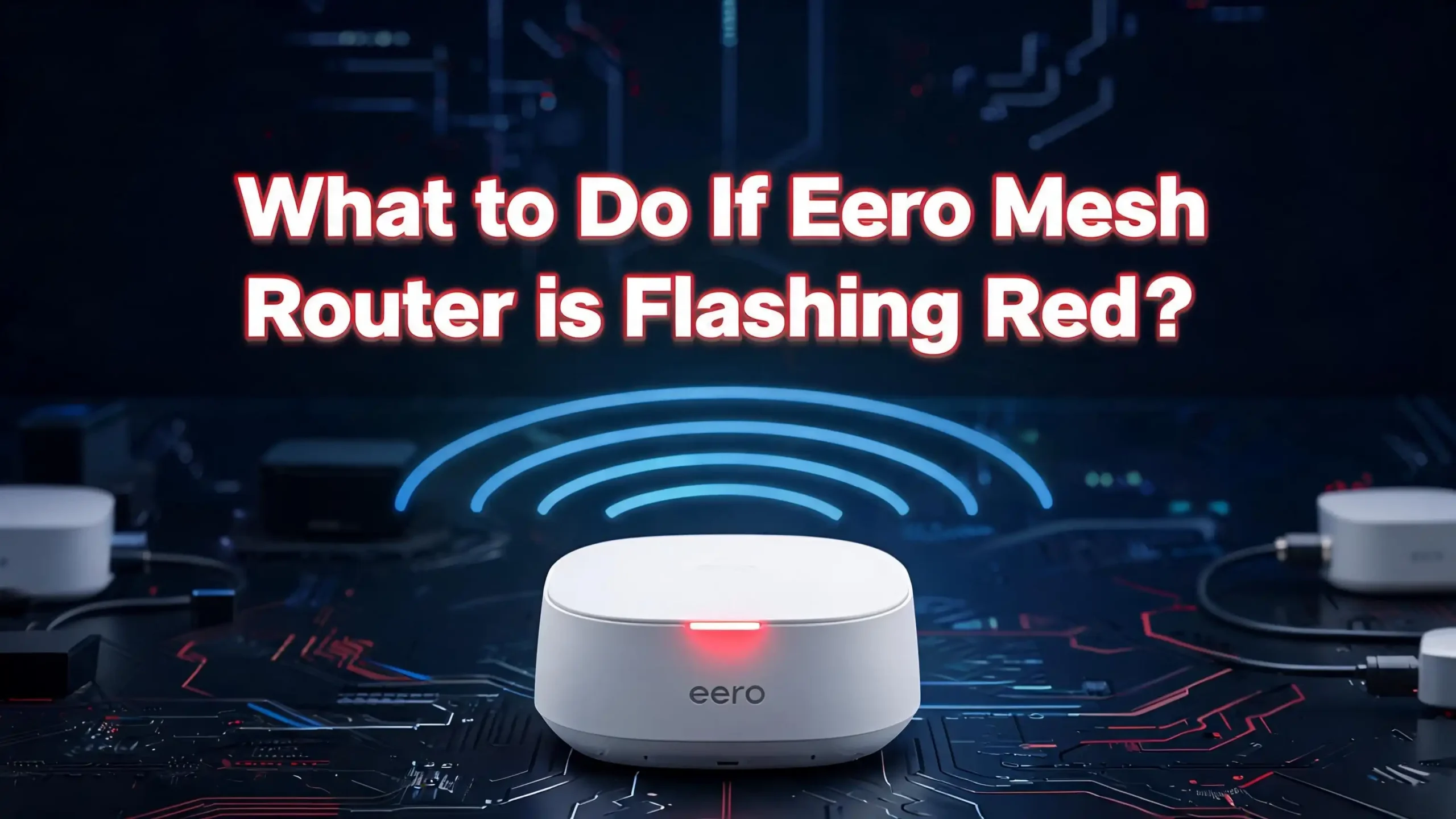
A solid or flashing red LED on your Eero specifically means that the device does not have an active internet connection. It is Eero’s way of saying it is powered on and working, but it cannot reach the internet. This is different from a hardware failure, which would typically result in no light at all.
There are two main variations of the red light. A solid red light usually appears when Eero is in the process of a factory reset, which is intentional. A blinking or flashing red light during normal operation means your Eero has lost its WAN connection. That WAN connection is the link between your Eero and your internet service provider.
It is important to know whether the red light is on your gateway Eero (the one connected directly to your modem) or on a secondary Eero node. The gateway going red usually points to a modem or ISP issue. A secondary node going red often points to placement, range, or a wired connection problem specific to that node.
Understanding the difference saves you significant troubleshooting time. The Eero app clearly labels which device is offline, so open it first before touching any hardware. Once you know which device has gone red and why, the solution becomes much clearer.
Check for an ISP or Internet Service Outage First
The most overlooked cause of the Eero red light is something completely outside your control: your internet service provider is down.
Before touching a single cable or pressing a single button, check if your ISP is experiencing an outage in your area. This step takes less than two minutes and can save you from wasting time troubleshooting hardware that is working perfectly.
Visit your ISP’s official website using your mobile data connection and look for a service status or outage page. You can also search for your ISP’s name plus “outage” on a search engine to find real-time user reports. Websites like Downdetector are useful for seeing if others in your area are reporting the same issue.
Here is how to check through the Eero app:
- Open the Eero app and tap the “Home” tab.
- Look at the network status at the top of the screen.
- If it says “Offline,” tap the right arrow next to “Troubleshoot your connection.”
- The app will attempt to diagnose your WAN connection and tell you exactly where the failure is occurring.
If the app confirms a WAN IP address failure and your ISP’s service status page shows an outage, your only real option is to wait. You can use Eero’s Hotspot Backup feature in the meantime, which lets your Eero network connect through a mobile hotspot while your main internet is down. This is an extremely practical feature for those who cannot afford to be offline for hours.
If your ISP shows no outage but your Eero is still red, the problem is local to your home setup. Move on to the next steps.
Inspect All Ethernet Cables and Physical Connections
One of the most common causes of the Eero red light is a physical connection problem. It sounds basic, but a loose Ethernet cable is responsible for a huge number of “no internet” complaints.
The cable that runs from your modem to your gateway Eero is the single most important physical connection in your network. If this cable is not fully seated in both ports, is damaged, or is plugged into the wrong port, your Eero will flash red every single time.
Follow these steps carefully:
- Unplug the Ethernet cable from both the modem and the Eero gateway completely.
- Inspect the cable visually for any bends, kinks, pinches, or damaged connectors. Even a slightly bent pin inside the connector can break the connection.
- Firmly re-insert the cable into the correct port on your modem, which is usually labeled “LAN” or “Ethernet.” Do not plug it into the WAN port on the modem.
- Plug the other end firmly into your Eero gateway’s WAN port.
- Listen for a click on both ends to confirm the connector is fully seated.
If the red light continues after this, try replacing the cable entirely. Ethernet cables can fail internally without showing visible damage, and a bad cable is far cheaper to replace than it is disruptive to your daily life.
For wired secondary Eero nodes, disconnect the Ethernet cable and test it by plugging it into a laptop. If the laptop gets internet, the cable is fine and the issue is with the Eero node itself. If the laptop also has no internet, the cable or the port is the problem.
Power Cycle Your Modem and Eero in the Correct Order
Power cycling is the most effective first fix for an Eero red light, and the order in which you restart your devices matters more than most people realize.
Restarting everything at once does not work as well as restarting in a specific sequence. Your modem needs to fully establish its connection with your ISP before your Eero gateway tries to pull an IP address from it. If Eero boots up before the modem is ready, it will fail to get a WAN IP address and show a red light.
Follow this exact sequence:
- Unplug your modem from its power source completely.
- Unplug your Eero gateway from its power source.
- Unplug any secondary Eero nodes as well if they are also showing red.
- Wait a full 3 minutes. This is important. Many users wait only 10 to 15 seconds, which is not long enough for the modem to fully reset its connection with your ISP.
- Plug the modem back in first and wait for it to fully come back online. This can take 5 to 10 minutes. The modem’s connection lights should stabilize before you proceed.
- Plug your Eero gateway back in and wait for it to boot up. It should cycle through white flashing lights and eventually settle on a solid white light.
- Plug in your secondary nodes last.
If you rush through this sequence, the red light often returns. Be patient and wait for each device to fully stabilize before plugging in the next one. This single fix resolves the red light issue for the majority of users.
Use the Eero App to Run a Network Diagnostic
The Eero app is far more than a setup tool. It contains a built-in diagnostic engine that can pinpoint the exact reason your network is offline.
Most users skip the app and go straight to physical troubleshooting, but the app can tell you in seconds whether the problem is with your Ethernet cable, your WAN IP address, your ISP settings, or your DNS resolution. That information saves you from guessing.
Here is how to run a diagnostic:
- Open the Eero app on your phone and make sure your phone is connected to your Eero’s WiFi network (this works even when the network has no internet).
- Tap the “Home” tab at the bottom left.
- If your network is offline, you will see red “Offline” text at the top with a “Troubleshoot your connection” link.
- Tap the arrow next to that link to begin the diagnostic process.
- The app checks your Ethernet connection, ISP settings, WAN IP address, default router IP, and DNS resolution in sequence.
- It will highlight exactly where the failure is occurring.
The app checks five specific things:
- Whether an Ethernet connection exists between your modem and gateway
- Whether your ISP settings are compatible
- Whether a WAN IP address has been assigned
- Whether your default router IP is reachable
- Whether DNS resolution is working
Each failure point has a different fix, and the app often walks you right through it. This makes the Eero app one of the most practical diagnostic tools available in any consumer router ecosystem.
Check and Fix Your ISP Settings Inside the Eero App
Some ISPs require special configurations for your Eero to connect properly. If your Eero worked before and suddenly started showing red after a modem swap or ISP plan change, misconfigured ISP settings are a likely cause.
The most common special configurations include PPPoE, Static IP, VLAN tagging, and DHCP. If your ISP uses any of these and they are not correctly entered in your Eero app, the gateway Eero will fail to establish a WAN connection and will flash red.
Here is how to check and update your ISP settings:
- Open the Eero app and tap “Settings” in the bottom-right corner.
- Tap “ISP Settings.”
- Check whether DHCP, Static IP, PPPoE, or Uplink VLAN is selected and whether it matches what your ISP requires.
For PPPoE users:
Enter your ISP-provided username and password exactly as given. Even a single wrong character will prevent the connection from being established.
For Static IP users:
Enter your IP address, Subnet Mask, and Router IP exactly as documented by your ISP.
For VLAN users:
Toggle on “Uplink VLAN Tag” and enter your VLAN ID, then tap “Save Settings.”
If you are unsure which configuration your ISP uses, call their technical support line. This is one area where guessing can cause more problems than it solves. Your ISP can confirm the exact WAN type and any additional settings required for third-party routers like Eero.
Check for a Double NAT Conflict with Bridge Mode
If your modem is also functioning as a router, you may have a double NAT situation. This means both your modem/router combo and your Eero are trying to assign IP addresses simultaneously, which can cause connection issues including the red light.
Double NAT does not always cause a red light, but in some configurations, the IP conflict prevents your Eero from receiving a valid WAN IP address from your ISP, which triggers the red LED.
The fix is to put your modem/router combo into bridge mode. Bridge mode disables the routing function of your modem so it acts purely as a modem, passing the internet connection directly to your Eero gateway. This removes the IP conflict entirely.
General steps to enable bridge mode:
- Log into your modem/router combo’s admin interface (usually found at 192.168.1.1 or 192.168.0.1 in your browser).
- Find the “Bridge Mode,” “IP Passthrough,” or “DMZ” settings (the exact name varies by brand and model).
- Enable bridge mode and save the settings.
- Restart your modem, then restart your Eero gateway.
Enabling bridge mode may vary significantly depending on your modem brand and your ISP. Some ISPs can enable bridge mode remotely on your modem. If you are not comfortable doing this yourself, contact your ISP and ask them to put your modem into bridge mode for you.
Move Secondary Eero Nodes Closer Together
If only one secondary Eero node is showing a red light while your gateway Eero is working fine with a solid white light, the issue is almost always signal range between nodes.
Eero mesh nodes communicate with each other wirelessly, and if a node is too far from the nearest node or gateway, it will lose its wireless backhaul connection and show a red LED. This is especially common in homes where nodes are placed far apart or where thick walls, floors, or other obstacles block the signal.
Here is how to fix a red-light secondary node:
- Unplug the red-light node from its current location.
- Move it physically closer to another node or to the gateway Eero.
- Plug it back in and wait for it to boot up and reconnect.
- Watch for the light to turn solid white, which confirms it has reconnected.
- Once it is working again, slowly move it toward a location that provides both good backhaul signal and useful coverage.
Eero recommends placing nodes no more than two rooms apart or within 40 to 50 feet of one another in most standard home layouts. Thick concrete walls, metal structures, and appliances like microwaves can reduce this range significantly.
If you cannot move the node closer wirelessly, consider connecting it to your network via an Ethernet cable. A wired backhaul connection between nodes is more reliable than wireless and eliminates signal-range issues entirely.
Perform a Soft Reset on Your Eero
If power cycling has not resolved the red light and the cable is confirmed good, a soft reset is the next logical step. A soft reset clears all network configurations from the Eero without deleting your logs, IP reservations, or advanced settings.
Think of a soft reset as a deep restart that clears temporary configuration errors without wiping your setup completely. It is a middle ground between a simple reboot and a full factory reset.
Here is how to perform a soft reset:
- Locate the small reset button on your Eero. The button is on the bottom of most Eero models (6, 6+, Pro 6, Pro 6E, Max 7) and on the back of first-generation models.
- With the Eero plugged in and powered on, press and hold the reset button.
- Hold it until the LED flashes yellow, which takes approximately 7 seconds.
- Release the button immediately when you see the yellow flash.
- The Eero will reboot. The LED will flash white, then blue as it reconnects to the cloud.
- Wait up to two minutes. Once reconnected, the LED will return to solid white.
If the LED goes red again after a soft reset, it confirms the issue is not a configuration error but rather a connectivity problem with your modem or ISP. In that case, revisit your modem connection and ISP settings.
Fix DNS Issues Causing the Red Light
A DNS resolution failure is a less obvious cause of the Eero red light, but it does happen. Your Eero app will flag this specifically during its diagnostic check.
DNS (Domain Name System) is what translates website names like google.com into IP addresses. If your DNS settings are misconfigured or if your ISP’s DNS servers are temporarily down, your Eero may show a red light or appear offline even though a basic internet connection technically exists.
This is especially common for users who have previously configured custom DNS servers (such as those from pi-hole, Cloudflare, or Google) and then changed their network setup without updating the DNS settings accordingly.
Here is how to fix DNS issues in the Eero app:
- Open the Eero app and tap “Settings.”
- Tap “Advanced Networking.”
- Tap “DNS.”
- If you are using a custom DNS server, verify that the address is correct and still active.
- To test, switch back to “Automatic DNS” (which uses your ISP’s default DNS servers) and check if the red light resolves.
If switching to automatic DNS clears the red light, the issue was with your custom DNS address. You can then re-enter a known-working custom DNS like 1.1.1.1 (Cloudflare) or 8.8.8.8 (Google) if you prefer not to use your ISP’s default.
If your ISP’s support page confirms a DNS outage on their end, the only option is to switch to a public DNS address temporarily or use Hotspot Backup until the issue is resolved.
Check the Eero After a Power Outage or Surge
Power outages and electrical surges are a frequent trigger for the Eero red light. After the power comes back on, all your devices restart simultaneously, which can cause timing issues in the boot sequence.
Power surges can also damage the power supply inside your Eero or modem, which may not cause the device to stop working entirely but can make it behave erratically. Users who notice the red light appearing consistently after a power outage should check their hardware more carefully.
Steps to follow after a power outage:
- Unplug your modem and all Eero devices completely.
- Wait a full 3 to 5 minutes before plugging anything back in.
- Plug in your modem first and wait for it to fully stabilize (5 to 10 minutes).
- Plug in your Eero gateway and wait for a solid white light.
- Plug in your secondary nodes last.
If the red light persists specifically after power outages, consider investing in a quality uninterruptible power supply (UPS) or at minimum a good surge protector for your networking equipment. These protect your modem and Eero from voltage spikes that occur when power returns after an outage.
If your Eero was working perfectly before a power surge and now consistently shows red with no other fix working, the internal power supply may have been damaged. In this case, contact Eero support for a replacement assessment.
Keep Eero Firmware Updated to Prevent Red Light Issues
Outdated firmware can cause unexpected behavior, including connection instability that results in the red light. Eero typically handles firmware updates automatically, but they can occasionally fail or stall.
A firmware update that did not complete correctly can leave your Eero in an unstable state, causing it to repeatedly lose its internet connection and flash red. This is more common than most users expect.
Here is how to check and trigger a firmware update:
- Open the Eero app and tap “Settings.”
- Tap “Software Updates.”
- The app will show your current firmware version and whether an update is available.
- If an update is pending, tap to install it.
If your Eero was stuck in a failed update state, a power cycle often allows the update to retry successfully on the next reboot. Eero recommends not unplugging the device during an active firmware update, so if you see flashing white lights, let the process complete before taking any action.
Eero updates its firmware automatically during off-peak hours to minimize disruption. If your Eero has been turned off frequently or has had inconsistent internet access, it may have missed scheduled updates. Keeping it powered on continuously allows updates to install without interruption.
Perform a Factory Hard Reset as a Last Resort
If every step above has failed to clear the red light, a hard reset (also called a factory reset) is your last option before contacting support. A hard reset wipes all configuration data, removes the Eero from your network, and returns it to its original factory state.
This is a significant step because it deletes everything, including your network name, password, device settings, IP reservations, and port forwarding rules. You will need to set up your network from scratch using the Eero app.
Here is how to perform a hard reset:
- Make sure the Eero is plugged in and powered on for at least 45 seconds.
- Locate the reset button (bottom or back of the device depending on the model).
- Press and hold the reset button firmly.
- Hold it until the LED flashes red, which takes approximately 15 seconds.
- Release the button once you see the red flash.
- The LED will then flash white (initial boot) and then flash blue, indicating it is ready to be set up again.
- Open the Eero app and follow the setup process to add the device back to your network.
After a successful hard reset, most Eero units will connect to the internet without any issue during the fresh setup. If the red light returns even after a hard reset and fresh setup with a working modem, the device itself may have a hardware fault and you should contact Eero support directly.
Contact Eero Support When Nothing Else Works
There are situations where no amount of DIY troubleshooting will fix the red light because the issue is with your specific account, a hardware fault, or a backend server issue on Eero’s end.
Eero’s customer support team has access to your network’s cloud data and can identify issues that are invisible from your end. They can see failed connection attempts, authentication errors, and device-specific faults that do not show up in any app diagnostic.
When to contact Eero support:
- The red light persists after a full factory reset and fresh setup
- The Eero worked fine for years and suddenly shows red with no changes to your setup
- Your modem and ISP connection are confirmed working by another device
- The app’s diagnostic shows an error you cannot resolve on your own
How to reach Eero support:
- Open the Eero app, tap “Settings,” then “Get Support.”
- You can also visit eero.com/support for live chat and phone support options.
Have your account email address, your network name, and a description of the steps you have already tried ready before contacting support. This speeds up the process significantly and prevents you from being asked to repeat steps you have already completed.
FAQs
What does a flashing red light on Eero mean?
A flashing red light on your Eero means the device does not have an active internet connection. It indicates a WAN connection failure, which is the link between your Eero and your internet service provider. This can be caused by a modem issue, a bad Ethernet cable, an ISP outage, or a misconfiguration in your network settings. A solid red light during a button press indicates a factory reset is in progress, which is normal and intentional.
Why does my Eero keep turning red every night?
If your Eero turns red at the same time every night, your ISP may be experiencing brief overnight maintenance windows or your modem may be restarting on a schedule. Check your modem’s admin interface for any scheduled restart settings. Some ISPs also refresh IP address leases at predictable intervals, and if the Eero is not receiving its new IP address properly, it will show red briefly. A power cycle of the modem and Eero usually resolves recurring red light patterns.
How do I fix Eero red light without losing my settings?
Use a soft reset instead of a hard reset. A soft reset clears network configuration errors while keeping your logs, IP reservations, and advanced settings intact. To soft reset, hold the reset button until the LED flashes yellow (about 7 seconds) and then release it. This is the recommended middle-ground fix before attempting a full factory reset.
Can a bad Ethernet cable cause the Eero red light?
Yes, absolutely. A damaged, loose, or incorrectly connected Ethernet cable between your modem and Eero gateway is one of the most common causes of the red light. Even a cable that looks physically fine can have internal wire breaks that interrupt the connection. Always try replacing the cable before moving on to more complex troubleshooting steps.
Does the Eero red light mean the router is broken?
Not necessarily. In the vast majority of cases, the red light means Eero has lost its internet connection, not that the device itself is broken. Hardware failure is one of the least common causes of the red light. Most red light issues are resolved through power cycling, cable checks, ISP settings adjustments, or soft resets. Only if the red light persists after a full factory reset and fresh setup should you consider the possibility of a hardware fault.
How do I use Eero’s Hotspot Backup during a red light outage?
If your ISP is down and your Eero is red, you can use Hotspot Backup to keep your home network running through your phone’s mobile data. Open the Eero app, tap “Home,” tap “Internet,” then tap the arrow next to the Hotspot Backup option and follow the in-app directions. Your phone’s mobile hotspot must be active and in range for this feature to work. This is a temporary solution until your main ISP connection is restored.
Will a factory reset fix the Eero red light permanently?
A factory reset can fix the red light if the cause is a deep configuration error or corrupted network data. However, if the underlying cause is an ISP outage, a bad cable, or a hardware fault, a factory reset will not help. Always try simpler fixes first and use the factory reset only as a last resort, since it requires you to completely set up your network again from scratch.

Hi, I’m Suzy — the voice behind RapidGenLab. I’m a tech enthusiast who loves breaking down complex products into simple, honest reviews and comparisons. Got a question? Feel free to reach out!