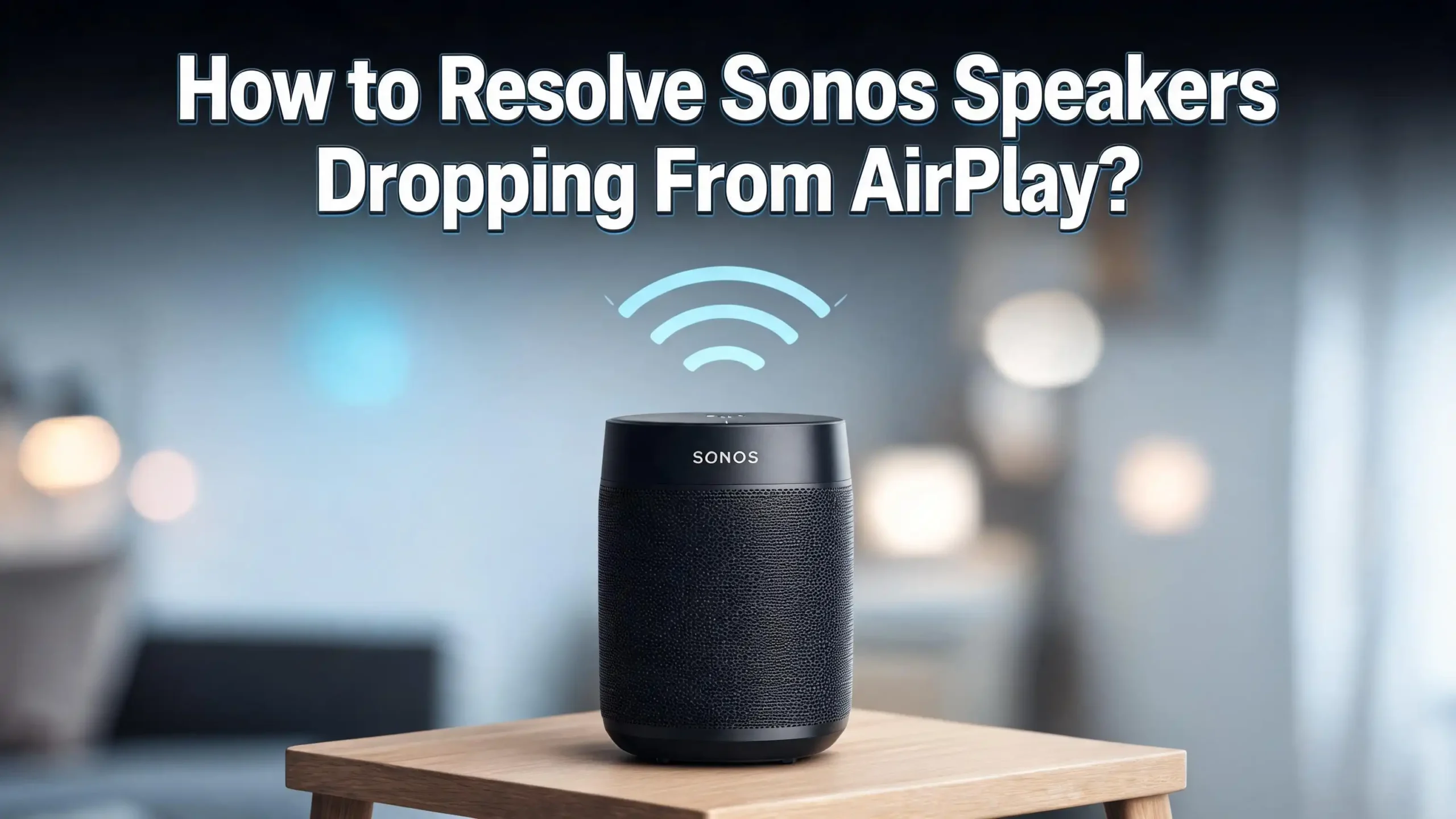
How to Fix Sonos Speakers Dropping From AirPlay?
Few things are more frustrating than setting up your favorite playlist on Sonos, only to have the AirPlay connection suddenly drop mid-song. You check your phone. The speakers still appear in the Sonos app. But AirPlay? Gone. Sound familiar?
You are not alone. Thousands of Sonos users report this exact problem, and it affects everything from the Sonos One and Era 100 to the Sonos Beam and Move.
The good news is that most AirPlay dropout issues are fixable. You do not need to be a tech expert, and you do not need to replace any equipment.
This guide walks you through every proven fix, step by step. Read through each section carefully because the fix for your problem might be something surprisingly simple.
Key Takeaways
- AirPlay dropouts on Sonos are most often caused by network issues, including Wi-Fi interference, IP address conflicts, or devices sitting on different network subnets. Fixing your router settings is often the fastest solution.
- Your iPhone or iPad’s “Private Wi-Fi Address” feature is a known troublemaker. When this setting is enabled, Sonos cannot reliably identify your device, which leads to dropped AirPlay sessions. Turning it off often solves the problem instantly.
- Restarting your router, Sonos speakers, and Apple device in the correct order refreshes IP addresses and clears network conflicts. This basic step resolves a large percentage of AirPlay dropout cases reported in the Sonos community.
- Outdated Sonos firmware and outdated iOS versions cause compatibility breaks with AirPlay. Keeping both systems updated is one of the simplest and most effective preventative measures you can take.
- The Sonos app itself can become corrupted or cache-heavy, leading to inconsistent AirPlay behavior. Reinstalling the app is a quick and clean fix that many users overlook.
- If all else fails, a factory reset of the affected Sonos speaker clears any deep configuration errors and gives you a fresh start. This is a last resort but it works reliably when other steps do not.
What Is AirPlay and Why Do Sonos Speakers Drop From It?
AirPlay is Apple’s wireless audio and video streaming protocol. It lets you send music, podcasts, or any audio from your iPhone, iPad, or Mac directly to compatible speakers like Sonos. AirPlay 2, the current version, supports multi-room audio and offers low latency playback.
Sonos added AirPlay 2 support across many of its speakers. This means you can stream directly from your Apple device without opening the Sonos app at all. It is a powerful feature, but it relies on a stable local network connection to work properly.
When your Sonos speaker drops from AirPlay, it usually means one of several things has broken down. The connection between your Apple device and the speaker lost its network handshake. The speaker received a new IP address your device did not recognize. Wi-Fi interference disrupted the stream. Or a software bug in either the Sonos firmware or iOS triggered a disconnect.
Understanding why the dropout happens helps you pick the right fix. That is why this guide covers all the major causes and their solutions in a clear, organized way.
Restart Everything in the Right Order
The most common fix for Sonos AirPlay dropouts is also the simplest: restart your router, your Sonos speakers, and your Apple device in the correct sequence. This refreshes all IP addresses and clears temporary network errors that cause the connection to fail.
Here is the correct restart order to follow. First, unplug your Wi-Fi router from the power outlet. Then unplug all your Sonos speakers from power. Wait for a full 60 seconds. Do not skip this wait time because it gives all devices time to fully reset their memory.
After 60 seconds, plug your router back in first. Wait until the router is fully back online and broadcasting a Wi-Fi signal. This usually takes one to two minutes. Then plug your Sonos speakers back in, one at a time.
Once your Sonos speakers are back online, restart your iPhone or iPad by holding the power button and sliding to power off. Turn it back on, reconnect to your Wi-Fi network, and try AirPlay again.
Why does order matter? When your router starts first, it assigns fresh IP addresses to your Sonos speakers when they connect. If your Sonos speakers start before the router, they may try to grab the same IP addresses they had before, which can cause conflicts that break AirPlay.
This single step fixes the problem for a large number of users according to reports on the Sonos community forums. Try this first before anything else.
Turn Off Private Wi-Fi Address on Your iPhone or iPad
This is one of the most reported and least obvious causes of Sonos AirPlay dropouts. Apple introduced the “Private Wi-Fi Address” feature starting with iOS 14. It assigns a different MAC address to your device each time it connects to a network. This protects your privacy on public Wi-Fi, but it breaks Sonos AirPlay on home networks.
Sonos uses your device’s MAC address to identify and maintain the AirPlay connection. When your iPhone keeps changing its address, Sonos loses track of your device and drops the session.
Here is how to turn off this setting. Open the Settings app on your iPhone or iPad. Tap Wi-Fi. Tap the small information icon (i) next to your home network name. Scroll down and find the option labeled Private Wi-Fi Address. Toggle this setting off. Your iPhone will disconnect and reconnect to the network. Then try AirPlay to your Sonos speaker again.
This setting needs to be turned off specifically for your home network. Turning it off only affects your home Wi-Fi, so your privacy on public networks remains protected.
According to multiple threads in the Sonos community, this one fix resolves AirPlay dropout issues for a significant number of iPhone and iPad users. If your AirPlay keeps dropping after one or two songs, this is the first iPhone setting you should check.
Make Sure All Devices Are on the Same Wi-Fi Network
AirPlay requires your iPhone, iPad, or Mac to be on the exact same network as your Sonos speakers. If they are on different networks, subnets, or VLANs, AirPlay will not work correctly or will drop frequently.
This problem is more common than it sounds. Many modern routers broadcast both a 2.4GHz and a 5GHz network, sometimes with different names. If your iPhone connects to one band and your Sonos speaker connects to the other, and your router does not bridge them properly, AirPlay will struggle or fail entirely.
To check this, open the Sonos app on your phone and go to Settings > System > About My System. This screen shows you which network each speaker is connected to. Compare this with your phone’s current Wi-Fi network shown in Settings > Wi-Fi.
If you find a mismatch, connect all your devices to the same network name. The safest approach is to connect everything to the same SSID. If your router offers a “band steering” or “unified network” option, enabling it can help ensure all devices land on the same logical network.
Never use a guest network for Sonos speakers. Guest networks are intentionally isolated from the main network, which means AirPlay traffic cannot reach your speakers at all. If you have ever put a Sonos speaker on your guest network by accident, moving it to the main network will immediately restore AirPlay functionality.
Fix Wi-Fi Channel Interference
Wi-Fi interference is a major and often invisible cause of AirPlay dropouts. Your Sonos speakers rely on a clean Wi-Fi signal to maintain the AirPlay stream. If nearby devices, neighboring networks, or appliances are competing on the same channel, your connection becomes unstable.
Sonos speakers using SonosNet (the internal Sonos wireless mesh) use the 2.4GHz band. Your router also broadcasts on 2.4GHz by default. When both your router’s 2.4GHz network and SonosNet use the same or overlapping channel, they interfere with each other and cause audio dropouts and AirPlay disconnections.
To fix this, open the Sonos app, go to Settings > System > Network > SonosNet Channel. Note the channel your SonosNet is using. Then log in to your router’s admin panel (usually at 192.168.1.1 or 192.168.0.1 in your browser). Find the Wi-Fi channel settings for the 2.4GHz band.
Set the SonosNet channel and your router’s 2.4GHz channel at least 5 channels apart. For example, if SonosNet is on channel 6, set your router to channel 1 or channel 11. The non-overlapping channels in the 2.4GHz band are 1, 6, and 11.
For the 5GHz band, if your Apple device is connecting to a 5GHz network, that signal has a shorter range and is more sensitive to physical obstacles like walls. Try positioning your router closer to your Sonos speaker or experiment with moving the speaker to see if the signal improves.
Update Sonos Firmware to the Latest Version
Sonos regularly releases firmware updates that fix bugs, improve stability, and patch compatibility issues with AirPlay. If your speaker is running old firmware, it may behave unpredictably with the current version of iOS or AirPlay.
Updating Sonos firmware is straightforward. Open the Sonos app on your phone. Tap Settings at the bottom right. Tap System. Tap System Updates. If an update is available, the app will show you the option to install it. Tap Update Now and follow the on-screen instructions.
Your Sonos speakers need to stay powered and connected during the update. The process usually takes a few minutes per speaker. Do not unplug the speaker during a firmware update because this can cause software corruption.
After the update is complete, restart your Sonos speakers and try AirPlay again. Many users in the Sonos community forums have reported that a simple firmware update resolved long-standing AirPlay issues that other fixes had not solved.
It is also worth checking if your iPhone or iPad is running the latest version of iOS. Open Settings, tap General, then tap Software Update. Install any available update. Apple frequently pushes iOS patches that improve AirPlay reliability and fix known bugs with third-party AirPlay devices like Sonos.
Turn Off Wi-Fi Calling and Mobile Data for the Sonos App
Two iPhone settings that many people never think to check can quietly destroy your AirPlay connection: Wi-Fi Calling and mobile data fallback for the Sonos app.
Wi-Fi Calling uses your Wi-Fi network to handle phone calls. When this feature is active, it can interfere with AirPlay audio streams by competing for network bandwidth and disrupting the connection handshake between your iPhone and Sonos.
To turn off Wi-Fi Calling, go to Settings > Phone > Wi-Fi Calling and toggle it off. Test AirPlay again. If the connection becomes stable, Wi-Fi Calling was the culprit.
The mobile data fallback setting allows individual apps to use cellular data even when Wi-Fi is connected. If the Sonos app falls back to cellular during an AirPlay session, the connection breaks because AirPlay requires a local Wi-Fi link between your device and the speaker.
To fix this, go to Settings > Cellular (or Mobile Data depending on your iOS version). Scroll down to find the Sonos app in the list. Make sure the toggle for Sonos is turned off. This forces the Sonos app to use only Wi-Fi, which keeps AirPlay stable.
These two settings are especially relevant if your AirPlay drops after exactly one or two songs. The pattern of dropping at a consistent point is a strong sign that a mobile data or Wi-Fi Calling conflict is interrupting the session.
Reinstall the Sonos App
Sometimes the Sonos app itself is the source of the problem. A corrupted cache, a failed update, or a conflicting configuration file inside the app can cause AirPlay to behave erratically. Reinstalling the app gives you a clean slate without affecting your actual Sonos system settings.
Before you reinstall, note that your Sonos system configuration is stored on your speakers themselves, not in the app. Reinstalling the app will not reset or remove your speakers from your system. You will just log back in and everything will be restored.
To reinstall, delete the Sonos app from your iPhone or iPad by pressing and holding the app icon, then tapping Remove App and confirming. Then go to the App Store, search for “Sonos,” and download and install the app fresh.
Open the freshly installed app and sign in to your Sonos account. The app will detect your existing Sonos system on your network. Once everything is loaded, try AirPlay again.
Users who experienced persistent AirPlay dropouts after an app update frequently report that reinstalling resolves the issue immediately. This is especially relevant after major Sonos app updates, which have historically introduced bugs that affect AirPlay functionality.
Check and Fix Your Router’s Multicast DNS Settings
AirPlay uses a technology called mDNS (Multicast DNS) to discover devices on your local network. When your router does not properly support or forward mDNS traffic, AirPlay devices like Sonos speakers become invisible to your iPhone or iPad even when they are connected to the same Wi-Fi.
This is a more advanced fix, but it is important for users who have tried all the basic steps without success. The issue is especially common with mesh router systems, enterprise-grade routers, or routers that have been configured with multiple VLANs or SSIDs.
Log in to your router’s admin interface. Look for settings related to mDNS, Multicast, or IGMP Snooping. The exact location of these settings varies by router brand. On some routers, you need to enable mDNS passthrough or mDNS bridging to allow AirPlay discovery to work correctly across network segments.
If you have a mesh system like Eero, Google Nest, or UniFi, check the manufacturer’s documentation for enabling mDNS. Some mesh systems disable mDNS by default between access points, which breaks AirPlay discovery in larger homes.
Also make sure UPnP (Universal Plug and Play) is enabled in your router settings if it is available. Sonos uses UPnP alongside mDNS for device discovery, and disabling it can cause intermittent AirPlay failures.
If you are not comfortable making these changes yourself, contacting your router manufacturer’s support team is a reasonable next step.
Switch Sonos From SonosNet to Standard Wi-Fi (or Vice Versa)
Sonos speakers can connect to your network in two ways: through SonosNet (a proprietary wireless mesh that Sonos builds between its own devices) or through your standard home Wi-Fi. Switching between these two modes can sometimes resolve AirPlay instability.
If your Sonos speaker is currently running on SonosNet and you are experiencing AirPlay dropouts, try switching it to connect directly to your Wi-Fi instead. To do this, open the Sonos app, go to Settings > System > Network, and look at your current connection mode.
To switch a speaker to Wi-Fi mode, you typically need to remove the Ethernet cable from any wired Sonos speaker if one is present, and reconfigure the speaker through the app to use Wi-Fi directly. The process differs slightly by speaker model, so check the Sonos support documentation for your specific product.
Conversely, if your speaker is already on standard Wi-Fi and dropping from AirPlay, connecting one Sonos speaker via Ethernet cable to your router and enabling SonosNet can significantly improve stability. The wired speaker acts as a bridge for the rest of your Sonos system, creating a more reliable internal network.
A wired connection is always the most stable option. If you have an Ethernet port near your Sonos speaker, use it. This removes all the Wi-Fi variables from the equation and typically eliminates AirPlay dropouts caused by wireless interference.
Disable Bluetooth on Your iPhone Temporarily
This sounds counterintuitive because Bluetooth and Wi-Fi are different technologies. But on iPhone and iPad, Bluetooth and Wi-Fi share the same radio hardware. When Bluetooth is active and busy (for example, connected to AirPods or a car stereo), it can create interference that affects your Wi-Fi signal quality and disrupts AirPlay.
To test this, open Settings > Bluetooth and toggle Bluetooth completely off. Do not use Control Center to “turn off” Bluetooth because that method only disconnects from devices temporarily without fully disabling the radio.
Once Bluetooth is fully off, try your AirPlay connection to Sonos again. If the dropout stops, Bluetooth interference was contributing to the problem. In this case, you have a few options: keep Bluetooth off when using AirPlay, or upgrade to a router that operates on the 5GHz band and connect your phone to 5GHz, which is less affected by Bluetooth interference.
If cellular data is also on during AirPlay sessions, try turning it off as well. Go to Settings > Cellular and toggle Cellular Data off temporarily. Some users find that the combination of cellular data plus active Bluetooth plus AirPlay creates a conflict that drops the session.
Reset Network Settings on Your iPhone
If you have tried most of the above steps and AirPlay is still dropping, your iPhone’s network settings may have become corrupted or misconfigured. Resetting network settings clears all saved Wi-Fi passwords, VPN configurations, and network preferences, giving you a completely fresh network state.
Important: Before you do this, make sure you have your Wi-Fi password saved somewhere because you will need to re-enter it after the reset.
To reset network settings on your iPhone, go to Settings > General > Transfer or Reset iPhone > Reset > Reset Network Settings. Confirm the reset when prompted. Your iPhone will restart.
After it restarts, go to Settings > Wi-Fi, select your home network, and enter the password. Once connected, open AirPlay and try streaming to your Sonos speaker. Also remember to turn off Private Wi-Fi Address again for your home network after this reset, because the reset will restore that setting to its default (enabled) state.
This step has resolved AirPlay dropout issues for many users who were stuck after trying simpler fixes. It is particularly effective when the problem seems to be specific to one iPhone or iPad rather than affecting all devices in the home.
Factory Reset Your Sonos Speaker
A factory reset should be your last resort, but it is a reliable and definitive fix for Sonos speakers that have developed deep configuration errors or software corruption that prevents AirPlay from working.
A factory reset erases all settings stored on the speaker itself and removes it from your Sonos system. You will need to set it up again from scratch through the Sonos app. If the speaker is added to a HomeKit home, you will need to add it back to HomeKit as well.
The reset process varies by Sonos model. For most Sonos speakers, the process involves pressing and holding the button on the back or top of the speaker while plugging the power cable back in. The light on the speaker will flash, indicating the reset is in progress.
For the Sonos Era 100 and Era 300, press and hold the button on the back while reconnecting power. For the Sonos One, press and hold the Play/Pause button while reconnecting power. Always check the Sonos support page for your specific model to confirm the exact reset procedure.
After the reset, set up the speaker fresh in the Sonos app and test AirPlay. Multiple users on Sonos community forums and Reddit report that a factory reset completely resolved persistent AirPlay issues that no other fix had solved.
Contact Sonos Support and Submit a Diagnostic
If you have worked through every step in this guide and your Sonos speakers are still dropping from AirPlay, it is time to reach out to Sonos Support directly. This is not a defeat. Some AirPlay issues are caused by firmware bugs or account-specific configuration problems that only Sonos’s engineering team can diagnose and fix.
Before you contact support, submit a diagnostic from within the Sonos app. This sends a detailed technical log of your system’s performance to Sonos. Open the Sonos app, go to Settings > Help & Tips > Submit a Diagnostic. Note the confirmation number that appears after submission.
When you contact Sonos Support, provide them with this diagnostic confirmation number. It gives their team direct access to your system’s logs and allows them to identify patterns or errors that are not visible from the outside.
You can reach Sonos Support at support.sonos.com. They offer chat, phone, and community forum support. The community forums at community.sonos.com are also an excellent resource where both Sonos staff and experienced users respond to troubleshooting questions.
Be specific when describing your problem. Tell them which speakers are affected, which Apple devices and iOS versions you are using, what your router model is, and exactly when and how the AirPlay dropout occurs. The more detail you provide, the faster they can identify the correct solution.
Prevent Future AirPlay Dropouts With These Habits
Once you have resolved your current AirPlay issue, a few simple habits will help prevent it from happening again. These practices keep your network and Sonos system in the best possible shape for reliable AirPlay performance.
Keep your Sonos firmware updated. Enable automatic updates in the Sonos app if available, or check for updates at least once a month. Firmware updates frequently patch AirPlay-related bugs before they become a noticeable problem.
Keep your iOS updated. Apple regularly releases updates that improve AirPlay stability. Run software updates as soon as they become available, especially minor point releases like 17.x updates that focus on bug fixes.
Restart your router periodically. A monthly router restart keeps its memory clear and prevents IP address conflicts from building up over time. Many modern routers have a scheduled restart feature in their admin panel.
Keep your Sonos speakers and Apple devices on the same main Wi-Fi network. Do not mix guest networks, IoT networks, and main networks. Simplicity in network design is the best long-term prevention strategy.
Position your Sonos speakers away from microwaves, cordless phones, and baby monitors. These devices all operate in the 2.4GHz frequency range and can cause interference that leads to audio dropouts.
Frequently Asked Questions
Why does my Sonos keep dropping from AirPlay after one or two songs?
This specific pattern usually points to either the Private Wi-Fi Address feature on your iPhone or a Wi-Fi Calling / mobile data conflict. When your iPhone’s address changes or the connection briefly shifts to cellular, AirPlay loses the session. Turn off Private Wi-Fi Address in Settings > Wi-Fi for your home network and disable Wi-Fi Calling in Settings > Phone.
Why does my Sonos speaker not appear in the AirPlay list at all?
If your Sonos speaker does not show up in the AirPlay list, the most common causes are that your iPhone and speaker are on different Wi-Fi networks, mDNS is not working properly on your router, or the speaker has lost its network connection entirely. Restart your router and Sonos speaker in the correct order (router first, then speaker), and make sure both devices are on the same Wi-Fi network name.
Does AirPlay work on all Sonos speakers?
No. AirPlay 2 is supported on specific Sonos models. Supported speakers include the Sonos One (Gen 2), Era 100, Era 300, Move, Move 2, Roam, Roam 2, Beam (both generations), Arc, Arc Ultra, Amp, Port, Five, and the Playbase. Older models like the Play:1, Play:3, Play:5 (Gen 1), and the original Playbar do not support AirPlay.
Can I use AirPlay on Sonos without the Sonos app installed?
Yes. Once your Sonos speaker is set up and connected to your network, you do not need the Sonos app open or even installed to use AirPlay. AirPlay works directly from any Apple app that supports audio output, such as Apple Music, Spotify, Podcasts, or Safari. The Sonos app is only needed for initial setup and system management.
Why does Sonos AirPlay work for some family members but not others?
This usually means the problem is specific to one person’s device rather than the Sonos system itself. Check whether that specific device has the Private Wi-Fi Address setting enabled, or whether it is connected to a different Wi-Fi network (such as a guest network or 5GHz band when others are on 2.4GHz). Resetting network settings on the affected device often fixes this.
Does rebooting the router really fix AirPlay issues?
Yes, and it is more effective than most people expect. Routers assign IP addresses to your devices using a system called DHCP. Over time, IP address conflicts build up as devices join and leave the network. A router reboot clears these conflicts and assigns fresh addresses to all devices, which resolves many AirPlay dropout issues. It is always the best first step to try.
Should I use 2.4GHz or 5GHz Wi-Fi for Sonos AirPlay?
Both can work well, but they have different strengths. The 5GHz band offers faster speeds and less interference in crowded areas, but has a shorter range. The 2.4GHz band travels further through walls but is more prone to interference from other devices. Most users report stable AirPlay on 5GHz when the router is in close proximity to the Sonos speaker. If your speaker is far from the router, 2.4GHz may deliver a more reliable connection.

Hi, I’m Suzy — the voice behind RapidGenLab. I’m a tech enthusiast who loves breaking down complex products into simple, honest reviews and comparisons. Got a question? Feel free to reach out!