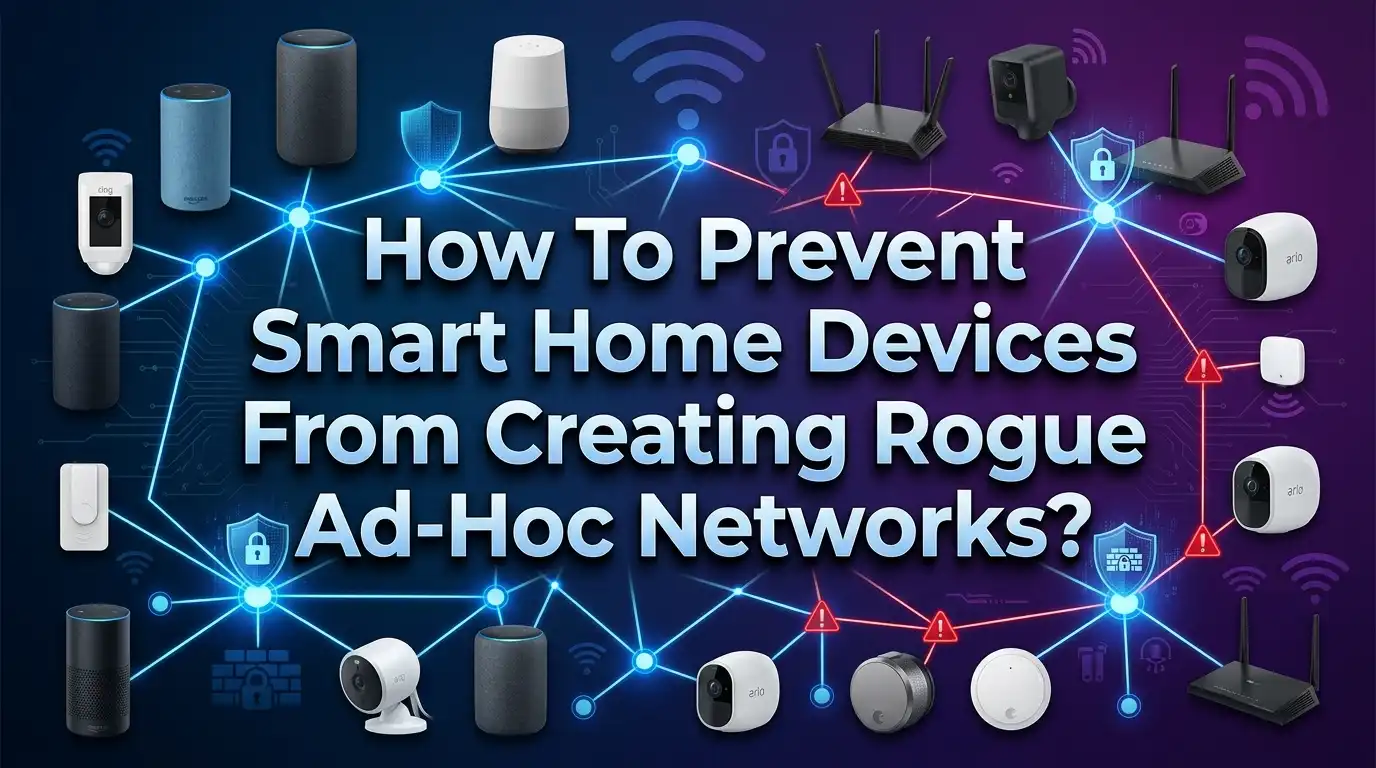
How To Prevent Smart Home Devices From Creating Rogue Ad Hoc Networks?
Your smart home is supposed to make life easier. But behind the scenes, your smart bulbs, cameras, plugs, and speakers could be forming invisible wireless connections you never approved.
These are called rogue ad hoc networks, and they represent one of the most overlooked security gaps in modern homes. An ad hoc network forms when two or more devices connect directly to each other without going through your main router.
Many smart home devices have built in capabilities like Wi Fi Direct, Bluetooth, and Zigbee that can create these unauthorized connections silently. A single rogue connection can expose your personal data, give attackers a backdoor into your home network, and compromise every device on your local subnet. The good news? You can stop it.
This guide walks you through practical, step by step solutions to detect, prevent, and eliminate rogue ad hoc networks created by your smart home devices.
In a Nutshell
- Rogue ad hoc networks form when smart devices connect directly to each other or to nearby devices without using your authorized router, creating invisible and unmonitored communication channels that bypass all your security rules.
- Most smart home devices ship with features like Wi Fi Direct, Bluetooth, and peer to peer communication enabled by default. These features allow devices to broadcast their own small networks, which any nearby device or attacker could join without your knowledge.
- Network segmentation using VLANs or a guest network is one of the most effective defenses. Placing IoT devices on a separate subnet prevents them from reaching your personal computers, phones, and sensitive data even if a rogue connection forms.
- Regular network scanning and monitoring can reveal unauthorized connections early. Tools like Fing, Nmap, and your router’s admin panel help you spot unknown devices, suspicious traffic patterns, and unexpected wireless signals in your home.
- Firmware updates and proper device configuration are essential ongoing tasks. Outdated firmware often contains vulnerabilities that make rogue network formation easier, and default device settings rarely prioritize your security.
- Choosing devices that support local control and recognized security standards like WPA3, Matter, and encrypted Zigbee/Z Wave protocols reduces the risk of unauthorized ad hoc connections and keeps your smart home under your control.
What Are Rogue Ad Hoc Networks and Why Do They Matter
A rogue ad hoc network is an unauthorized wireless connection that forms between devices without passing through your main router or access point. Unlike your standard Wi Fi network, ad hoc connections are decentralized. Two devices simply agree to talk to each other directly.
Smart home devices often create these connections using Wi Fi Direct, Bluetooth, or other peer to peer protocols. A smart TV might broadcast a Wi Fi Direct signal. A smart speaker might open a Bluetooth pairing window. A security camera might create a temporary setup network and never close it.
The danger is real. These rogue networks operate outside your firewall rules, outside your router’s security settings, and outside your visibility. An attacker within physical range can detect these open or poorly secured ad hoc signals and connect to them. From there, they can intercept data, inject malicious commands, or use the compromised device as a stepping stone into your main home network.
Research from NYU’s engineering department has shown that IoT devices within local networks can inadvertently expose sensitive data through these types of side channels. The problem grows with every new smart device you add to your home. More devices mean more potential rogue connections, more open signals, and more attack surface area for anyone nearby.
How Smart Home Devices Create Ad Hoc Networks Without Your Knowledge
Most people assume their smart devices only communicate through the home Wi Fi router. That assumption is wrong. Many smart devices have multiple wireless radios built into them, and each radio can create its own independent connection.
Wi Fi Direct is one of the most common culprits. Devices like smart TVs, printers, and media streamers often have Wi Fi Direct enabled by default. This feature lets the device act as a mini access point, broadcasting its own network name that any nearby device can see and potentially join.
Bluetooth is another pathway. Smart speakers, wearables, and many IoT hubs constantly broadcast Bluetooth discovery signals. While Bluetooth has a shorter range than Wi Fi, it still creates a connection pathway that operates outside your main network’s security controls.
Zigbee and Z Wave mesh networks add another layer. These protocols are designed for device to device communication. A Zigbee smart bulb talks directly to a Zigbee motion sensor, forming a mesh. If these mesh networks are not properly secured with encryption keys, they can be joined by unauthorized devices.
Some devices also create temporary “setup” networks during initial configuration. A smart camera might broadcast an open Wi Fi network named “SmartCam_Setup” so you can configure it with your phone. If the device malfunctions or resets, it can rebroadcast this open network indefinitely, creating a permanent rogue access point in your home.
Audit Every Device on Your Home Network
The first step to preventing rogue ad hoc networks is knowing exactly what devices are on your network and what wireless capabilities they have. You cannot secure what you cannot see.
Start by creating a complete inventory of every smart device in your home. Write down the device name, manufacturer, model number, MAC address, and the wireless protocols it supports. Check the product manual or manufacturer website to identify whether the device uses Wi Fi, Wi Fi Direct, Bluetooth, Zigbee, Z Wave, or Thread.
Log into your router’s admin panel and review the list of connected devices. Compare this list against your inventory. Look for device names you do not recognize. Look for MAC addresses that do not match any device you own. Unknown entries could indicate a rogue device or an unauthorized connection.
Use a network scanning tool to get a deeper view. Applications like Fing or Nmap can scan your local network and identify every active device, including its manufacturer, open ports, and connection type. Run these scans regularly, not just once. New rogue connections can appear any time a device resets, updates, or malfunctions.
Pay special attention to devices that show up on your network intermittently. A device that connects, disappears, and reconnects could be cycling through ad hoc mode. Document everything. This inventory becomes your baseline for detecting future anomalies.
Disable Wi Fi Direct on All Smart Devices
Wi Fi Direct is one of the biggest enablers of rogue ad hoc networks in the home. It allows a device to act as its own wireless access point and accept connections from other devices nearby. Many smart TVs, printers, cameras, and media players ship with this feature turned on.
Check every smart device individually. Open the device settings menu and look for Wi Fi Direct, peer to peer, or device sharing options. Turn them off. On smart TVs, this setting is usually found under the network or connectivity menu. On printers, it may appear as “wireless direct printing” or a similar label.
For devices that do not have an obvious settings menu, use the manufacturer’s companion app. Many IoT devices can only be configured through a phone app. Look for connectivity settings within the app and disable any direct connection features.
Some devices require Wi Fi Direct for initial setup. In this case, enable the feature only during the setup process, then immediately disable it once the device is connected to your main network. Do not leave setup modes active.
If a device does not allow you to disable Wi Fi Direct, consider whether you truly need that device. A device that constantly broadcasts an open wireless network is a liability. Replace it with a model that gives you full control over its wireless features. Your security is more important than any single gadget’s convenience.
Turn Off Bluetooth Discovery When Not in Use
Bluetooth is the second most common pathway for rogue ad hoc connections. Smart speakers, fitness trackers, smart locks, and many IoT hubs broadcast Bluetooth discovery signals continuously unless you specifically tell them to stop.
Open the settings on each Bluetooth capable device and disable Bluetooth discoverability. This prevents the device from advertising its presence to other Bluetooth devices nearby. Many devices let you keep Bluetooth functional for already paired devices while hiding the device from new pairing requests.
On your smartphone, disable Bluetooth scanning in the location or connectivity settings. Both Android and iOS use Bluetooth scanning for location services even when Bluetooth appears to be off. This background scanning can inadvertently interact with smart home devices and create unwanted connections.
For smart speakers and hubs, check if a dedicated “pairing mode” button exists. Devices that only enter Bluetooth pairing mode when you press a physical button are safer than devices that remain discoverable at all times.
Review your list of paired Bluetooth devices regularly. Remove pairings you no longer use. Old pairings represent stored trust relationships that an attacker could exploit if they gain access to one of the paired devices. Keeping your Bluetooth pairings clean and minimal reduces your exposure significantly.
Secure Your Zigbee and Z Wave Mesh Networks
Zigbee and Z Wave devices form mesh networks where each device communicates directly with nearby devices. This mesh architecture is efficient and reliable, but it also creates device to device connections that operate independently from your Wi Fi network.
Both Zigbee and Z Wave support encryption. Zigbee uses 128 bit AES encryption, and Z Wave uses the S2 security framework. However, encryption is only effective if it is enabled and configured correctly during device pairing.
When you add a new Zigbee or Z Wave device, always use the secure inclusion method. Z Wave’s S2 framework requires you to scan a QR code or enter a PIN during pairing. This step ensures the device joins your mesh with full encryption. Skipping this step or using “legacy” pairing mode leaves the connection unencrypted and vulnerable.
Change the default network key on your Zigbee coordinator. If you use a hub like Home Assistant with a Zigbee dongle, the coordinator manages the network encryption key. A default or predictable key makes it easier for attackers to join your mesh network with a rogue device.
Audit your mesh network periodically. Most Zigbee and Z Wave hubs show a network map of connected devices. Look for devices you do not recognize. An unauthorized device on your mesh network can intercept commands, inject false sensor readings, or act as a relay for an attacker. Remove any unknown device immediately and re secure your mesh.
Set Up Network Segmentation With VLANs
Network segmentation is one of the most powerful defenses against rogue ad hoc networks. Even if a smart device creates an unauthorized connection, segmentation prevents that compromised device from reaching your personal computers, phones, and sensitive files.
A VLAN (Virtual Local Area Network) divides your single physical network into multiple isolated virtual networks. Each VLAN has its own subnet, its own traffic rules, and its own security policies. Devices on one VLAN cannot communicate with devices on another VLAN unless you explicitly allow it.
Create at least two VLANs. Put your personal devices like laptops, phones, and tablets on VLAN 1. Put all IoT devices like smart bulbs, cameras, plugs, and speakers on VLAN 2. Set firewall rules so that VLAN 2 can access the internet but cannot reach any device on VLAN 1.
To set up VLANs, you need a router or firewall that supports them. Consumer routers with custom firmware like OpenWrt or DD WRT support VLANs. Dedicated firewall software like OPNsense or pfSense provides even more control. You can install OPNsense on an old computer and turn it into a powerful network security appliance.
If VLANs feel too advanced, use your router’s guest network as a simpler alternative. Place all IoT devices on the guest network. Most guest networks isolate connected devices from the main LAN by default. This is not as flexible as VLANs, but it provides a meaningful layer of separation.
Keep Firmware and Software Updated on Every Device
Outdated firmware is one of the main reasons smart devices become security liabilities. Manufacturers release firmware updates to patch vulnerabilities, fix bugs, and close security gaps that could allow rogue network formation.
Enable automatic updates on every device that supports them. Check your smart home hub, router, cameras, and other connected devices for an auto update setting. Turn it on. Devices that update themselves are far less likely to carry exploitable vulnerabilities.
For devices that do not support automatic updates, create a monthly reminder to check for updates manually. Visit the manufacturer’s website or open the companion app to see if new firmware is available. Do not skip updates even if the device seems to work fine. Many security patches fix invisible vulnerabilities that you would never notice until an attacker exploits them.
Your router deserves special attention. The router is the gateway to your entire home network. An outdated router with known vulnerabilities gives attackers a direct path inside. Check your router manufacturer’s support page regularly. If your router has reached end of life and no longer receives updates, replace it. The NSA and CISA have both published advisories warning about the dangers of running outdated router firmware.
Also update the firmware on your Zigbee and Z Wave coordinators. These devices manage the encryption keys and pairing protocols for your mesh networks. A vulnerability in the coordinator compromises every device on the mesh.
Monitor Your Network for Unauthorized Wireless Signals
Prevention is important, but detection is equally critical. Rogue ad hoc networks can appear at any time, especially when a device resets, loses its Wi Fi connection, or receives a problematic update.
Use a Wi Fi analyzer app on your phone or laptop. These apps show every wireless signal in your vicinity, including hidden networks and ad hoc connections. Scan your home regularly. Look for network names you do not recognize. Look for open networks with names that match your smart device brands, such as “Ring_Setup” or “SmartPlug_Config.”
Set up continuous monitoring if possible. Tools like Fing Agent can run 24/7 on a Raspberry Pi or a NAS device and alert you instantly when a new device appears on your network. This gives you real time visibility into any unauthorized connection attempt.
Check your router’s wireless client list and DHCP lease table weekly. Compare the entries against your device inventory. New entries that do not match any known device could indicate a rogue connection. Investigate immediately by identifying the MAC address and tracing it to a specific device.
For advanced users, consider running a wireless intrusion detection system. Software like Kismet can passively monitor all wireless traffic in your area and flag rogue access points, ad hoc networks, and suspicious wireless activity. Early detection gives you time to respond before an attacker can exploit a rogue connection.
Disable Universal Plug and Play on Your Router
Universal Plug and Play, commonly known as UPnP, is a protocol that allows devices on your network to automatically discover each other and open network ports without your permission. It was designed for convenience, but it creates serious security risks.
Many smart home devices use UPnP to automatically configure port forwarding rules on your router. This means a compromised device can open a port from your internal network to the internet without you knowing. An attacker can then access that device remotely, and potentially your entire network through it.
UPnP also facilitates device discovery across your local network, which can enable ad hoc style communication between devices that should not be talking to each other. A smart TV using UPnP can discover and interact with a network attached storage device, a printer, or even a computer on the same subnet.
Log into your router’s admin panel and disable UPnP. The setting is usually found under the “advanced” or “network” section. After disabling it, some devices may lose specific functionality like remote access or media streaming. Configure these features manually using static port forwarding rules that you control.
Disabling UPnP forces you to make deliberate decisions about which devices can communicate and how. This removes a major avenue for unauthorized device discovery and rogue network formation. Every connection on your network should exist because you approved it, not because a protocol allowed it automatically.
Use WPA3 Encryption and Strong Passwords
The encryption standard on your Wi Fi network determines how well your wireless traffic is protected from eavesdropping and unauthorized access. WPA3 is the latest standard and provides significant security improvements over WPA2.
WPA3 offers stronger encryption, better protection against brute force password attacks, and improved security for open networks. If your router and devices support WPA3, enable it immediately. Check your router’s wireless security settings and select WPA3 Personal. If some older devices cannot connect with WPA3, use the WPA2/WPA3 mixed mode as a temporary compromise.
Set a strong, unique password for your Wi Fi network. Use at least 16 characters with a mix of uppercase letters, lowercase letters, numbers, and symbols. Do not use dictionary words, names, addresses, or common phrases. A weak Wi Fi password is the easiest entry point for anyone attempting to join your network or intercept traffic.
Change your router admin password as well. The admin panel controls every aspect of your network. A default or weak admin password lets anyone who gains network access reconfigure your router, disable security features, or create new rogue access points.
Never share your main Wi Fi password with guests. Use the guest network instead. Every person who knows your Wi Fi password represents a potential leak. Old passwords stored on former guests’ devices can reconnect automatically and create unauthorized network access months or years later.
Choose Smart Devices With Strong Security Standards
Not all smart home devices are created equal. The security of your home network starts at the point of purchase. Choosing devices with strong security features reduces your risk before the device even connects to your network.
Look for devices that support current encryption standards. Wi Fi devices should support WPA3. Zigbee devices should support Zigbee 3.0 with AES 128 encryption. Z Wave devices should support the S2 security framework. Devices that only support older, weaker protocols are inherently more vulnerable.
Check the manufacturer’s track record on firmware updates. A device that receives regular security patches is far more trustworthy than one that was last updated two years ago. Avoid devices from manufacturers that have no clear update policy or that have a history of abandoning products.
Consider devices that support local control. Devices that work through a local hub like Home Assistant, Hubitat, or a local Zigbee/Z Wave coordinator do not need constant cloud connectivity. Less cloud dependency means fewer open connections, fewer data transmissions, and less opportunity for rogue network behavior.
The Matter standard is worth considering for new purchases. Matter uses IP based communication with strong encryption and local operation as core design principles. Devices certified under Matter go through interoperability and security testing. While no standard is perfect, Matter represents a meaningful step forward for consumer IoT security.
Create Firewall Rules to Restrict Device Communication
Firewall rules give you granular control over which devices can talk to which and what type of traffic is allowed. Without custom firewall rules, every device on your network can freely communicate with every other device.
Start with a default deny policy for your IoT VLAN. Block all traffic from IoT devices to your personal device VLAN. Then create specific allow rules only for the traffic you need. For example, allow your phone to reach the smart TV for casting, but do not allow the smart TV to initiate connections to your phone or laptop.
If your IoT cameras connect to a local NVR (network video recorder), place the cameras on a separate VLAN with no internet access at all. The cameras only need to reach the NVR. Blocking their internet access eliminates the risk of cloud based exploits or unauthorized outbound data transmission.
Block unnecessary outbound traffic from IoT devices. Many smart devices regularly connect to servers in other countries for telemetry, analytics, or advertising data. Use your firewall to restrict IoT devices to only the specific domains or IP addresses they need to function.
For mDNS dependent devices like Chromecast, AirPlay speakers, and Sonos systems, configure an mDNS reflector or Avahi daemon to relay discovery traffic across VLANs without opening full network access. This preserves device discovery functionality while maintaining strict network isolation. Tools like OPNsense and OpenWrt support mDNS reflection natively.
Physically Secure Your Smart Home Devices
Digital security gets most of the attention, but physical access to a device can bypass all digital protections. An attacker who can physically touch a smart device can reset it, extract stored credentials, or force it into an insecure setup mode that broadcasts a rogue network.
Place smart hubs, routers, and coordinators in a secure location. Do not leave network equipment in shared spaces, garages, or exterior areas where unauthorized individuals can reach them. A router reset button pressed by a visitor or intruder can wipe your security settings and restore insecure defaults.
Outdoor devices like cameras and doorbells require extra attention. Use tamper resistant mounts and enclosures. Choose devices that alert you when they detect physical tampering. Some security cameras send notifications if they are disconnected or moved.
Disable the physical WPS (Wi Fi Protected Setup) button on your router if possible. WPS allows one button pairing that bypasses your Wi Fi password entirely. While convenient, WPS has well documented security flaws that attackers can exploit to join your network.
Review your smart home devices for reset buttons or pairing buttons that are too easily accessible. A device with an exposed reset button can be forced back into setup mode, which typically broadcasts an open ad hoc network. Position these devices where only authorized household members can access them.
Build a Regular Security Maintenance Routine
Preventing rogue ad hoc networks is not a one time task. It requires ongoing attention and periodic checkups to stay ahead of new vulnerabilities, device changes, and configuration drift.
Set a monthly calendar reminder for your smart home security review. During this review, scan your network for unknown devices. Check your router for firmware updates. Review firewall rules. Verify that Wi Fi Direct and Bluetooth discoverability remain disabled on all smart devices.
Audit your Zigbee and Z Wave mesh networks quarterly. Open the mesh network map in your hub software and confirm every device is recognized and authorized. Remove any device you no longer use. Unused devices still connected to your mesh are unnecessary attack surface.
Review your VLAN and firewall configuration after adding or removing any device. New devices may require new rules. Removed devices may leave behind orphaned rules that could be exploited. Keep your configurations clean and current.
Stay informed about security advisories for your devices. Subscribe to manufacturer newsletters or follow security news sources. When a vulnerability is announced for a device you own, update or mitigate immediately. Delaying patches gives attackers a window of opportunity.
Document your entire network setup including VLANs, firewall rules, device inventory, and passwords in a secure location. If something goes wrong, this documentation helps you restore your network quickly and verify that no unauthorized changes were made.
Frequently Asked Questions
What is a rogue ad hoc network in a smart home?
A rogue ad hoc network is an unauthorized wireless connection that forms between smart devices without going through your home router. Devices with Wi Fi Direct, Bluetooth, or mesh protocol capabilities can create these connections automatically. They operate outside your normal network security, making them invisible to your firewall and router settings. Any nearby person or device can potentially detect and join these rogue connections.
Can a smart bulb really create a security risk?
Yes. A smart bulb connected to your Wi Fi sits on the same network as your laptop and phone. If that bulb has weak firmware, default credentials, or an open Wi Fi Direct signal, it becomes an entry point. Attackers can compromise the bulb and use it to scan your network, intercept data, or reach more valuable devices. Network segmentation limits this risk by isolating the bulb from sensitive devices.
How do I know if my devices are creating ad hoc networks?
Use a Wi Fi analyzer app to scan for wireless signals in your home. Look for network names you do not recognize, especially names that match your device brands. Check each device’s settings for Wi Fi Direct, Bluetooth discoverability, and peer to peer features. Regular network scanning with tools like Fing can also reveal unexpected connections and unknown devices.
Is a guest network good enough to protect my main devices?
A guest network provides basic isolation and is much better than placing all devices on a single network. However, it offers less control than VLANs. Most guest networks do not allow you to set custom firewall rules between the guest and main networks. For stronger protection, VLANs give you full control over traffic between network segments with explicit allow and deny rules.
How often should I check my smart home network for security issues?
A monthly security review is a solid minimum. Check for unknown devices, verify firmware is current, and confirm that security features like disabled Wi Fi Direct and Bluetooth discoverability are still in place. Run a network scan after adding any new device. Review your mesh network map quarterly. Update your firewall rules whenever your device inventory changes.
Does the Matter protocol help prevent rogue ad hoc networks?
Matter uses IP based communication with strong encryption and emphasizes local operation. Devices certified under Matter undergo security and interoperability testing. While Matter does not eliminate all risks, it reduces the chance of insecure peer to peer connections by enforcing encrypted communication standards. Choosing Matter compatible devices is a positive step for overall smart home security.

Hi, I’m Suzy — the voice behind RapidGenLab. I’m a tech enthusiast who loves breaking down complex products into simple, honest reviews and comparisons. Got a question? Feel free to reach out!