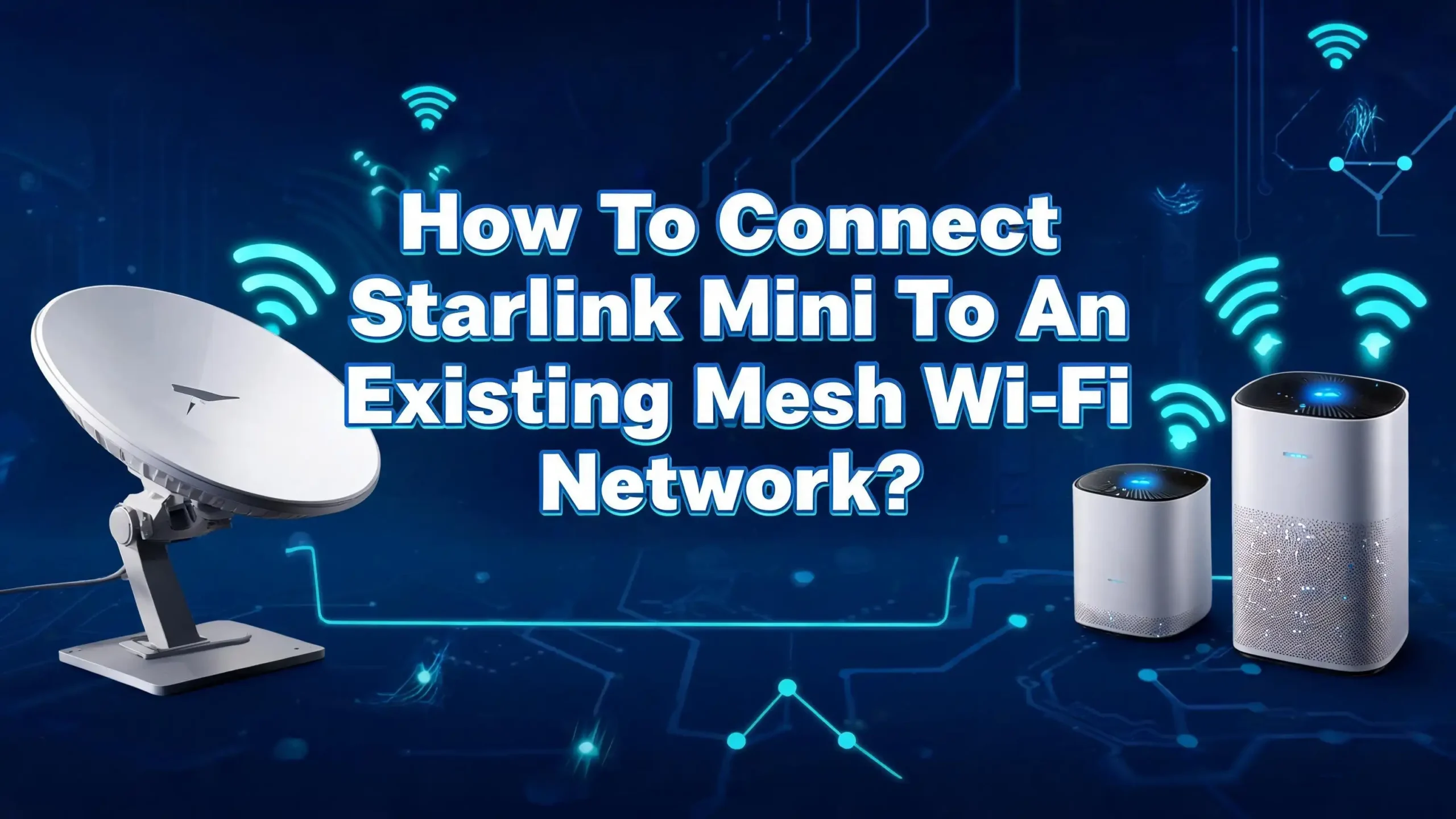
How To Connect Starlink Mini To An Existing Mesh Wi-Fi Network?
You just unboxed your Starlink Mini. The satellite connection is strong. But the built-in Wi-Fi only covers about 1,200 square feet. Your existing mesh network already blankets every corner of your home.
You do not want to start over with a new system. The question is simple: can you connect your Starlink Mini directly to your current mesh Wi-Fi setup?
The answer is yes. You have multiple ways to do it. Each method works differently depending on your hardware and your comfort level with network settings. This guide walks you through every option.
Key Takeaways
- The Starlink Mini has a built-in Ethernet LAN port, so you can connect a third-party mesh router directly without buying an adapter.
- Bypass Mode is the cleanest method. It disables the Mini’s internal router and lets your mesh system handle all network management, which avoids Double NAT issues.
- Access Point Mode is a simple alternative. If you want to keep the Starlink Mini’s Wi-Fi active, set your mesh system to AP mode instead of Router mode.
- You can also use official Starlink mesh nodes with the Mini for a plug-and-play wireless setup managed through the Starlink app.
- Node placement matters more than the brand. Keep wireless nodes one to two rooms apart and avoid chaining them for the best performance.
- Wired Ethernet backhaul always beats wireless meshing for speed and stability, especially if you stream 4K video or do online gaming.
Understand What the Starlink Mini Router Can and Cannot Do
The Starlink Mini is a compact device. It combines the satellite dish and the Wi-Fi router into one unit. This makes it great for travel, RVs, and small homes. But the integrated router has limits you need to understand before connecting a mesh system.
The Mini broadcasts Wi-Fi on the 5 GHz and 2.4 GHz bands. It supports Wi-Fi 5, also known as 802.11ac. The official coverage rating is up to 1,200 square feet. In a real home with walls and furniture, the actual range is often less.
Users on Reddit and Facebook groups report strong signals within 50 to 100 feet, but speeds drop fast beyond that. The Mini also supports up to 128 connected devices, which is plenty for most households.
The good news is that the Starlink Mini has one latching Ethernet LAN port built right into the device. This is a big advantage over the older Gen 2 Standard Starlink, which required a separate Ethernet adapter purchase.
You can plug any third-party mesh router directly into this port. The Mini also supports wireless mesh pairing with official Starlink mesh nodes, such as the Router Mini or the Gen 3 Router. This gives you both wired and wireless options.
However, the Mini’s internal router lacks many advanced features. There is no Quality of Service control, no VPN server, and very limited parental controls. If you need those features, you will want your own mesh system to take over.
The Mini’s router also uses Starlink’s CGNAT, which stands for Carrier-Grade Network Address Translation. This means you already have one layer of NAT before your own router adds another. That brings us to the Double NAT problem, which we will address in detail later.
Why You Would Want to Connect a Mesh Network to Your Starlink Mini
The built-in Wi-Fi on the Mini works fine for a small apartment or a single room. But most homes have dead zones. The bedroom at the end of the hallway, the basement, the backyard patio. A single router cannot reach them all.
A mesh network solves this by using multiple nodes. One node connects to the internet source. The other nodes spread across your home. They all broadcast the same network name, or SSID. Your phone or laptop switches between nodes without you noticing. You get full bars everywhere.
If you already own a mesh system from brands like TP-Link Deco, Eero, Netgear Orbi, or Google Nest Wifi, you do not want to throw it away. You want to plug your new Starlink Mini into it. This keeps your existing network intact. All your devices stay connected. You keep all your custom settings, guest networks, and parental controls.
Another reason is performance. A dedicated mesh router often has faster processors and better antennas than the integrated Mini router. Tests shared by users on the Starlink subreddit show that a quality third-party router can improve local network speeds, reduce latency spikes, and handle many devices better. For homes with 20 or more smart devices, cameras, and gaming consoles, a dedicated mesh system makes a noticeable difference.
Option 1: Use Bypass Mode with Your Existing Mesh Router
Bypass Mode is the recommended method for most users. It turns off the Starlink Mini’s internal router functions. The Mini acts only as a modem, passing the internet connection directly to your mesh router. Your mesh system then manages everything: IP addresses, Wi-Fi, security, and device traffic.
Pros of Bypass Mode: It eliminates Double NAT completely at the local level. Your mesh router gets full control. You keep all your advanced features like VPN, QoS, and port forwarding rules. The Starlink app still shows dish status and obstruction data. The setup is clean and professional.
Cons of Bypass Mode: You lose the Starlink Mini’s built-in Wi-Fi. If your mesh router fails, you have no backup network. You lose the advanced speed test inside the Starlink app because that test relies on the Starlink router. To disable Bypass Mode later, you must perform a factory reset on the Mini router by pressing a physical reset button or power-cycling it several times.
Here is how to set it up. First, connect an Ethernet cable from the Mini’s LAN port to the WAN or Internet port on your main mesh router. Power on both devices. Wait for the Starlink Mini to connect to the satellites, which can take a few minutes. Open the Starlink app on your phone. Go to Settings. Look for Bypass Mode under the router settings. Toggle it on. Confirm the action.
The Mini will restart. Once it comes back online, your mesh router will receive a direct internet connection. Log into your mesh router’s app or web interface. Make sure it is in Router Mode, not Access Point Mode. Your mesh router now handles everything. All your existing devices and settings remain unchanged.
Option 2: Set Your Mesh System to Access Point Mode
Maybe you want to keep the Starlink Mini’s Wi-Fi active. Perhaps you use the Starlink app’s features often and do not want to lose them. Maybe you have devices that connect directly to the Mini’s Wi-Fi for simplicity. In this case, use Access Point Mode instead of Bypass Mode.
Pros of Access Point Mode: You keep the Mini’s Wi-Fi working as a backup or secondary network. The Starlink app’s full features remain available, including the advanced speed test. Setup is reversible; you can switch modes any time without a factory reset. This method is simpler for beginners.
Cons of Access Point Mode: You create a Double NAT situation. The Starlink Mini performs one layer of NAT, and your mesh router performs another if it stays in Router Mode. That is why you must switch your mesh to AP Mode. In AP Mode, your mesh system loses its routing features. You cannot use QoS, advanced firewall rules, or certain parental controls. The Starlink Mini’s limited router becomes the boss of your network.
To set this up, connect the Ethernet cable from the Mini’s LAN port to your mesh router’s WAN port. Do not enable Bypass Mode on the Starlink Mini. Open your mesh system’s app. Navigate to the operation mode settings. Look for an option labeled Access Point Mode, AP Mode, or Bridge Mode. Select it. Save the changes.
Your mesh system will restart. Once it comes back, it will broadcast your existing Wi-Fi network, but the Starlink Mini is now the primary router. All devices get their IP addresses from the Mini. Your mesh nodes simply extend the signal. This setup works well for simple home networks where advanced routing features are not needed.
Option 3: Use Official Starlink Mesh Nodes with the Mini
Starlink sells its own mesh nodes. These include the Router Mini, the Gen 2 Router, and the Gen 3 Router. Any of these can pair wirelessly with your Starlink Mini to create a mesh network managed entirely through the Starlink app.
Pros of official nodes: Setup is extremely easy. Plug in the node, open the app, and tap “Pair.” The app handles everything. You get a unified experience with no third-party apps. The nodes are designed to work with Starlink’s firmware updates and network optimizations. Wired backhaul is also supported if you connect a node via Ethernet.
Cons of official nodes: You have to buy new hardware. If you already own a third-party mesh system, this means extra spending. The official nodes offer fewer features than many third-party routers. There is no VPN support, no detailed traffic monitoring, and no custom DNS options. The Starlink app gives you basic controls only.
To add an official mesh node, place the new node in a power outlet one or two rooms away from the main Starlink Mini. Make sure the Mini is online and working. Open the Starlink app on your phone while connected to the Mini’s Wi-Fi. Within two minutes, a notification should appear: “New Mesh Node(s).” Tap Pair. The node configures itself and joins the network.
Repeat this for each additional node. Keep nodes within good range of the main Mini router. Avoid placing more than three nodes unless your home is very large. Too many wireless nodes can create interference and slow down the whole network.
Wired vs Wireless Backhaul: Which One Should You Choose
When you set up a mesh network, each node needs to talk to the main router. This connection is called the backhaul. You have two choices: wireless backhaul or wired Ethernet backhaul.
Wireless backhaul is simple. You plug a node into a power outlet. It connects to the main router over Wi-Fi. No cables are needed. This is the default for most mesh systems and the only option for official Starlink nodes if you do not run Ethernet cables.
Pros of wireless backhaul: It is easy to install. You can place nodes anywhere there is a power outlet. It is great for renters or people who cannot run cables through walls.
Cons of wireless backhaul: The node uses half of its Wi-Fi bandwidth to talk to the main router. This means the speed available to your devices is lower. Distance and walls reduce signal quality. Interference from neighbors’ Wi-Fi can cause drops.
Wired Ethernet backhaul connects each mesh node to the main router using an Ethernet cable. Since the Starlink Mini has a LAN port, you can connect a switch to that port and run cables to each mesh node.
Pros of wired backhaul: Every node gets the full internet speed. There is no wireless interference. The connection is stable and low latency. This is the best choice for gaming, 4K streaming, and video calls.
Cons of wired backhaul: You need to run Ethernet cables. This can be difficult in finished homes. Cables must be hidden or routed through walls and attics. It takes more time and planning.
If your home already has Ethernet wiring, use it. The performance difference is significant. If running cables is impossible, wireless backhaul still works well, especially with modern tri-band mesh systems that dedicate a separate radio for backhaul traffic.
How to Fix the Double NAT Problem
Double NAT happens when two routers on the same network both perform network address translation. With Starlink Mini, you already have one layer of NAT from the Starlink CGNAT infrastructure.
If you connect another router without proper configuration, you add a second layer. Some applications struggle with Double NAT. Online gaming voice chat, certain VPN connections, and smart home devices may fail or behave oddly.
The easiest fix is Bypass Mode. When you enable Bypass Mode on the Starlink Mini, its router turns off. Your mesh router becomes the only NAT device on your local network. The CGNAT from Starlink still exists upstream, but that is outside your control and affects all residential Starlink users equally.
If you choose not to use Bypass Mode, set your mesh system to Access Point Mode. This also avoids Double NAT. In AP Mode, your mesh router stops doing NAT. It simply extends the network created by the Starlink Mini. All devices share the same IP range.
Another option is to use IPv6. Starlink supports IPv6, which does not require NAT at all. If your mesh router supports IPv6 passthrough or native IPv6, enable it. Devices that use IPv6 will bypass NAT entirely, which can solve connectivity problems for some applications.
Users on the Starlink subreddit have confirmed that Double NAT alone rarely causes noticeable slowdowns in everyday browsing and streaming. The extra latency from an additional NAT layer is usually less than one millisecond. The main problems appear with peer-to-peer applications, online gaming lobbies, and remote access tools. If you use those, fix the Double NAT.
Step by Step: Connect a Third Party Mesh Router to Starlink Mini
Here is a clear checklist you can follow. This works for popular mesh brands like TP-Link Deco, Eero, Netgear Orbi, Google Nest Wifi, and Asus ZenWiFi.
Step 1: Unbox your Starlink Mini and set it up. Place it where it has a clear view of the sky. Power it on and wait for a stable connection. Use the Starlink app to confirm the dish is online.
Step 2: Locate the Ethernet LAN port on the Starlink Mini. It is a latching RJ45 port. Connect one end of a Cat5e or Cat6 Ethernet cable to this port. Connect the other end to the WAN or Internet port on your main mesh router.
Step 3: Power on your mesh router. Wait for it to boot up. Open your mesh system’s mobile app or web dashboard. Make sure it is set to Router Mode for Bypass Mode setup, or Access Point Mode if you plan to keep Starlink’s router active.
Step 4: Open the Starlink app. Navigate to Settings and find Bypass Mode. Enable it. The Mini will restart. This process takes about two minutes.
Step 5: Once the Mini restarts, your mesh router should detect the internet connection automatically. Check the WAN status in your mesh app. It should show a public or CGNAT IP address.
Step 6: Place your additional mesh nodes around your home. Follow the mesh app’s instructions for adding nodes. If you have Ethernet wiring, connect nodes via cable for the best performance.
Step 7: Test the connection. Walk to different rooms with your phone. Check the Wi-Fi signal strength. Run a speed test at each location. Speeds should be consistent across all nodes.
Step 8: If something does not work, disconnect the Ethernet cable from the Mini. Factory reset the Mini if Bypass Mode is enabled and you need to revert. Then try again with fresh settings.
Step by Step: Connect Official Starlink Mesh Nodes to the Mini
If you bought a Router Mini or a Gen 3 Router to use as a mesh node, here is your checklist.
Step 1: Set up your main Starlink Mini and confirm it is online. Connect your phone to the Mini’s Wi-Fi network.
Step 2: Plug the new mesh node into a power outlet. Place it in the same room as the Mini for initial pairing. This ensures a strong signal during setup.
Step 3: Open the Starlink app. Wait one to two minutes. A notification labeled “New Mesh Node Found” should appear. Tap Pair.
Step 4: The node will configure itself. The app shows a progress indicator. Once complete, the node appears in your network list.
Step 5: Move the node to its final location. Place it one to two rooms away from the main Mini. Open areas with minimal walls work best.
Step 6: For a wired backhaul, connect an Ethernet cable from the Mini’s LAN port to the WAN port on the new node. The app automatically detects the wired connection and prioritizes it over wireless.
Step 7: Add more nodes the same way. Keep the total number of wireless nodes to three or fewer to avoid interference.
Step 8: Use the Starlink app to check the signal strength of each node. The app shows connection quality between the main router and each mesh node. Adjust placement if any node shows a weak link.
Node Placement Tips for the Best Mesh Performance
Where you place your mesh nodes matters more than the brand of router you use. Bad placement creates slow zones. Good placement gives you fast, reliable Wi-Fi everywhere.
Place the main Starlink Mini as centrally as possible in your home. If the Mini sits in a corner office at one end of the house, the other end will have weak signal. A central location cuts the distance to all rooms roughly in half.
Place mesh nodes one to two rooms apart from the main router. Do not put a node four rooms away and expect it to work. The signal degrades with each wall it passes through. Thick materials like brick, concrete, and metal are especially bad. Position nodes in hallways or open living areas instead of inside closed closets.
Elevate your nodes. Put them on a shelf or mount them on a wall. Wi-Fi signals travel better at height. Avoid placing nodes on the floor, behind furniture, or inside cabinets. Keep them away from large metal objects like refrigerators and from appliances that emit electromagnetic interference, like microwave ovens.
Avoid daisy chaining. Every wireless mesh node should connect directly back to the main router, not to another node in a chain. Chaining cuts the available bandwidth in half at each hop. If Node A talks to Node B, which talks to Node C, the device at Node C gets only a fraction of the original speed. Most modern mesh systems try to avoid this automatically, but you should plan your layout to prevent it.
Use fewer nodes, not more. Three well-placed nodes usually cover a medium to large home. Adding a fourth or fifth node can actually hurt performance. Too many overlapping signals create interference. Start with two nodes including the main router. Add a third only if you still have dead zones.
Troubleshooting Common Issues After Setup
Even a careful setup can hit a snag. Here are fixes for the most common problems users report on forums and support groups.
The mesh node does not pair. Move the node closer to the main Starlink Mini. Make sure your phone is connected to the Mini’s primary Wi-Fi network, not a temporary setup network. If you use a third-party mesh router, double-check that the Ethernet cable is plugged into the WAN port, not a LAN port. Restart both devices and try again.
Speeds are much slower through the mesh. Check your backhaul. If you use wireless backhaul, the node might be too far from the main router. Move it closer. Test the speed with a wired connection to the node to see if the problem is the node’s placement or the wireless backhaul. If wired speeds are good but wireless speeds are not, reposition the node.
Devices keep dropping the connection. This often happens when two nodes are too close to each other. Your device bounces between them. Increase the distance between nodes. Also check for interference from neighboring Wi-Fi networks. Change the Wi-Fi channel in your mesh router settings if possible.
The Starlink app does not work after Bypass Mode. This is expected for some features. The advanced speed test and router settings disappear because the Starlink router is off. You can still see dish status, obstruction data, and firmware updates. Use your mesh system’s app for everything else.
You cannot disable Bypass Mode. Bypass Mode on the Starlink Mini requires a factory reset to turn off. Locate the reset button on the Mini. Press and hold it for about 10 seconds until the light flashes. The Mini will reboot with factory settings, and the built-in Wi-Fi will broadcast again.
Online gaming voice chat does not work. This is likely a Double NAT issue. Enable Bypass Mode on the Mini or set your mesh to Access Point Mode. If the problem persists, enable IPv6 on your mesh router. Starlink’s CGNAT blocks certain peer-to-peer connections on IPv4, and IPv6 bypasses that limitation.
Pros and Cons Summary of All Connection Methods
Here is a side-by-side comparison of the three main approaches.
Bypass Mode with Third Party Mesh:
Pros: Eliminates local Double NAT. Full control over network features like VPN, QoS, and guest networks. Best performance for large homes. Works with any mesh brand.
Cons: Loses Starlink Mini Wi-Fi as backup. Loses Starlink advanced speed test. Factory reset needed to reverse. Slightly more complex setup.
Access Point Mode with Third Party Mesh:
Pros: Keeps Starlink Mini Wi-Fi active. Keeps all Starlink app features. Simple to set up and reverse. Good for beginners.
Cons: Limited routing features on mesh system. Relies on Starlink Mini’s basic router for all network management. May still have Double NAT if misconfigured.
Official Starlink Mesh Nodes:
Pros: Easiest setup with one app. No extra configuration. Wireless pairing takes one minute. Wired backhaul supported. Designed to work together seamlessly.
Cons: Requires buying new hardware. Fewer advanced features. Less control over network settings. Limited to Starlink’s ecosystem.
When to Choose Each Method for Your Home
Your choice depends on your specific situation. Here is a quick decision guide.
Choose Bypass Mode with a third-party mesh if you already own a good mesh system, you want advanced network controls, or you have a large home with many devices. This is the power user’s choice. It gives you the most control and the best performance.
Choose Access Point Mode with a third-party mesh if you want to keep things simple, you do not need advanced routing features, or you want the Starlink Mini’s Wi-Fi as a fallback. This works well for small to medium homes where basic coverage is the main goal.
Choose official Starlink mesh nodes if you are starting fresh with no existing mesh system, you want the simplest possible setup, or you prefer to manage everything from one app. This is a good choice for people who value ease of use over advanced features.
You can also mix methods. For example, use Bypass Mode with your main third-party mesh router and add a Starlink Router Mini as an extra wireless node in a garage or shed. The key is to understand what each mode does so you can make an informed choice.
FAQs
Can I connect my existing Eero or Google Nest mesh system directly to the Starlink Mini?
Yes. The Starlink Mini has a built-in Ethernet LAN port. Connect an Ethernet cable from that port to the WAN port on your Eero, Nest, or any other mesh router. Then either enable Bypass Mode on the Mini or set your mesh system to Access Point Mode. Both methods work.
Do I need to buy a Starlink Ethernet Adapter for the Mini?
No. The Starlink Mini has a latching Ethernet LAN port built into the device. You do not need an adapter. This is different from the Gen 2 Standard Starlink, which requires a separate Ethernet adapter purchase.
Will I lose internet access during Bypass Mode setup?
Temporarily, yes. When you enable Bypass Mode, the Starlink Mini restarts. This takes about two minutes. Your mesh router will also need a moment to obtain a new IP address. Plan for about five minutes of total downtime during the initial setup.
Can I use both the Starlink Mini Wi-Fi and my mesh Wi-Fi at the same time?
Yes, if you choose the Access Point Mode method. The Mini continues to broadcast its own Wi-Fi network. Your mesh system extends it. Devices can connect to either network. Just avoid using Bypass Mode, which turns off the Mini’s Wi-Fi.
How many mesh nodes can I connect to one Starlink Mini?
Starlink recommends up to three wireless mesh nodes for the best performance. You can technically add more, but beyond three nodes, interference and signal overlap often reduce overall network quality. If you need more coverage, consider wired backhaul instead of adding more wireless nodes.
Will connecting a mesh network slow down my Starlink internet?
No, not in a noticeable way. A well-configured mesh network distributes your existing internet speed across your home. It does not reduce the speed coming from the satellite. If you use wireless backhaul, distant nodes may show lower speeds due to signal loss, but your main router’s speed remains unchanged. Wired backhaul preserves full speed at every node.

Hi, I’m Suzy — the voice behind RapidGenLab. I’m a tech enthusiast who loves breaking down complex products into simple, honest reviews and comparisons. Got a question? Feel free to reach out!