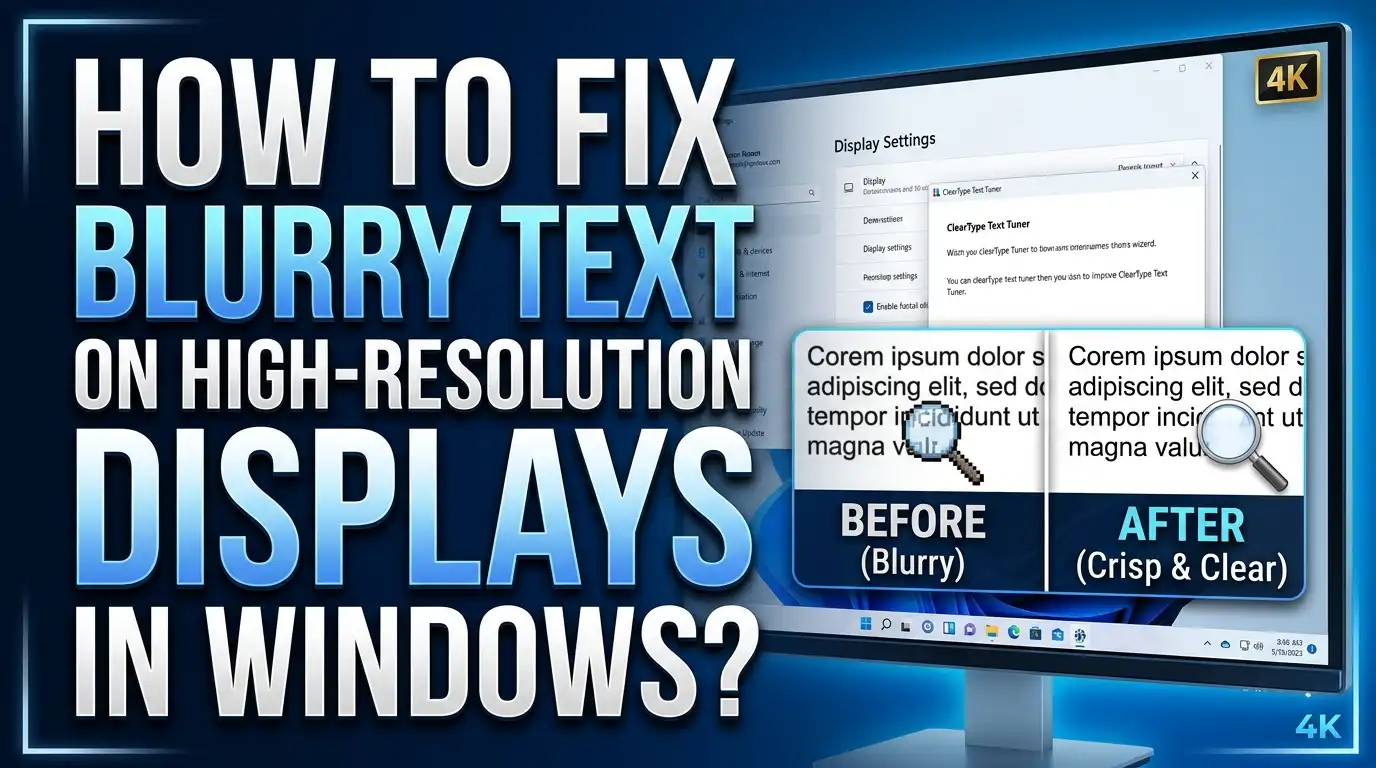
How To Fix Blurry Text On High Resolution Displays In Windows?
Have you ever spent good money on a crisp, high resolution monitor only to see fuzzy, blurry text staring back at you? You are not alone. Thousands of Windows users face this exact problem every day, especially after upgrading to a 4K or QHD display.
The good news is that this problem is almost always fixable. Blurry text on high resolution displays in Windows usually comes down to incorrect DPI scaling, outdated drivers, or apps that do not handle high pixel density screens properly.
In this guide, you will learn 12 proven solutions to fix blurry text on your high resolution display. Each method includes clear, step by step instructions you can follow right now. Let’s get your screen looking as sharp as it should.
Key Takeaways
- DPI scaling is the most common cause of blurry text on high resolution monitors. Windows automatically scales your display to make elements readable, but this scaling process can make text and apps look fuzzy if not set correctly.
- Setting your monitor to its native resolution is the first and most important step. A mismatch between your display’s actual resolution and the Windows output resolution will always produce blurry results.
- ClearType tuning can sharpen font rendering on your screen. Windows has a built in ClearType Text Tuner that adjusts how fonts appear on your specific display, and running it often fixes soft or fuzzy looking text.
- Per app DPI override settings let you fix blurry text in specific programs without changing your entire system. Older applications that were not built for high resolution screens often need this individual adjustment.
- GPU control panel settings matter too. NVIDIA, AMD, and Intel graphics panels have their own scaling options that can conflict with Windows settings and cause blur. Checking these settings is a step many users overlook.
- Windows has an automatic blur fix feature that detects and corrects blurry apps. You can enable this in your Display settings, and it works well for many common applications.
Why Does Text Look Blurry On High Resolution Displays
High resolution displays like 4K (3840 x 2160) and QHD (2560 x 1440) pack millions of pixels into your screen. At their native resolution with no scaling, everything appears extremely small because each pixel is tiny. To keep text and icons readable, Windows uses DPI scaling to enlarge everything.
DPI stands for dots per inch. When you set scaling to 150% or 200%, Windows tells every app and UI element to render larger. Modern apps handle this well. They redraw their content at the correct size, and everything stays sharp. Older apps, however, often render at their original size. Windows then stretches that rendered image to fill the larger space, which creates the blurry, fuzzy look you see.
Think of it like zooming into a small photo. The image gets bigger, but it also gets blurry because there is not enough detail to fill the larger size. That is exactly what happens with apps that do not support high DPI scaling. The app renders at 100%, and Windows stretches it to 150% or 200%.
This is why blurry text is more common on high resolution monitors. The higher the resolution, the more scaling Windows needs to apply, and the more likely you are to see blur in apps that do not support proper scaling.
Check Your Display Resolution First
Before you adjust any settings, confirm that your monitor is running at its native resolution. This is the single most important factor for sharp text. If your display is set to a lower resolution than its native capability, everything will look blurry regardless of other settings.
Open Settings by pressing Win + I on your keyboard. Go to System, then click Display. Scroll down to the Display resolution dropdown. You should see your monitor’s native resolution listed with the word (Recommended) next to it. Select that option if it is not already active.
For a 4K monitor, the native resolution is 3840 x 2160. For a QHD monitor, it is 2560 x 1440. For a standard Full HD monitor, it is 1920 x 1080. Running at any resolution lower than your monitor’s native spec forces the display to upscale the image, which always introduces blur.
If you do not see your monitor’s full native resolution listed, your graphics driver may need an update. An outdated or generic driver can limit the available resolutions. We will cover driver updates in a later section.
Adjust Display Scaling To The Right Percentage
Once your resolution is set correctly, the next step is to check your scaling percentage. This setting controls how large text, apps, and other elements appear on your screen. Open Settings, go to System, then Display, and look for the Scale dropdown under Scale and layout.
Windows recommends a default scaling value based on your screen size and resolution. For a 27 inch 4K monitor, the recommended setting is usually 150%. For a 32 inch 4K monitor, you might see 150% or even 125%. For a 24 inch QHD monitor, 125% is common.
Stick with standard scaling values like 100%, 125%, 150%, or 200% whenever possible. These values produce the sharpest results because they align well with how Windows renders content. Non standard values like 115%, 137%, or 175% can cause extra rendering steps that introduce blur, especially in older apps.
If you have been using a custom scaling value, try switching to the nearest standard percentage. Then sign out of Windows and sign back in. This forces all apps to reload with the new scaling setting, which can clear up blurry text instantly.
Enable The Built In Blur Fix In Windows
Windows 10 and Windows 11 include an automatic feature that detects and fixes blurry apps. Many users do not know this feature exists, but it can solve the problem with a single toggle.
Open Settings and go to System, then Display. Click on Advanced scaling settings (in Windows 10) or scroll down to find the related option in Windows 11. Look for the toggle labeled Let Windows try to fix apps so they’re not blurry and turn it on.
When this feature is active, Windows watches for apps that appear blurry after a scaling change. It then automatically adjusts the rendering for those apps to improve clarity. You will sometimes see a notification that says an app might look blurry, and Windows will offer to fix it.
This feature works well for many common applications. It is not perfect for every app, but it is a quick and easy first step. There is no downside to turning it on. It only activates when Windows detects a potential blur issue, so it will not affect apps that already look sharp.
After enabling this setting, close and reopen any blurry apps to let the fix take effect.
Use ClearType Text Tuner For Sharper Fonts
ClearType is a font smoothing technology built into Windows. It adjusts how text is rendered at the subpixel level to make fonts look sharper and more readable on LCD and LED displays. If your text looks soft or slightly fuzzy, tuning ClearType can make a noticeable difference.
To access it, press the Windows key and type ClearType. Click on Adjust ClearType text from the search results. A wizard will open. First, make sure the checkbox for Turn on ClearType is checked. Then click Next.
The wizard will show you several sets of text samples. For each set, choose the sample that looks clearest and sharpest to you. There is no right or wrong answer here. The best choice depends on your specific display, its panel type, and your personal preference.
After you complete all the steps, click Finish. Windows will apply your ClearType settings, and fonts should appear noticeably sharper across the entire system. If you use multiple monitors, the wizard will let you tune ClearType for each display separately.
Run this tuner again any time you connect a new monitor or change your display resolution. The optimal ClearType settings can shift with different screen configurations.
Override High DPI Scaling For Specific Apps
Sometimes the blur only affects one or two specific applications while everything else looks fine. This happens because those apps were built before high DPI scaling was standard. They do not know how to render correctly on a high resolution display.
Windows lets you override the DPI scaling behavior for individual apps. Find the application’s executable file (.exe) on your computer. If you only have a desktop shortcut, right click it and select Open file location to find the actual .exe file.
Right click the .exe file and select Properties. Go to the Compatibility tab. Click the button labeled Change high DPI settings. In the window that opens, check the box under High DPI scaling override that says Override high DPI scaling behavior. From the dropdown menu, select one of three options.
Application tells Windows to let the app handle its own scaling. System tells Windows to scale the app using standard methods. System (Enhanced) uses an improved scaling method that works better for many older apps. Try System (Enhanced) first, as it produces good results for most legacy programs.
Click OK, then Apply. Close and reopen the app. The text should now appear much sharper.
Update Your Graphics Drivers
Outdated or generic graphics drivers are a surprisingly common cause of blurry text. Your GPU driver controls how your computer communicates with your display, and an old driver may not handle high DPI scaling correctly.
Check which GPU you have by right clicking the Start button and selecting Device Manager. Expand the Display adapters section. You will see your GPU listed there, such as NVIDIA GeForce, AMD Radeon, or Intel UHD Graphics.
Visit the manufacturer’s website directly to download the latest driver. For NVIDIA, go to the NVIDIA driver download page. For AMD, visit the AMD Drivers and Support page. For Intel, use the Intel Driver Support Assistant. Download and install the latest driver for your specific GPU model.
After installing the updated driver, restart your computer. Then check your display settings again. The updated driver may have changed your available resolution options or fixed rendering issues that caused blurry text.
Driver updates are especially important after major Windows updates. A Windows version upgrade like moving to Windows 11 24H2 can change how the OS interacts with your GPU, and only the latest driver version may handle those changes correctly.
Check GPU Control Panel Scaling Settings
Your GPU manufacturer’s control panel has its own display scaling settings that operate independently of Windows settings. These settings can conflict with Windows and cause blur even when your Windows settings are correct.
For NVIDIA users, open the NVIDIA Control Panel. Go to Display, then click Adjust desktop size and position. Look at the Scaling setting under Apply the following settings. If your Windows scaling is set to 100%, change this to No scaling. This tells NVIDIA to map each software pixel directly to a hardware pixel on your monitor, which eliminates any extra scaling blur.
For AMD users, open AMD Software: Adrenalin Edition. Go to the Display tab and look for GPU Scaling. If you are running at your monitor’s native resolution, try turning GPU Scaling off. This prevents the GPU from adding its own scaling layer on top of Windows.
For Intel users, open the Intel Graphics Command Center. Go to Display and check the Scale setting. Set it to match your Windows configuration or disable additional scaling.
This GPU level fix is one of the most overlooked solutions. Many users check every Windows setting but forget that their GPU has its own scaling controls that can override or conflict with the operating system.
Fix Blurry Text On Multi Monitor Setups
Multi monitor setups create a unique challenge for DPI scaling. If you use two or more monitors with different resolutions or sizes, Windows must apply different scaling values to each display. This often leads to blurry text on one or more screens.
Open Settings, go to System, then Display. You will see visual representations of your monitors at the top. Click on each monitor individually to select it. Then set the correct scaling percentage for that specific display under Scale and layout.
A common setup is a 4K external monitor paired with a 1080p laptop screen. The 4K display might need 150% scaling while the laptop screen works best at 100% or 125%. Set each one separately.
Avoid using custom global scaling when you have multiple monitors. A custom scaling value (entered manually rather than selected from the dropdown) forces the same scale across all displays. This overrides per monitor settings and causes blur on at least one screen. If you previously set a custom value, remove it from Advanced scaling settings.
After adjusting scaling for each monitor, sign out and sign back in. Some apps cache their DPI settings at login, so a fresh sign in ensures every app picks up the correct scaling for each display.
Use The Registry Editor For Advanced DPI Fixes
If the standard settings have not solved your problem, a registry edit can provide more control over DPI scaling behavior. This method is intended for advanced users who are comfortable editing the Windows Registry.
Before making any changes, create a system restore point and back up your registry. Press Win + R, type regedit, and press Enter to open the Registry Editor.
Go to this path: HKEY_CURRENT_USER\Control Panel\Desktop. Look for a value called LogPixels. This DWORD value controls the system DPI. Common decimal values are 96 for 100%, 120 for 125%, 144 for 150%, and 192 for 200%.
Also check the value Win8DpiScaling. Setting this to 1 enables custom DPI handling. Setting it to 0 disables it and returns to standard Windows scaling behavior. If you have been experiencing persistent blur that other fixes did not resolve, try setting Win8DpiScaling to 0 and LogPixels to 96, then sign out and back in.
Another useful registry tweak targets the DpiScalingVer value in the same location. Some users have found success resetting this value to clear cached scaling configurations that cause persistent blur.
Only use registry edits as a last resort. Incorrect changes can cause display issues that require further troubleshooting to undo.
Adjust Visual Performance Settings In Windows
Windows has a set of visual performance options that affect how text and graphics render across the entire system. These settings can contribute to blurry or rough looking text if they are not configured properly.
Press the Windows key and type performance. Click on Adjust the appearance and performance of Windows. This opens the Performance Options dialog box.
On the Visual Effects tab, look for the option labeled Smooth edges of screen fonts. Make sure this checkbox is checked. If it is unchecked, fonts will appear jagged and rough, which can look like blur on a high resolution display.
If you previously selected Adjust for best performance, Windows disabled all visual effects including font smoothing. Switch to Custom and manually check Smooth edges of screen fonts at minimum. You can also check other visual effects you want to keep.
Click Apply, then OK. The change takes effect immediately. Open a few applications and documents to verify that text now looks smoother and clearer.
This setting works alongside ClearType. For the best results, make sure both font smoothing and ClearType are enabled on your system.
Run The Display Color Calibration Tool
Windows includes a Display Color Calibration tool that adjusts gamma, brightness, contrast, and color balance. While this tool primarily affects color accuracy, incorrect gamma settings can make text appear washed out or slightly blurry on screen.
Press Win + R, type dccw, and press Enter. This launches the Display Color Calibration wizard. Follow the on screen instructions to adjust your gamma level first. The wizard shows you examples of correct gamma versus gamma that is too high or too low.
Gamma that is set too high makes dark areas too bright and can reduce the contrast of text against its background. This reduced contrast gives text a soft, blurry appearance even when the actual rendering is sharp. Adjusting gamma to the correct level restores proper contrast and makes text look crisper.
After gamma, the wizard guides you through brightness, contrast, and color balance adjustments. Complete all steps for the best results.
At the end of the wizard, you will also get the option to run the ClearType Text Tuner. Take this opportunity to tune ClearType as well, especially if you have not done so recently. The combination of proper color calibration and ClearType tuning provides the sharpest possible text rendering on your display.
What To Do If Nothing Else Works
If you have tried every solution above and text is still blurry, a few additional steps may help. First, try connecting your monitor with a different cable type. HDMI, DisplayPort, and USB C can produce different results depending on your GPU and monitor. DisplayPort generally provides the most reliable high resolution output.
Second, check your monitor’s own settings using its built in on screen menu. Some monitors have a sharpness adjustment that can affect text clarity. Set sharpness to the monitor’s default or midpoint value. Over sharpening can make text look worse, not better.
Third, try creating a new Windows user profile. A corrupted user profile can carry broken DPI settings that persist across reboots. Create a new local user account, sign into it, and check if text appears sharp. If it does, the issue lies in your old profile’s cached settings.
Finally, consider running Windows Update to install the latest system patches. Microsoft regularly releases fixes for display scaling and rendering issues. A recent cumulative update may address the exact bug causing your blurry text.
If the problem persists only in one specific application, contact that app’s developer. The app may need an update to support high DPI displays properly.
Frequently Asked Questions
Why is my text blurry only in certain apps but sharp everywhere else?
Some applications, especially older programs, were not designed for high resolution displays. They render at a fixed low DPI and rely on Windows to stretch the output to match your scaling settings. This stretching creates blur. You can fix this by right clicking the app’s .exe file, going to Properties, then Compatibility, and using the Change high DPI settings option to override the scaling behavior. Try the System (Enhanced) option first for the best results.
Should I set my scaling to 100% to avoid blurry text?
Setting scaling to 100% on a high resolution display will give you the sharpest possible rendering, but everything will appear very small on most screen sizes. At 100% on a 27 inch 4K monitor, text becomes difficult to read for most people. A better approach is to use a standard scaling value like 150% or 200% and fix individual blurry apps using per app DPI overrides. This gives you readable text that stays sharp.
Does updating my graphics driver really help fix blurry text?
Yes, graphics driver updates can fix blurry text in many cases. Your GPU driver controls how your display output is rendered and scaled. Outdated drivers may not handle high DPI scaling correctly, especially after Windows updates that change rendering behavior. Always download the latest driver from your GPU manufacturer’s website (NVIDIA, AMD, or Intel) rather than relying on the generic driver that Windows installs automatically.
What is the best scaling percentage for a 4K monitor?
The best scaling depends on your screen size and viewing distance. For a 27 inch 4K monitor, most users find 150% to be the ideal balance between readable text and usable screen space. For a 32 inch 4K monitor, 125% to 150% works well. For a 24 inch 4K monitor, 200% may be necessary for comfortable reading. Stick with these standard values rather than custom percentages for the sharpest text.
Will ClearType fix blurry text caused by DPI scaling issues?
ClearType improves font rendering quality at the subpixel level, but it does not fix blur caused by incorrect DPI scaling. If your text is blurry because of a scaling mismatch, you need to fix the scaling settings first. However, after you resolve the scaling issue, running ClearType tuning will further sharpen your fonts and improve overall text clarity. Think of ClearType as the finishing touch after your scaling settings are correct.
How do I fix blurry text after a Windows update?
Windows updates sometimes change display scaling behavior or reset settings. First, check your Display resolution and Scaling percentage in Settings to make sure they are still correct. Next, update your graphics drivers to versions that are compatible with the new Windows build. Check your GPU control panel for any scaling settings that may have been reset. Finally, re run the ClearType Text Tuner to optimize font rendering under the updated system. These steps resolve blurry text after most Windows updates.

Hi, I’m Suzy — the voice behind RapidGenLab. I’m a tech enthusiast who loves breaking down complex products into simple, honest reviews and comparisons. Got a question? Feel free to reach out!