How To Overclock Neural Processing Units On Desktop Motherboards Safely?
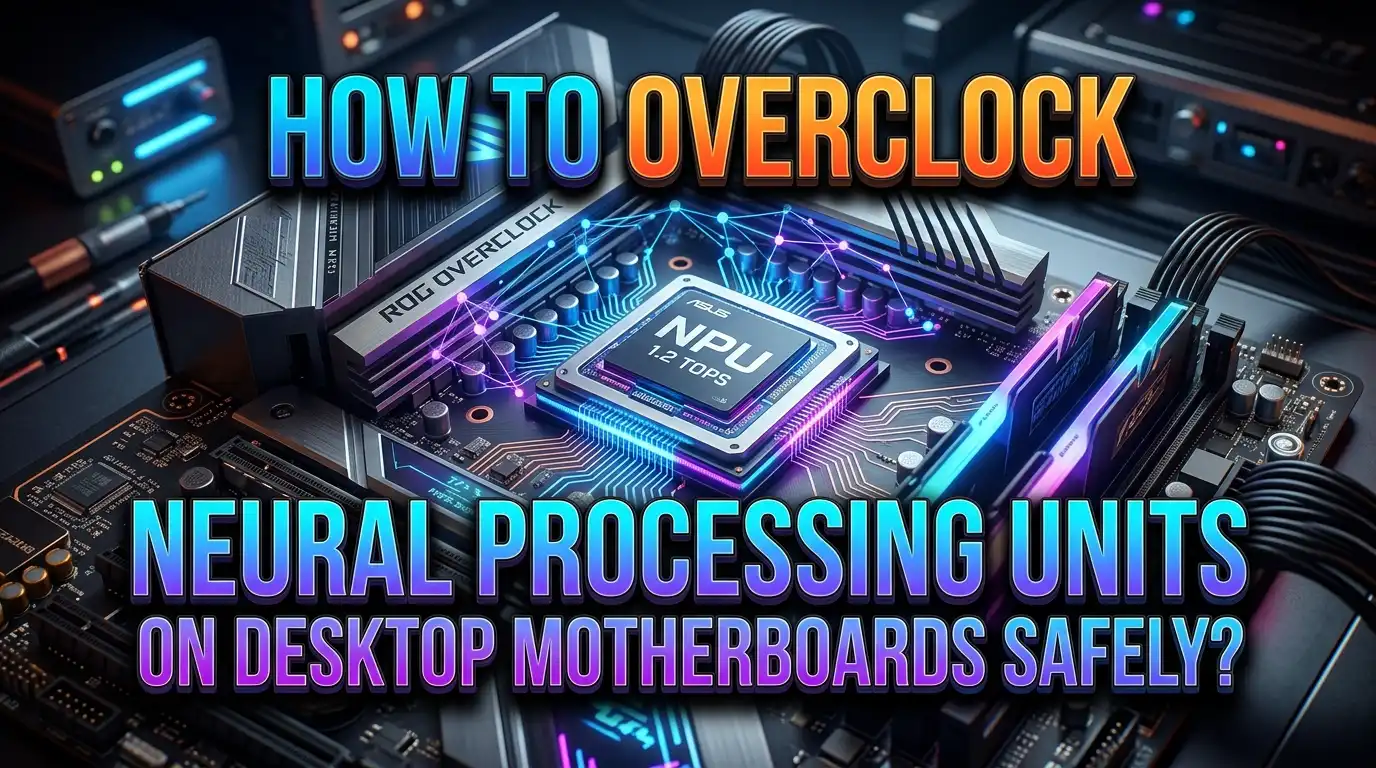
Neural Processing Units (NPUs) are now a standard feature on modern desktop processors. Intel Arrow Lake, AMD Ryzen AI, and upcoming platforms all ship with onboard NPUs built to handle AI workloads. But here is the question many PC enthusiasts are asking: can you overclock an NPU, and should you?
The answer is yes, but with important caveats. NPU overclocking is still a young practice compared to traditional CPU or GPU overclocking. The tools are fewer. The BIOS options are more limited. And the risks, while manageable, require a clear understanding of how these silicon blocks share power and thermal resources with other parts of your processor.
This guide walks you through everything you need to know. You will learn what an NPU actually does, how its clock speed is determined, which BIOS settings matter, and how to push your NPU faster without destroying your hardware.
Key Takeaways
- NPU overclocking on desktop motherboards is possible but currently relies on adjusting the SoC base clock (BCLK) frequency rather than a dedicated NPU multiplier. This means changes can affect other components on the same tile, so careful tuning is essential.
- A 20% increase in SoC BCLK (from 100 MHz to 120 MHz) can raise NPU frequency from 1600 MHz to 1920 MHz, producing roughly a 20% gain in AI benchmark scores like UL Procyon. Some users have pushed NPU clocks to 2000 MHz with extra voltage tuning.
- The VccSA (System Agent) voltage rail powers the NPU along with the memory controller and other SoC components. Raising this voltage supports higher NPU clocks but also increases heat and power draw across shared domains.
- Cooling and thermal monitoring are critical because the NPU sits on the SoC tile and shares thermal headroom with other IP blocks. Overheating can cause throttling or instability across your entire system, not just the NPU.
- Always run stability tests after every adjustment. Use AI inference benchmarks and stress testing tools to confirm your overclock is reliable before using it for daily workloads.
- Start small and increase gradually. Raise the SoC BCLK by 5 MHz at a time, test for stability, and only move higher once you confirm everything runs without errors or crashes.
What Is an NPU and Why Does It Matter for Desktop Users
A Neural Processing Unit is a dedicated hardware block built into modern processors. It handles matrix multiplication and tensor operations much more efficiently than a general purpose CPU core. Intel calls its version the “AI Boost” NPU, while AMD brands its implementation under the XDNA architecture.
On desktop platforms, NPUs are relatively new. Intel’s Arrow Lake processors brought NPU 3 to the mainstream desktop for the first time. This unit features two Neural Compute Engines (NCE), each containing two Shave DSP processors. At the stock 1600 MHz boost clock, a single NCE delivers about 4 INT8 TOPS at 1 GHz, scaling up with frequency.
For desktop users, the NPU matters because it offloads AI tasks from the CPU and GPU. Local AI inference, background noise cancellation, real time translation, image generation, and Windows Copilot+ features all benefit from a dedicated NPU. As more software taps into these capabilities, a faster NPU means smoother and more responsive AI experiences.
Microsoft now requires a minimum of 40 TOPS of NPU performance for Copilot+ PC certification. Overclocking your NPU can help you exceed this threshold or get closer to it on hardware that falls slightly short.
How NPU Clocking Works on Modern Desktop Processors
Understanding how your NPU gets its clock speed is the first step to overclocking it. The formula is simple: Reference Clock x Ratio = NPU Frequency.
On Intel Arrow Lake, the NPU sits on the SoC tile. Its reference clock comes from the SoC PLL (Phase Locked Loop), which defaults to 100 MHz. This clock is then multiplied by the NPU ratio. On Arrow Lake, the default NPU ratio produces a boost frequency of 1600 MHz.
Here is the catch. On current platforms, the NPU ratio is locked. You cannot adjust it directly through the BIOS. This is different from CPU P cores and E cores, which have adjustable multipliers on unlocked processors.
The SoC BCLK can run in two modes. In synchronous mode, it links to the CPU PLL. In asynchronous mode, it operates independently. Asynchronous mode is critical for NPU overclocking because it lets you raise the SoC clock without affecting P core or E core frequencies.
Most modern motherboards from ASUS, MSI, Gigabyte, and ASRock expose SoC BCLK settings in their BIOS. The configurable range can span from 40 MHz to 1000 MHz, though practical limits are much narrower.
Which Motherboards and Processors Support NPU Overclocking
Not every desktop processor has an NPU, and not every motherboard exposes the settings needed for NPU overclocking. You need to check both your CPU and your board before starting.
Intel Arrow Lake processors (Core Ultra 200S series) include NPU 3 on the SoC tile. These are currently the primary desktop chips with an overclockable NPU. Intel’s upcoming Panther Lake will feature NPU 5 with up to 50 TOPS, and Nova Lake will include NPU 6 at 74 TOPS.
On the AMD side, Ryzen AI 300 series processors include XDNA NPUs, but these have been limited to mobile platforms so far. AMD announced at MWC 2026 that it plans to bring NPU equipped Ryzen processors to the desktop. BIOS level NPU tuning options for AMD desktop chips are expected to grow as this transition happens.
For motherboards, look for boards with advanced SoC BCLK controls in the BIOS. ASUS ROG boards expose this under the Ai Tweaker menu. MSI boards include an “AI Boost” feature on select models like the MPG X870E Carbon WiFi. Gigabyte and ASRock also provide SoC frequency controls on their higher end Z890 and X870E boards.
If your motherboard BIOS does not show SoC BCLK or System Agent voltage options, NPU overclocking will not be possible on that board.
Preparing Your System Before You Start Overclocking
Preparation prevents damage. Before you change any settings, complete these steps to protect your hardware and data.
Update your BIOS to the latest version available from your motherboard manufacturer. NPU related BIOS settings are still being refined, and newer firmware often fixes bugs or adds options that earlier versions lacked. Arrow Lake boards, in particular, received several BIOS updates that improved SoC BCLK stability.
Install monitoring software on your desktop. HWiNFO64 is the most reliable tool for tracking SoC tile temperatures, VccSA voltage, and NPU clock speeds in real time. Core Temp and CPU Z can supplement this with additional readouts.
Back up your BIOS settings. Most modern boards let you save profiles. Create a stable baseline profile before making any overclock changes. If something goes wrong, you can load this profile and return to a known good state.
Run a baseline benchmark before overclocking. The UL Procyon AI Inference Benchmark is the standard tool for measuring NPU performance. Record your stock scores so you can measure actual gains later.
Check your cooling setup. The NPU shares thermal output with the SoC tile. A tower air cooler or 240mm AIO is the minimum recommended cooling for overclocking. Ensure your case has adequate airflow with at least two intake and one exhaust fan.
Step by Step Guide to Overclocking Your NPU via BIOS
This section gives you the exact process. Follow each step in order for the safest results.
Step 1: Power on your system and enter the BIOS. On most boards, press Delete or F2 during boot. Switch to Advanced Mode if your BIOS opens in EZ Mode by default. On ASUS boards, press F7 to toggle.
Step 2: Find the SoC BCLK setting. On ASUS ROG boards, go to Ai Tweaker and set the Ai Overclock Tuner to Manual or XMP. This will reveal the SoC BCLK Frequency option. On MSI boards, check the OC section or look for the AI Boost toggle.
Step 3: Set the BCLK mode to Asynchronous. This decouples the SoC clock from the CPU Compute tile. Your P cores, E cores, and Ring bus will remain unaffected by SoC BCLK changes.
Step 4: Raise the SoC BCLK by 5 MHz (from 100 MHz to 105 MHz). Save your settings and reboot. The NPU frequency should now be approximately 1680 MHz instead of the stock 1600 MHz.
Step 5: Boot into Windows and open HWiNFO64. Verify the NPU is running at the expected frequency. Check VccSA voltage and SoC tile temperature. Run a quick AI benchmark to test stability.
Step 6: If the system is stable, return to the BIOS and increase the SoC BCLK by another 5 MHz. Repeat the testing process. Continue this pattern until you reach your desired frequency or encounter instability.
Understanding and Adjusting VccSA Voltage for NPU Stability
The VccSA (System Agent) voltage rail is the power source for the NPU on Intel platforms. It also feeds the memory controller, the next generation uncore (NGU), and other SoC tile components. This shared arrangement makes voltage tuning a balancing act.
At stock settings, VccSA is managed automatically by the CPU through SVID (Serial Voltage Identification). The processor requests the voltage it needs based on active workloads. Each IP block on the SoC tile can request a different voltage, and the VccSA rail is set to the highest requested value.
When you raise the SoC BCLK, the NPU and other SoC components need more voltage to remain stable. If VccSA is too low, you will see system crashes, blue screens, or failed benchmark runs.
To manually set VccSA, navigate to the voltage section of your BIOS. On ASUS boards, this is under Ai Tweaker as “CPU System Agent Voltage.” Start by setting it to 1.10V and increase in 0.025V increments as needed.
Do not exceed 1.35V for daily use. Higher voltages generate significant heat and can reduce the lifespan of your processor. Most stable NPU overclocks at 120 MHz SoC BCLK require VccSA between 1.15V and 1.25V.
Monitor the actual voltage under load using HWiNFO64. BIOS set values and real delivered voltages can differ by 0.01V to 0.03V due to load line calibration and VRM behavior.
How to Test NPU Overclock Stability
An overclock means nothing if it crashes under real workloads. Stability testing confirms that your settings are safe for daily use.
UL Procyon AI Inference Benchmark is the gold standard for NPU testing. It runs standardized AI workloads directly on the NPU and reports consistent, comparable scores. Run this benchmark at least three times consecutively. If all three runs complete without errors and produce similar scores, your overclock is likely stable.
For a free alternative, the NPU Test and Benchmark tool available on the Microsoft Store lets you stress test Intel NPUs directly. It runs inference workloads in a loop and reports performance metrics.
Watch your monitoring software during every test. Key values to track include: SoC tile temperature (stay below 85°C), VccSA voltage (confirm it matches your BIOS setting under load), and NPU clock speed (verify it holds the target frequency without dropping).
If you see any of these warning signs, your overclock is unstable and you should reduce the SoC BCLK by 5 MHz or increase VccSA voltage by 0.025V: blue screens (BSOD), application crashes during AI workloads, HWiNFO64 showing clock speed drops, or benchmark scores that vary wildly between runs.
Run at least 30 minutes of continuous AI workload testing before declaring an overclock stable. Short tests can miss intermittent instability that only appears under sustained load.
Thermal Management and Cooling for NPU Overclocking
The NPU does not have its own temperature sensor on most current platforms. It shares thermal reporting with the SoC tile. This means you must monitor the overall SoC tile temperature as a proxy for NPU thermals.
At stock settings, the SoC tile on Arrow Lake processors typically runs between 50°C and 65°C under NPU load. When you push the SoC BCLK to 120 MHz, temperatures can climb by 10°C to 15°C depending on your cooling solution and VccSA voltage.
Keep your SoC tile temperature below 85°C under sustained load. Beyond this point, the processor may begin thermal throttling. This reduces NPU frequency automatically and eliminates any performance gains from your overclock.
Effective cooling strategies include using a quality thermal paste (reapply if your cooler has been installed for more than two years), ensuring your CPU cooler makes full contact with the IHS, and maintaining positive case airflow pressure to prevent hot air from recirculating.
VRM cooling matters too. The VccSA voltage is delivered through your motherboard’s VRM. Higher voltage settings increase VRM heat output. Boards with heatsink covered VRMs and active VRM fan headers handle this better than budget boards with exposed MOSFETs.
If you are pushing aggressive overclocks above 115 MHz SoC BCLK, consider a 280mm or 360mm AIO liquid cooler. The extra thermal capacity helps maintain stable temperatures during extended AI workloads.
Memory Frequency and Its Impact on NPU Performance
NPU performance does not exist in isolation. The speed of your system memory affects how fast data moves to and from the NPU, which can influence real world AI task completion times.
Testing on Arrow Lake has shown that increasing memory frequency from DDR5 4800 to DDR5 7200 improves Procyon AI benchmark scores by approximately 3%. This is a smaller gain than what you get from raising the SoC BCLK, but it stacks on top of clock speed improvements.
If you are already overclocking the NPU, enabling XMP or EXPO profiles for your RAM is a logical next step. These profiles set your memory to its rated speed with one click in the BIOS. Most DDR5 kits ship with profiles that push speeds well beyond the JEDEC default of 4800 MHz.
Be aware that on some platforms, the SoC BCLK change in asynchronous mode can still affect memory controller behavior. Always verify your RAM stability after changing SoC BCLK settings. Run MemTest86 or the Windows Memory Diagnostic tool to catch any memory errors introduced by your changes.
For the best NPU performance, pair your overclock with DDR5 6000 to DDR5 7200 memory running with tight CAS latency timings. The combination of higher NPU clocks and faster memory access produces the most noticeable improvement in AI task responsiveness.
Common Mistakes to Avoid During NPU Overclocking
Many first time overclockers make errors that lead to instability or hardware damage. Here are the most frequent mistakes and how to prevent them.
Raising SoC BCLK too aggressively is the most common mistake. Jumping from 100 MHz to 130 MHz in a single step can cause an immediate boot failure. Always increase in 5 MHz increments and test between each step. Patience produces better results than ambition.
Forgetting to set asynchronous BCLK mode is another frequent error. If you leave the BCLK in synchronous mode, raising the SoC clock will also change your CPU core, memory, and PCIe frequencies. This can corrupt data, crash your OS, or damage connected devices.
Ignoring VccSA voltage leads to mysterious instability. Many users raise the SoC BCLK without providing enough voltage. The system may boot fine but crash under AI workloads. If your overclock passes light tasks but fails under heavy NPU load, VccSA is almost certainly too low.
Skipping BIOS updates means you might be working with firmware that has known bugs affecting SoC tile clocking. Early Arrow Lake BIOS versions had issues where certain NGU ratio settings would force the NPU down to 333 MHz. Updated firmware resolved this problem.
Not monitoring temperatures is dangerous because the NPU shares thermal headroom with critical components. Running blind means you will not notice when throttling begins or when temperatures approach unsafe levels.
What Performance Gains Can You Realistically Expect
Setting realistic expectations helps you decide if NPU overclocking is worth the effort for your use case.
At 120 MHz SoC BCLK (a 20% increase), the NPU frequency rises from 1600 MHz to 1920 MHz. This produces a roughly 20% improvement in UL Procyon AI benchmark scores. Real world tasks like AI image generation, local LLM inference, and Windows Copilot+ features show similar percentage gains.
Pushing further to 125 MHz SoC BCLK brings the NPU to 2000 MHz. At this point, gains continue to scale but the voltage and thermal requirements increase sharply. The performance return per unit of extra power drops off, making this range best suited for enthusiasts who prioritize maximum speed over efficiency.
Memory speed improvements add a smaller but meaningful bonus. Moving from DDR5 4800 to DDR5 7200 adds approximately 3% to AI benchmark scores on top of your clock speed gains.
Combined, a well tuned system with 120 MHz SoC BCLK and DDR5 7200 memory can deliver roughly 23% more NPU performance than a completely stock configuration. This is a significant improvement that translates to faster AI inference, quicker image generation, and smoother real time AI features.
For most users, the sweet spot sits between 110 MHz and 120 MHz SoC BCLK. This range offers strong gains with manageable heat, reasonable voltage requirements, and excellent long term stability.
How to Revert Your NPU Overclock If Something Goes Wrong
Every overclocker needs an exit strategy. Knowing how to undo changes quickly prevents panic and protects your hardware.
If your system boots but is unstable, restart and enter the BIOS. Load the saved baseline profile you created before overclocking. If you did not save a profile, manually set the SoC BCLK back to 100 MHz and VccSA to Auto. Save and reboot.
If your system does not boot at all after a BCLK change, most motherboards have a CMOS clear option. This resets all BIOS settings to factory defaults. Look for a Clear CMOS button on your rear I/O panel or a two pin jumper on the motherboard labeled CLRTC or JBAT1.
On ASUS boards, holding the power button for 10 seconds during a failed boot will sometimes trigger a safe mode boot with default BIOS settings. MSI boards often have a similar recovery mechanism.
After reverting, wait at least five minutes before attempting another overclock. Let the system stabilize at stock settings and confirm everything works normally. Then begin your overclock again, but stop at a lower SoC BCLK value than where the instability occurred.
Always keep your BIOS recovery tools accessible. A USB drive with your latest BIOS file and the manufacturer’s flash utility can save you if a bad overclock corrupts BIOS settings beyond what a simple CMOS clear can fix. BIOS Flashback features on higher end boards let you recover firmware without even booting the system.
Future of NPU Overclocking on Desktop Platforms
NPU overclocking is in its early days. Current limitations will likely shrink as the technology matures and both Intel and AMD invest more in desktop AI capabilities.
Intel’s Panther Lake (expected in early 2026) will feature NPU 5 with up to 50 TOPS. Nova Lake will push even further with NPU 6 delivering 74 TOPS. Future platforms may introduce dedicated NPU multipliers in the BIOS, similar to how CPU core ratios work today. This would let users adjust NPU frequency independently without touching the SoC BCLK.
AMD is entering the desktop NPU space with plans to bring XDNA powered NPUs to Ryzen desktop processors. AMD’s approach to overclocking has historically been more open than Intel’s, so desktop Ryzen AI chips could offer more granular NPU tuning options out of the box.
Motherboard manufacturers are preparing for this shift. MSI’s AI Boost feature, ASUS’s Ai Tweaker enhancements, and similar tools from Gigabyte and ASRock signal that NPU overclocking will become a standard part of the BIOS tuning experience.
Software support will also improve. Dedicated NPU monitoring, per engine frequency control, and automated NPU overclocking profiles are all likely developments. As AI workloads become more central to desktop computing, the demand for faster and more tunable NPUs will only grow.
Frequently Asked Questions
Is it safe to overclock an NPU on a desktop motherboard?
Yes, NPU overclocking is safe when done correctly. The process involves raising the SoC BCLK frequency in small increments and testing for stability at each step. The key risks are excessive heat and voltage. Stay below 85°C on the SoC tile and keep VccSA under 1.35V for daily use. Follow the incremental approach described in this guide and you should have no problems. The NPU itself has no separate fuse or warranty mechanism, so overclocking it carries similar risk to any other SoC tile frequency adjustment.
Do I need a special motherboard to overclock my NPU?
You need a motherboard that exposes SoC BCLK and VccSA voltage controls in its BIOS. Most mid range and high end boards from ASUS, MSI, Gigabyte, and ASRock include these settings. Budget boards sometimes lack advanced SoC tuning options. Before purchasing a board for NPU overclocking, check the BIOS manual or online BIOS screenshots to confirm SoC BCLK adjustment is available. Z890 and X870E chipset boards are the most likely to offer full control.
Will overclocking my NPU void my processor warranty?
Intel and AMD have different warranty policies regarding overclocking. Intel generally states that running a processor outside its specifications voids the warranty. However, detecting a SoC BCLK overclock after the fact is difficult, and Intel does not actively police this. AMD has historically been more permissive about overclocking. Check your specific processor’s warranty terms before making changes. Some retailers and manufacturers offer extended overclocking warranties for an additional fee.
How much performance gain can I expect from NPU overclocking?
A moderate overclock of 20% on the SoC BCLK (100 MHz to 120 MHz) produces approximately 20% improvement in AI benchmark scores. Adding fast DDR5 memory at 7200 MHz contributes another 3%. Total gains of around 23% are realistic for a well tuned system. Pushing beyond 120 MHz SoC BCLK is possible but delivers diminishing returns relative to the extra heat and voltage required.
Can I overclock the NPU on AMD Ryzen desktop processors?
As of mid 2026, AMD’s desktop Ryzen processors have limited NPU integration compared to their mobile counterparts. The Ryzen AI 300 series with XDNA NPUs has been a laptop product line. AMD has announced plans to bring NPU equipped processors to the desktop. Once these arrive, BIOS level NPU tuning options are expected to become available. Check AMD’s latest product announcements and motherboard BIOS updates for the most current information on AMD desktop NPU overclocking support.
What tools should I use to benchmark and monitor my NPU overclock?
UL Procyon AI Inference Benchmark is the industry standard for measuring NPU performance. For free alternatives, the NPU Test and Benchmark app on the Microsoft Store works with Intel NPUs. HWiNFO64 is the best monitoring tool for tracking SoC tile temperature, VccSA voltage, and clock speeds in real time. Use these tools together to measure gains and ensure stability after every overclock adjustment.

Hi, I’m Suzy — the voice behind RapidGenLab. I’m a tech enthusiast who loves breaking down complex products into simple, honest reviews and comparisons. Got a question? Feel free to reach out!