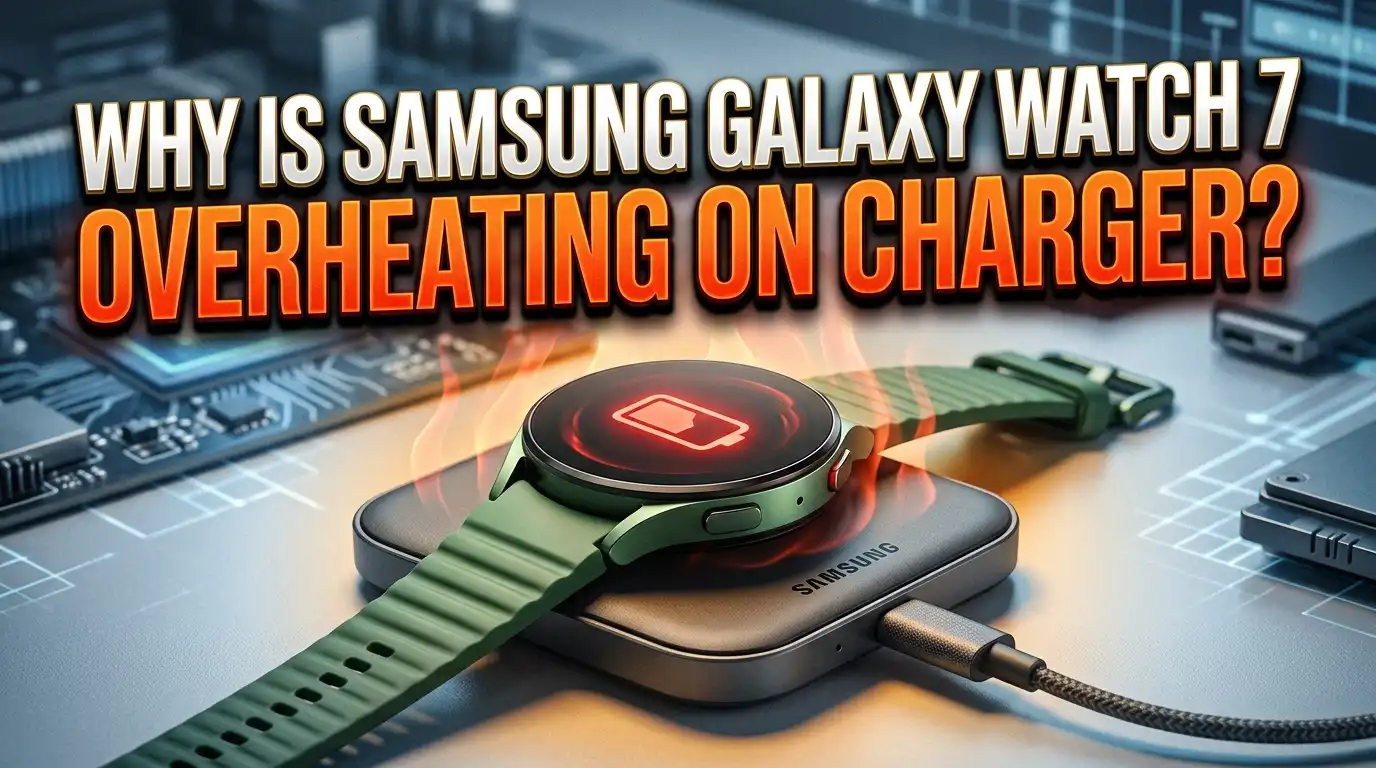
Why Is Samsung Galaxy Watch 7 Overheating on Charger?
You just placed your Samsung Galaxy Watch 7 on its charger, expecting a smooth and quick charge. Instead, the watch gets noticeably warm or even hot to the touch. This is frustrating, and honestly, a little alarming.
The good news? Most of the time, this problem has a clear cause and a simple fix. Whether it is a software glitch, a faulty charging cable, or just the wrong charging environment, you can usually solve this without a trip to the service center.
This post walks you through every possible reason your Galaxy Watch 7 overheats on the charger. It also gives you step by step solutions you can try right now. By the end, you will know exactly what to do and how to prevent it from happening again. Let us get into it.
In a Nutshell
- Overheating during charging is a common complaint among Samsung Galaxy Watch 7 users and is usually caused by environmental factors, software bugs, or hardware issues with the charger or watch itself.
- Using a non-certified or damaged charger is one of the leading causes. Always use the official Samsung wireless charger that came with your watch or a Samsung-certified replacement.
- Background apps, active watch faces, and enabled sensors can generate extra heat during charging. Turning on Power Saving Mode or Airplane Mode before charging can reduce heat significantly.
- Ambient temperature matters more than most people realize. Charging your watch in a hot room, near a window with direct sunlight, or on a soft surface that traps heat can push the internal temperature too high.
- A software update can often fix the problem. Samsung regularly releases firmware patches that address thermal management and charging optimization. Make sure your watch runs the latest software version.
- If none of the fixes work, a hardware defect may be the cause. In that case, contact Samsung Support or visit a Samsung Service Center while your warranty is still active. Do not ignore persistent overheating because it can damage the battery over time.
Understanding Normal Charging Heat vs. Overheating
Every electronic device generates some heat during charging. The Samsung Galaxy Watch 7 uses wireless charging, which is inherently less efficient than wired charging. Some energy is lost as heat during the transfer between the charger and the watch. This means a slight warmth on the back of the watch is completely normal.
The problem starts when the watch becomes uncomfortably hot to touch. If you see a thermometer icon or a warning message on the screen, the watch has exceeded its safe operating temperature. Samsung’s thermal protection system will pause charging automatically at this point.
Normal warmth feels like holding a cup of warm water. Overheating feels like the device could burn your skin if held for too long. The Galaxy Watch 7 is designed to operate safely between 0°C and 35°C (32°F to 95°F). Charging generates additional internal heat, so even a room at 30°C can push the watch past its comfort zone.
Pay attention to how long the heat lasts. A brief warm period at the start of charging is typical. Sustained high heat throughout the entire charging session is not. If your watch consistently gets very hot every time you charge it, something needs to change.
Faulty or Non-Certified Charger
The charger you use has a direct impact on how much heat the watch produces during charging. Samsung designed the Galaxy Watch 7 to work with its official magnetic wireless charger. Third-party chargers may deliver inconsistent power levels, which forces the watch to work harder during the charging process.
Non-certified chargers may not align perfectly with the watch’s charging coil. Poor alignment causes energy to scatter as heat instead of converting into stored battery power. This is one of the most common and overlooked causes of overheating.
Check your charger for visible damage. A frayed cable, a bent USB connector, or a scratched charging pad surface can all cause problems. Even small damage to the charging pad can disrupt the magnetic connection and create excess heat.
The fix is simple. Use only the charger that Samsung included in the box. If you need a replacement, buy one directly from Samsung or choose a charger with Qi2 certification that Samsung has approved for the Galaxy Watch 7. Avoid cheap, unbranded wireless chargers from unknown sellers. The few dollars you save are not worth the risk to your watch’s battery health and longevity.
Software Bugs and Outdated Firmware
Samsung’s Wear OS software controls how the Galaxy Watch 7 manages its charging behavior and thermal limits. A bug in the software can cause the processor to stay active during charging, generate unnecessary background processes, or mismanage the charging speed. All of these lead to excess heat.
Outdated firmware is a frequent culprit. Samsung pushes regular updates that include thermal management improvements and bug fixes. If you have been skipping updates or your watch has not connected to your phone recently, you might be running old software with known heating issues.
To check for updates, open the Galaxy Wearable app on your phone. Go to Watch Settings, then Band/Watch Software Update. Tap Download and Install. Make sure your watch has at least 30% battery and is connected to Wi-Fi through your phone.
Several users on Samsung Community forums reported that specific firmware updates in late 2024 and early 2025 resolved their overheating issues entirely. If your watch is up to date and still overheating, try restarting the watch before placing it on the charger. A simple reboot clears temporary software processes that may be generating extra heat.
Background Apps and Active Watch Faces
Your Galaxy Watch 7 does not fully shut down its apps when you place it on the charger. Many apps continue running in the background. Fitness tracking, heart rate monitoring, GPS logging, and even music streaming can stay active. Each of these uses processing power, which produces heat.
Animated and data-rich watch faces are another hidden source of heat. A watch face that displays live weather, step counts, heart rate, and calendar events refreshes constantly. This keeps the processor and sensors busy even while charging.
Before you place your watch on the charger, switch to a simple watch face with minimal complications. You can also close recent apps manually. Press the Home button, open Recent Apps, and swipe away each one.
For the best results, enable Airplane Mode before charging. This disables Bluetooth, Wi-Fi, and mobile connections. Your watch will charge faster and cooler because it is not communicating with your phone or the internet. You can also turn on Power Saving Mode from the quick settings panel. This reduces background activity to a minimum and lets the watch focus entirely on charging.
Charging in a Hot Environment
The environment where you charge your watch plays a bigger role than most people think. If you charge your Galaxy Watch 7 on a nightstand next to a lamp, near a heating vent, or in a room without air conditioning during summer, the ambient heat adds to the charging heat.
Direct sunlight is especially problematic. Even indirect sunlight near a window can raise the surface temperature of the watch and charger. The watch’s internal cooling cannot compensate for an already hot environment.
Soft surfaces trap heat. Placing the charger on a bed, pillow, couch cushion, or thick towel prevents air from circulating around the watch. The heat has nowhere to go, so it builds up quickly.
The solution is straightforward. Charge your watch on a hard, flat, cool surface like a desk, countertop, or wooden nightstand. Keep it away from heat sources and out of direct sunlight. If your room is warm, consider turning on a fan or placing the watch near an open window during cooler hours. These small changes can make a noticeable difference in charging temperature.
Charging Case or Cover Interference
Many Galaxy Watch 7 owners use protective cases or screen covers. While these accessories protect against scratches and impacts during daily wear, they can cause problems during charging.
A thick protective case adds a layer between the charger and the watch’s back sensor. The wireless charging signal must pass through this extra material, which reduces efficiency. Lower efficiency means more energy is wasted as heat. Some cases also trap heat against the watch body, preventing natural cooling.
Screen protectors generally do not cause overheating. However, full-body covers that wrap around the entire watch, including the back, can interfere with the charging coil connection.
Remove your case before charging. This is the simplest fix if you use a protective case. Make it part of your nightly routine. Take the case off, place the watch on the charger, and put the case back on in the morning. If removing the case completely solves the overheating, you know the case was the issue. Consider switching to a thinner case or one specifically designed to be charging-compatible.
Power Source Problems
The power source you plug your charger into matters. Using a low-quality wall adapter, a laptop USB port, or a power strip with fluctuating voltage can cause inconsistent power delivery. This forces the charger and watch to work harder, which generates more heat.
USB hubs and multi-port chargers are common offenders. When multiple devices share the same power source, voltage can fluctuate. The Galaxy Watch 7’s charger needs a stable 5V output to function properly.
Check your wall adapter’s specifications. Samsung recommends a 5V/1A adapter for the Galaxy Watch 7 charger. Using a higher-wattage adapter designed for fast phone charging will not speed up the watch’s charging. In fact, it can cause the watch to heat up as the internal circuitry regulates the excess power down to the correct level.
Try a different wall outlet. Plug the charger directly into a wall socket instead of a power strip or extension cord. Use the adapter that came with your Samsung phone or purchase a basic 5V Samsung adapter. A stable, clean power source often resolves mysterious overheating that other fixes do not address.
Improper Charger Alignment
The Samsung Galaxy Watch 7 uses a small magnetic wireless charging pad. The magnets guide the watch into position, but sometimes the alignment is slightly off. Even a millimeter of misalignment can reduce charging efficiency and increase heat production.
If the watch sits at an angle or does not click firmly into place, the charging coils are not aligned properly. The charger sends energy, but only a portion reaches the watch’s battery. The rest becomes waste heat.
Clean both surfaces before charging. Dust, sweat, and skin oils can accumulate on the watch’s back and the charger’s surface. Use a soft, dry cloth to wipe both down. Even a thin layer of debris can affect the magnetic connection.
Place the watch flat and centered on the charging pad. You should feel a slight magnetic pull as the watch snaps into place. The watch should display the charging animation immediately. If the animation takes a few seconds to appear or flickers, lift the watch and reposition it. A proper connection charges faster, produces less heat, and protects your battery in the long run.
Battery Health and Age
Over time, every rechargeable battery loses capacity and efficiency. If your Galaxy Watch 7 is more than a year old and the overheating problem started recently, battery degradation could be a factor. A worn battery converts energy less efficiently, and more of that energy turns into heat.
You can check your battery health through the Samsung Members app on your phone. Open the app, go to Support, then tap Diagnostics. Run the battery test to see your current battery status.
Frequent deep discharges (letting the battery drop to 0%) and constant full charges (keeping it at 100% for long periods) both accelerate battery wear. Ideally, keep your battery between 20% and 80% for daily use. Samsung’s software includes an optimized charging feature that slows charging near 100% to reduce stress on the battery.
If your battery health is significantly degraded, a battery replacement through Samsung’s service center is the best long-term solution. Continuing to charge a degraded battery that overheats can cause swelling and further damage. Do not ignore this issue if your watch is more than 18 months old and consistently overheats.
Reset Your Galaxy Watch 7
If you have tried all the fixes above and your watch still overheats on the charger, a factory reset can help. Software corruption, lingering bugs from failed updates, and accumulated cache data can all cause thermal management issues.
Before resetting, back up your watch data. Open the Galaxy Wearable app on your phone. Go to Account and Backup and tap Back Up Data. This saves your settings, app data, and health records.
To perform the reset, go to Settings on your watch. Scroll to General, then tap Reset. Confirm your choice and wait for the watch to restart. After the reset, set up your watch as new and test the charging before restoring your backup. This tells you whether the issue was software-related.
A fresh start eliminates corrupt files and clears all cached data. Many users on Reddit and Samsung forums have reported that a factory reset fixed their overheating problems permanently. If the overheating returns after restoring your backup, one of your previously installed apps may be the cause. In that case, set up the watch again without restoring and add apps back one at a time to identify the culprit.
Contact Samsung Support and Warranty Options
If nothing works, the issue may be a hardware defect. Manufacturing flaws in the battery, charging coil, or internal circuitry can cause persistent overheating that no software fix or behavior change can solve.
The Samsung Galaxy Watch 7 comes with a one-year manufacturer warranty in most regions. Some retailers and carriers offer extended warranties. Check your purchase date and warranty status through the Samsung Members app or the Samsung website.
Contact Samsung Support through the app, by phone, or by visiting a Samsung Experience Store or authorized service center. Explain the issue clearly and mention every troubleshooting step you have already tried. This speeds up the diagnostic process.
Samsung may offer a repair or replacement depending on the diagnosis. If the watch is still under warranty and the overheating is caused by a manufacturing defect, the repair should be free. If the warranty has expired, Samsung will provide a repair quote. Either way, a professional diagnosis gives you a clear answer and a safe path forward. Do not continue using a watch that consistently overheats, as this can cause battery swelling and potential safety risks.
How to Prevent Overheating in the Future
Prevention is always better than troubleshooting. Once you have resolved the overheating issue, adopt a few simple habits to keep it from coming back.
Charge in a cool room on a hard, flat surface. Remove any case or cover before placing the watch on the charger. Use only the official Samsung charger with a stable 5V wall adapter plugged directly into a wall socket.
Enable Airplane Mode or Power Saving Mode before charging. This reduces background activity and allows the watch to charge efficiently. Switch to a simple watch face with few or no complications during charging.
Keep your software up to date. Check for firmware updates at least once a month through the Galaxy Wearable app. Samsung’s updates often include thermal optimization improvements that make a real difference.
Avoid charging immediately after exercise or heavy use. The watch is already warm from activity, and adding charging heat on top can push it past the safe threshold. Let the watch cool down for 10 to 15 minutes before placing it on the charger. Clean the watch’s back sensor and the charging pad regularly with a soft cloth. These small habits extend battery life, reduce heat, and keep your Galaxy Watch 7 running smoothly for years to come.
Frequently Asked Questions
Is it normal for the Samsung Galaxy Watch 7 to get warm while charging?
Yes, slight warmth during wireless charging is completely normal. The energy transfer between the charger and the watch naturally produces some heat. This is true for all wireless charging devices. However, if the watch becomes too hot to comfortably hold or shows a temperature warning on screen, that indicates a problem. Normal warmth is mild and should not cause concern. Excessive heat that pauses charging or triggers alerts requires troubleshooting.
Can overheating damage my Galaxy Watch 7 battery?
Yes, repeated overheating can permanently damage the lithium-ion battery inside your Galaxy Watch 7. High temperatures accelerate chemical degradation within the battery cells. This reduces maximum capacity and shortens the battery’s overall lifespan. In extreme cases, sustained overheating can cause the battery to swell. Address overheating issues promptly to protect your watch’s long-term health and safety.
Should I use a third-party charger for my Galaxy Watch 7?
Samsung strongly recommends using the official charger included with the watch. Third-party chargers may not meet Samsung’s power and alignment specifications. This can result in slower charging, more heat generation, and potential damage. If you need a replacement charger, purchase one from Samsung directly or choose a charger with proper Qi certification that Samsung lists as compatible with the Galaxy Watch 7.
Will a factory reset fix the overheating problem?
A factory reset can fix overheating caused by software glitches, corrupt data, or problematic apps. It restores the watch to its original settings and clears all cached files. Many users have found this to be an effective solution. However, a factory reset will not fix hardware defects. If overheating continues after a full reset and fresh setup, the cause is likely a physical component issue that requires professional repair.
How long should the Galaxy Watch 7 take to fully charge?
The Samsung Galaxy Watch 7 typically takes about 90 to 120 minutes to charge from 0% to 100% using the official charger. If your watch takes significantly longer or gets very hot during this time, something is wrong. Slow charging combined with high heat often points to a charger issue, poor alignment, or a degraded battery. Compare your charging time to these benchmarks to determine if your watch is behaving normally.
When should I take my Galaxy Watch 7 to a service center?
Visit a Samsung Service Center if your watch overheats every time you charge it despite trying all troubleshooting steps. Other warning signs include a visibly swollen back cover, charging that stops repeatedly due to heat warnings, and any burning smell from the watch or charger. These symptoms suggest a hardware defect that requires professional attention. Act quickly while your warranty is still valid to avoid paying for repairs that should be covered.

Hi, I’m Suzy — the voice behind RapidGenLab. I’m a tech enthusiast who loves breaking down complex products into simple, honest reviews and comparisons. Got a question? Feel free to reach out!