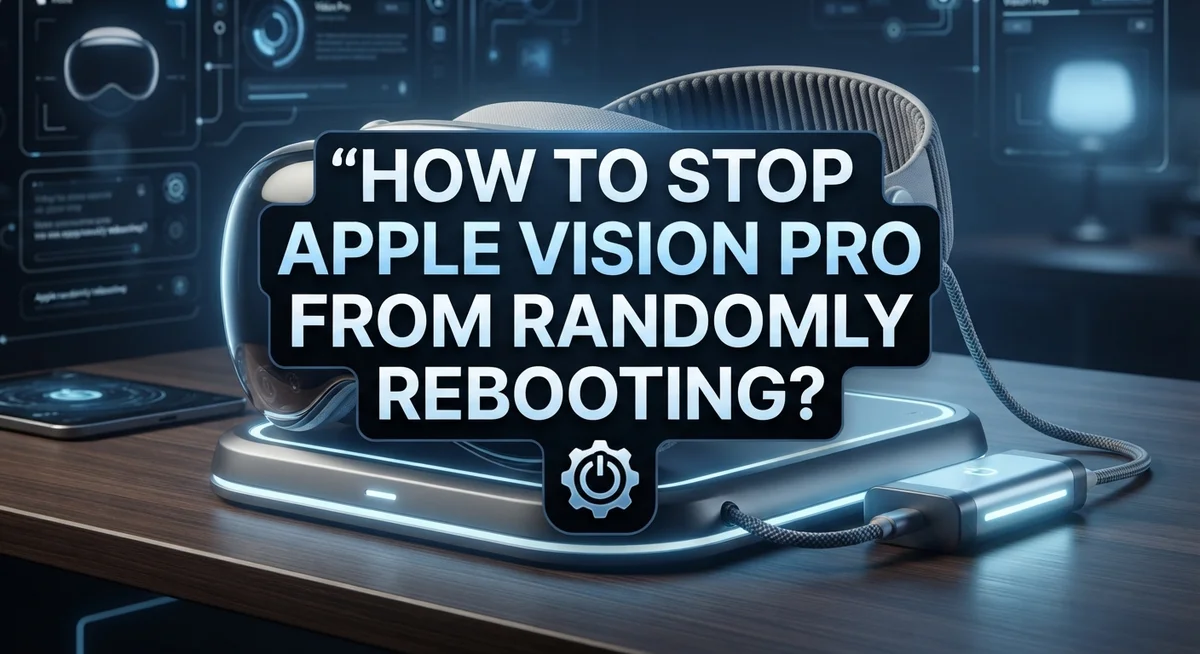
How To Stop Apple Vision Pro From Randomly Rebooting?
Your Apple Vision Pro keeps restarting at the worst moments. It’s frustrating, and you’re not alone in dealing with this issue.
Random reboots can happen for a few reasons. Background app conflicts, internal performance checks, and improper shutdown habits are the most common causes. The good news is that most of these triggers are fixable.
This guide walks you through everything you need to know. You will learn why your device restarts unexpectedly and how to stop it from happening again.
We cover force quitting apps, performing a clean shutdown, and fixing startup loops. Each step is simple and does not require any technical experience.
By the end, you will have a clear action plan. No guesswork, no confusion — just straightforward steps to get your Apple Vision Pro running smoothly again.
Let’s get started and fix those unexpected restarts for good.
In a Nutshell
- Random reboots on the Apple Vision Pro are often caused by app conflicts or internal performance monitoring triggers.
- You can force quit apps by holding the Digital Crown and Capture button together for about 3 seconds.
- A clean shutdown through Settings > General > Shut Down helps clear background processes that cause restarts.
- Always disconnect power and fully shut down the headset before storing it to avoid unexpected reboots later.
- If your device is stuck in a startup loop, a proper forced restart using the top button and Digital Crown together can help break the cycle.
- Leaving background apps running is one of the most common reasons the Vision Pro restarts on its own.
Why Does Apple Vision Pro Keep Randomly Rebooting?
Your Apple Vision Pro restarts unexpectedly for several reasons. Understanding what causes these reboots helps you fix them quickly.
Internal performance monitoring is the main culprit. Your headset has built in health checks that monitor system performance. When the device detects unusual activity or resource strain, it triggers an automatic restart to protect itself. This is similar to how your phone or computer works.
App conflicts cause many random reboots too. Background applications sometimes consume too much processing power or memory. When multiple apps run simultaneously, they compete for resources. This conflict forces the system to restart and clear everything.
Battery and power issues play a role as well. If your headset does not charge properly or the battery drains too quickly, the device may restart unexpectedly. Power delivery problems confuse the system, leading to sudden shutdowns.
Incomplete shutdowns create problems over time. Leaving your Vision Pro on the stand without properly shutting it down leaves background processes running. These processes accumulate and eventually trigger a reboot cycle.
Startup loops happen when your device restarts repeatedly on boot up. This occurs when the system detects a problem during the startup sequence. The headset keeps restarting to try resolving the issue automatically.
Storage space limitations also matter. When your device runs low on storage, it struggles to manage files and applications. This resource shortage can cause unexpected restarts.
The good news is that most random reboots are fixable. Proper shutdown procedures, force quitting problematic apps, and ensuring adequate storage space solve most issues. You will learn specific steps to address each cause in the sections below.
How To Properly Shut Down Apple Vision Pro
Properly shutting down your Apple Vision Pro is one of the most effective ways to prevent random reboots. A full shutdown clears all background processes and gives your device a fresh start.
The easiest method is using Settings. Open the Settings app on your headset, go to General, and select Shut Down. You will see a slider appear on your screen. Drag this slider all the way to the right to power off completely. This method ensures your device closes all running apps properly.
If you prefer using buttons, you can shut down manually. Press and hold the top button and the Digital Crown at the same time. Keep holding both buttons until you see the shutdown slider. Drag it to the right just like the Settings method. This approach works when you need a quick shutdown without navigating menus.
Voice commands offer another option. Simply say “Siri, turn off my Apple Vision Pro” and your device will shut down. This hands free method is convenient when you are wearing the headset.
Never leave your headset on the stand without a proper shutdown. Many users make this mistake, which can trigger unexpected reboots later. Always perform a complete shutdown before storing your device.
After shutting down, wait about 30 seconds before powering it back on. This brief pause allows your device’s internal systems to fully reset. The wait time is important for clearing any lingering processes.
Disconnect power cables before storing your headset for extended periods. A powered device sitting idle can develop performance issues that lead to random restarts. Proper shutdown plus disconnecting power gives your Apple Vision Pro the best chance to stay stable.
Make shutting down correctly part of your daily routine. This simple habit prevents most reboot problems before they start.
How To Force Quit Apps on Apple Vision Pro
Force quitting apps is one of the most direct ways to stop your Apple Vision Pro from randomly rebooting. When an app malfunctions or consumes too many resources, it can trigger unexpected restarts. Learning this technique gives you immediate control over problematic applications.
To force quit an app, hold the Digital Crown and Capture button simultaneously for about 3 seconds. The Digital Crown is the rotating dial on the side of your headset. The Capture button is located on the top. Press and hold both at the same time until you see the app close or the home screen appear.
This action forces the app to stop running instantly, without saving its state. It’s different from a normal app close because it bypasses any app processes that might be stuck or causing issues. Think of it as a hard stop rather than a gentle shutdown.
Check which apps are running before you force quit them. Swipe up from the bottom of your vision to see your app dock or open apps list. Look for any applications you don’t recognize or ones that seem to be consuming battery quickly. These are often the culprits behind random reboots.
After force quitting an app, give your headset a moment to stabilize. The device needs a few seconds to reset its performance metrics and clear temporary memory. Then power off your Vision Pro completely using the Settings menu or button combination.
If you notice the same app keeps causing problems, consider uninstalling it or waiting for an update from the developer. Some apps may have bugs that only get fixed through software updates. Force quitting is a temporary solution, but identifying the problematic app helps you take permanent action.
Step-by-Step Troubleshooting for Random Reboots
Start by checking your device’s current state. Your Apple Vision Pro might be running background processes that trigger unexpected restarts. Open your app dock by swiping up from the bottom of your vision. Look for any apps you don’t remember opening.
Force quit any suspicious applications. Hold your Digital Crown and Capture button together for about 3 seconds. This stops the app completely without saving its state. Repeat this for each app that seems unnecessary or unfamiliar.
Next, perform a complete shutdown through Settings. Navigate to General, then select Shut Down. Drag the slider to power off your device completely. This is different from just removing it or letting it sit idle.
Wait 30 seconds after shutdown. This pause lets your device’s internal systems fully reset. Many random reboots happen because the device doesn’t get proper time to clear its memory and processes.
Power your headset back on normally. Check if the random reboots have stopped. Monitor your device for at least a few hours to confirm the issue is resolved.
If reboots continue, check your storage space. A device running low on storage can trigger unexpected restarts. Delete apps or media you no longer need to free up space.
Disconnect all power cables before storing your headset. Leaving it plugged in while sitting on a stand can cause performance issues. Proper disconnection prevents battery and charging problems from causing restarts.
Keep track of when reboots happen. Note which apps were running or what you were doing. This information helps you identify patterns. Specific apps or activities might be causing the problem.
Test your device after each troubleshooting step. Don’t rush through multiple fixes at once. This approach helps you pinpoint exactly what stopped the random reboots. Your patience here saves time later.
How To Perform a Clean Restart on Apple Vision Pro
A clean restart is different from a regular shutdown. It clears your device’s memory and resets background processes that might cause random reboots. This approach works well when your Apple Vision Pro experiences glitches.
Start by powering down completely. Use Settings > General > Shut Down and drag the slider all the way. Wait at least 30 seconds. This pause lets your device’s systems fully discharge and reset.
During this waiting period, do not put on your headset or touch any buttons. Let it sit undisturbed. This time gap is important because it allows temporary files and cached data to clear from your device’s memory.
After 30 seconds have passed, power your headset back on. Press and hold the top button until the Apple logo appears. Your device will boot fresh, without any leftover processes from before.
Watch for the startup sequence. Your Vision Pro should load normally without restart prompts or loops. If you see the Apple logo appear and disappear repeatedly, the device may still have issues that need more attention.
Once your headset fully boots, test it for a few minutes. Open an app, look around, and check if the random reboots have stopped. Many users find that a clean restart solves the problem completely.
If reboots continue after a clean restart, your issue might be more complex. This could point to app conflicts, storage problems, or internal hardware concerns. Document when the reboots happen and what you were doing. This information helps identify patterns.
A clean restart should be your first major troubleshooting step. It costs nothing and takes only a few minutes. Most random reboot issues respond well to this simple fix, making it worth trying before attempting more advanced solutions.
Common Mistakes That Trigger Unexpected Reboots
Several everyday habits can accidentally trigger random reboots on your Apple Vision Pro. Understanding these mistakes helps you avoid them and keep your device stable.
Leaving your headset on the stand without shutting it down is a common error. Many users believe the device will simply sleep, but background processes may continue running. This continuous activity can strain your device’s internal systems and cause unexpected restarts. Always perform a proper shutdown before leaving your headset unattended for extended periods.
Not disconnecting power before storage creates another problem. If you store your Vision Pro while it’s still connected to a power source, the device may attempt to charge or perform background updates. These processes can conflict with sleep mode and trigger reboots. Disconnect all cables before putting your headset away.
Unexpected background apps running silently can also cause issues. You might open an app, close it visually, but the app continues running in the background. This hidden activity drains resources and forces your device to restart to recover stability. Check your app dock regularly by swiping up from the bottom of your vision.
Ignoring storage space limitations leads to performance problems. When your Vision Pro runs low on available storage, the system struggles to manage basic functions. This stress can activate internal health monitoring that triggers automatic reboots. Keep at least 10 percent of your storage free.
Failing to keep your device updated also matters. Software updates include stability fixes and performance improvements. Running outdated software means missing critical patches that prevent reboot issues.
Finally, using your headset immediately after powering it on can cause problems. Give your Vision Pro a full minute to complete its startup sequence before putting it on or opening apps. This allows all systems to initialize properly and reduces restart triggers during the critical boot phase.
How To Keep Apple Vision Pro Running Stably Long-Term
Your Apple Vision Pro needs proper care to stay stable and avoid random restarts. Long-term stability depends on how you use and maintain your device daily.
Start by establishing a shutdown routine. Power down your headset properly every single day, especially before storing it. Use Settings > General > Shut Down and drag the slider completely. This simple habit prevents many restart issues that build up over time.
Check your storage space regularly. A full device struggles to run smoothly and often triggers unexpected reboots. Delete old apps, recordings, and files you no longer need. Keep at least 10 to 15 percent of your storage free for the system to work properly.
Update your software consistently. Apple releases updates that fix performance problems and stability issues. Go to Settings > General > Software Update and install new versions as soon as they appear. Don’t delay these updates.
Monitor your background apps. Unexpected applications running silently can drain resources and cause reboots. Hold your Digital Crown and Capture button together to force quit any suspicious apps. Check regularly what’s running in the background.
Keep your headset cool. Avoid using it in hot environments or for extremely long sessions without breaks. Your Vision Pro has internal sensors that trigger reboots when the device gets too warm. Let it rest between heavy use periods.
Clean your device vents gently. Dust buildup blocks airflow and causes overheating. Use a soft, dry cloth to wipe around the vents. Never use liquids or compressed air on your headset.
Finally, disconnect all power cables before storing your device. Leaving it plugged in while inactive can cause power management problems. These small actions keep your Vision Pro running smoothly for years.
Final Thoughts
Random reboots on your Apple Vision Pro are frustrating, but they are fixable with the right approach.
The key is to work through each step carefully and patiently. Do not skip steps or rush through multiple fixes at once.
Start with the basics. Force quit any open apps by holding the Digital Crown and Capture button together for about 3 seconds. Then perform a clean restart through Settings > General > Shut Down.
Small habits make a big difference. Always shut down your headset properly before storing it. Disconnect power cables and avoid leaving apps running in the background.
If basic fixes do not work, look deeper. Check your storage space, update your software, and monitor which apps are running. These three steps alone resolve most random reboot issues.
Pay attention to patterns. If your device restarts during specific apps or tasks, that app is likely the cause. Delete or reinstall it and test again.
Keep your device cool and well-maintained. Overheating is a silent trigger that many users overlook. Give your headset time to cool down between long sessions.
You can also use Siri to power off your device by saying “Siri, turn off my Apple Vision Pro.” This is a quick and easy option when your hands are busy.
If reboots continue after trying everything in this guide, contact Apple Support directly. There may be a hardware issue that needs professional attention.
Do not ignore persistent reboots. Letting the problem continue without action can lead to data loss or deeper system issues over time.
Your Apple Vision Pro is a powerful device. With proper care, regular updates, and smart shutdown habits, it should run smoothly and reliably every single day.
Frequently Asked Questions
Why does my Apple Vision Pro restart without warning?
Your device likely restarts due to internal performance monitoring or app conflicts. The headset has built in systems that detect when something isn’t running smoothly. When these systems flag a problem, the device triggers a restart to reset itself. This is often the device’s way of protecting itself from crashes or freezing.
How do I force quit an app that might be causing reboots?
Hold the Digital Crown and Capture button at the same time for about 3 seconds. This forces the problematic app to close without a full restart. You should feel haptic feedback when the app closes. Check which apps were running before the restart happened, as they might be the culprit.
What’s the fastest way to shut down my headset properly?
Go to Settings, then General, then Shut Down. Drag the slider to power off completely. You can also press and hold the top button plus the Digital Crown together, then drag the shutdown slider. If you prefer hands free, just say “Siri, turn off my Apple Vision Pro” and your device powers down immediately.
Can background apps really cause random reboots?
Yes, absolutely. Apps running silently in the background consume memory and processing power. When too many apps run at once, your device struggles to keep up. This stress can trigger the internal health monitoring system, which then forces a restart. Force quitting unused apps prevents this buildup.
Should I leave my headset plugged in when I’m not using it?
No. Always disconnect power before storing your device. Leaving it plugged in while inactive can cause power related issues that lead to random restarts. Proper shutdown plus unplugging creates the safest storage condition for your headset.

Hi, I’m Suzy — the voice behind RapidGenLab. I’m a tech enthusiast who loves breaking down complex products into simple, honest reviews and comparisons. Got a question? Feel free to reach out!