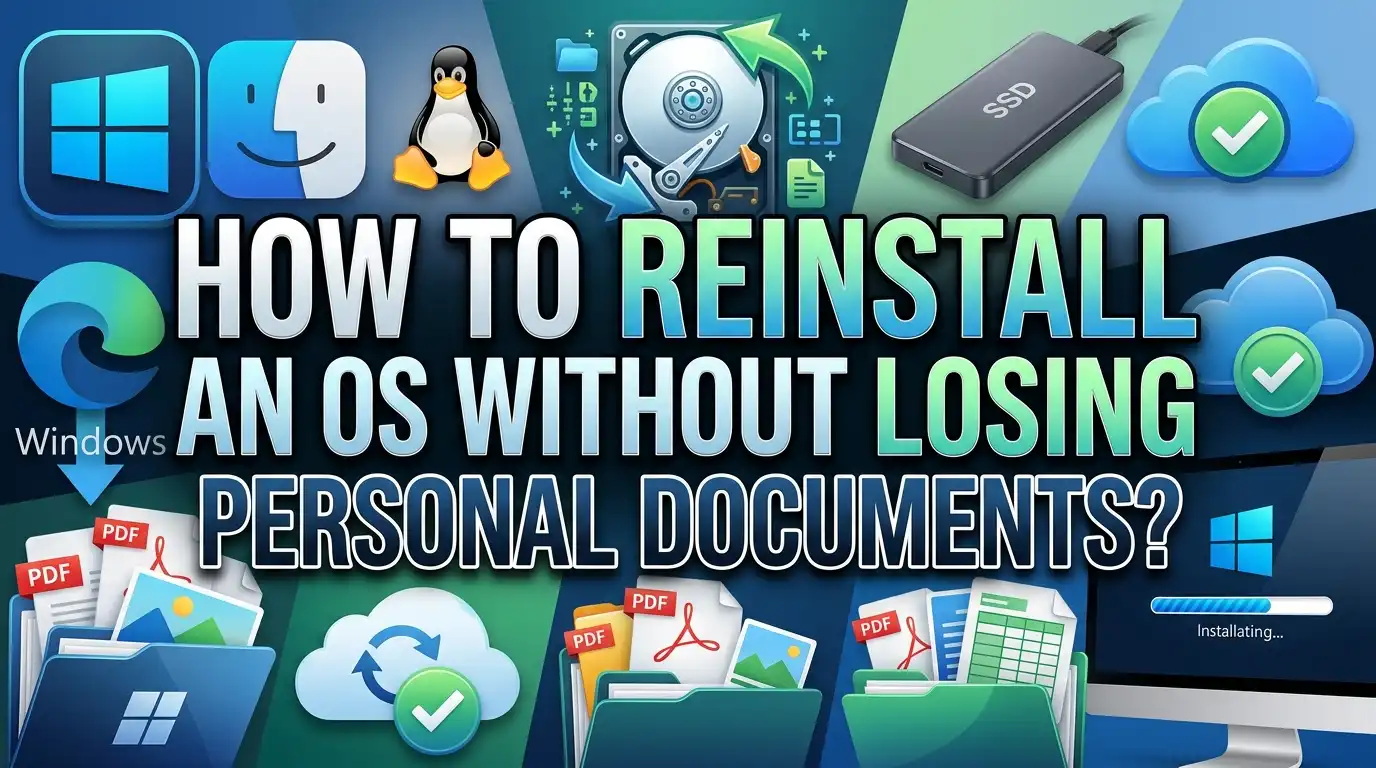
How To Reinstall An OS Without Losing Personal Documents?
Your computer has been acting up. Programs crash. Startup takes forever. Maybe you picked up some strange software behavior you cannot explain. You know a fresh OS installation would fix things, but there is one fear stopping you: losing all your personal files.
Photos from family vacations. Work documents you spent months creating. Music playlists. Tax records. The thought of losing these keeps most people stuck with a broken system far longer than they should be.
This guide walks you through the entire process. You will learn how to prepare, which method to choose, and what to do after the reinstall to get everything working again. Let us get started.
Key Takeaways
- Windows offers a “Keep my files” option during both the Reset This PC process and the in-place upgrade method. This option preserves everything stored in your user profile folders, including Documents, Downloads, Pictures, Videos, and Desktop files. Installed applications will be removed, but your personal data stays safe.
- Always create a backup before reinstalling any OS. Even though modern tools are reliable, hardware failures or power outages during the process can cause data loss. Copy your important files to an external drive or cloud storage before you begin.
- macOS reinstallation through Recovery Mode preserves all user data by default. Apple designed the reinstall process to replace only system files. Your apps, settings, and personal documents remain untouched unless you choose to erase the disk first.
- Linux users can protect their data by using a separate /home partition. If your /home directory lives on its own partition, you can reinstall the OS on the root partition without formatting /home. This keeps all personal files intact.
- The Windows.old folder is your safety net after a reinstall. If you perform certain types of reinstallation, Windows saves your previous files in a folder called Windows.old on your C: drive. You can recover documents from this folder for up to 10 days after the reinstall.
- An in-place upgrade is the safest reinstall method for Windows users. Running setup.exe from installation media while Windows is still running lets you choose to keep personal files, apps, and settings. This method fixes most system problems without removing anything.
Why Would You Need To Reinstall Your Operating System
There are several situations where reinstalling your OS makes sense. Persistent slowdowns that no amount of cleanup fixes are a common trigger. Over time, system files get corrupted, registry entries pile up, and background processes multiply. A fresh install clears all of this.
Malware infections are another strong reason. Some viruses embed themselves so deeply into system files that antivirus software cannot fully remove them. A reinstall replaces all system files with clean copies, eliminating hidden threats.
Failed updates can also leave your system in a broken state. A Windows update that stopped halfway through might leave you with boot errors, blue screens, or missing features. Reinstalling restores the system to a stable baseline.
Driver conflicts, software incompatibilities, and accumulated junk files also contribute to system instability. If you have tried standard troubleshooting steps like disk cleanup, system file checker, and safe mode diagnostics without success, a reinstall is often the most efficient fix.
The key point is that reinstalling does not have to mean starting from scratch. You can fix your system while keeping your documents, photos, and other personal data exactly where they are.
Back Up Your Files Before You Begin
This step is non-negotiable. Even though modern reinstall methods are designed to preserve your data, unexpected problems can occur. A power outage during the process, a failing hard drive, or a wrong click during setup could result in data loss.
Start by identifying what matters most to you. Check your Documents, Desktop, Downloads, Pictures, Videos, and Music folders. Look for files stored outside your user profile too. Some programs save data in custom locations like C:\Data or directly on secondary drives.
Copy these files to an external hard drive, USB flash drive, or cloud storage service. Cloud options like OneDrive, Google Drive, or iCloud work well for documents and photos. For large collections of files, an external drive is faster and more practical.
Do not forget browser bookmarks, saved passwords, and email data. Export your bookmarks from Chrome, Firefox, or Edge. If you use a password manager, make sure your vault is synced to the cloud. Check for application-specific data too, like game saves, project files, or database backups.
Write down your software license keys before you start. You will need these to reinstall paid applications after the OS refresh. Tools like Belarc Advisor can scan your system and list all installed product keys in one report.
A complete backup takes 30 minutes to an hour depending on how much data you have. That small time investment gives you complete peace of mind throughout the reinstall process.
Understanding the “Reset This PC” Feature in Windows
Windows 10 and Windows 11 both include a built-in feature called Reset This PC. This is the easiest way to reinstall Windows without external media. You access it through Settings, then System, then Recovery.
When you start the reset, Windows presents two choices. The first is “Keep my files,” which preserves everything in your user profile folders. This includes Documents, Downloads, Pictures, Videos, Desktop, and any other folders inside C:\Users\YourName. The second option is “Remove everything,” which performs a complete wipe.
If you select “Keep my files,” Windows will reinstall the operating system, remove all installed applications, and reset all system settings to their defaults. Your personal files stay exactly where they are. After the reset, you will find a file on your desktop called “Removed Apps” that lists every program that was uninstalled during the process.
Windows also asks whether you want to use Cloud Download or Local Reinstall. Cloud Download fetches a fresh copy of Windows from Microsoft’s servers, which is ideal if you suspect your local system files are corrupted. Local Reinstall uses the existing Windows files on your device, which is faster but may carry over corrupted files.
The entire process typically takes 30 to 90 minutes depending on your hardware speed. Your computer will restart several times during the process. Do not interrupt it or turn off the power.
How To Perform a Reset While Keeping Your Files on Windows
Follow these steps to reset your Windows PC while preserving your personal documents.
Open the Settings app by pressing the Windows key and clicking the gear icon. Go to System, then scroll down to Recovery. Under Recovery options, find “Reset this PC” and click “Reset PC.”
Select “Keep my files” on the first screen. This tells Windows to preserve your user profile data during the reinstall. On the next screen, choose between Cloud Download and Local Reinstall. Cloud Download is the better choice if your system has been experiencing serious issues, because it downloads fresh files directly from Microsoft.
Review the summary screen carefully. It shows exactly what will happen: your personal files will be kept, your settings will be restored to defaults, and your apps will be removed. Click “Next” and then “Reset” to begin.
Your PC will restart and show a progress screen. Do not turn off your computer during this process. The reset may take anywhere from 20 minutes to over an hour. When it finishes, Windows will guide you through the initial setup screens where you select your language, connect to Wi-Fi, and sign in to your Microsoft account.
After setup completes, check your user folders to confirm all files are present. Then begin reinstalling your essential applications. The “Removed Apps” list on your desktop will help you remember what needs to be reinstalled.
Using Installation Media for an In-Place Upgrade
The in-place upgrade is the most reliable method for reinstalling Windows while keeping your files, apps, and settings. Unlike the Reset This PC option, this method can preserve both your personal data and your installed applications.
First, you need to create installation media. Download the Media Creation Tool from Microsoft’s official website. Run the tool and select “Create installation media for another PC.” Choose your language, edition, and architecture (64-bit for most modern systems). Save the installation files to a USB drive with at least 8 GB of space.
Once the USB drive is ready, plug it into the PC you want to repair. Open File Explorer and browse to the USB drive. Find the file called setup.exe in the root directory and double-click it. This launches the Windows setup process from within your running operating system.
The setup wizard will check for updates and prepare the installation. On the screen that says “Ready to install,” click “Change what to keep.” You will see three options: Keep personal files and apps, Keep personal files only, or Keep nothing. Select your preferred option.
“Keep personal files and apps” is the safest choice. It reinstalls Windows system files while leaving your documents, settings, and installed programs intact. This effectively fixes system corruption without changing anything in your daily workflow.
Click “Install” and let the process run. It typically takes 30 to 60 minutes. Your computer will restart multiple times. When finished, you should find your desktop, files, and applications exactly as you left them.
Reinstalling macOS Without Losing Your Data
Apple designed the macOS reinstall process to preserve your personal data by default. When you reinstall macOS through Recovery Mode, the system replaces only the operating system files. Your apps, user accounts, documents, and settings remain untouched.
To begin, restart your Mac and enter Recovery Mode. On Intel-based Macs, hold Command + R immediately after pressing the power button. On Apple Silicon Macs (M1, M2, M3, M4 chips), press and hold the power button until you see “Loading startup options,” then click Options and select Continue.
In the Recovery app window, select “Reinstall macOS” and click Continue. Follow the on-screen instructions. The installer will ask you to select the disk where macOS should be installed. Choose your existing startup disk (usually called “Macintosh HD”). Do not click “Erase” at any point during this process.
The reinstallation downloads the latest version of macOS compatible with your Mac. This requires an active internet connection. The download size varies but is typically between 5 and 15 GB. The entire process, including download and installation, can take one to three hours depending on your internet speed and Mac model.
After the reinstall completes, your Mac will restart and present the login screen. Sign in with your existing user account. All your files, applications, and settings should be exactly as they were. If something seems off, check your Time Machine backup for any missing files.
How Linux Users Can Reinstall Without Losing the Home Directory
Linux gives you powerful control over disk partitions, and this is the key to preserving your data during a reinstall. The most effective strategy is to keep your /home directory on a separate partition.
If your system already has a separate /home partition, reinstalling is straightforward. Boot from your Linux installation USB. When the installer asks about partitioning, choose the manual or “Something else” option. Do not select automatic partitioning, as this may erase everything.
In the manual partitioning screen, set your existing root (/) partition as the mount point for / and check the “Format” box. This will erase the old system files. Then set your /home partition as the mount point for /home but do NOT check the Format box. This tells the installer to use the existing /home partition without erasing its contents.
If you do not have a separate /home partition, you need to back up your data before reinstalling. Boot from a live USB distribution, mount your hard drive, and copy the entire /home/yourusername folder to an external drive. After the fresh install, copy everything back.
For future reinstalls, consider setting up a separate /home partition during your next installation. Allocate about 30 to 50 GB for the root partition and give the rest of your disk space to /home. This setup makes every future OS reinstall a smooth process.
Remember to note your username. If you create the same username during the fresh install, your new system will automatically connect to the existing home directory with all your files, configurations, and desktop settings intact.
What Happens to Your Installed Programs After Reinstalling
One important detail many people overlook is that most reinstall methods remove your installed applications. The “Keep my files” option in Windows preserves documents but not programs. macOS is an exception, as its reinstall process keeps apps intact.
On Windows, after using Reset This PC with “Keep my files,” you will need to reinstall all your applications. This includes office suites, web browsers, media players, creative software, and any other programs you used. Windows places a helpful HTML file on your desktop called “Removed Apps” that lists everything that was uninstalled.
The in-place upgrade method is the one exception on Windows. If you run setup.exe from installation media and select “Keep personal files and apps,” your installed programs should survive the reinstall. This is why many IT professionals prefer this method over Reset This PC.
Before reinstalling, make a list of all the software you use regularly. Note the version numbers and where you downloaded each program. Gather your license keys, serial numbers, and login credentials for paid software. Check if your applications store settings or data in non-standard locations that might not be covered by the default file preservation.
Some application data lives in the AppData folder inside your user profile. This hidden folder contains settings, caches, and saved data for many programs. The “Keep my files” option typically preserves this folder, so some of your application settings may survive even if the apps themselves are removed.
Plan to spend a few hours reinstalling and configuring your applications after the OS refresh. Having your software list and license keys ready speeds this process up significantly.
The Windows.old Folder: Your Emergency Recovery Option
After certain types of Windows reinstallation, the system creates a folder called Windows.old on your C: drive. This folder contains a copy of your previous Windows installation, including your old user profile and personal files.
If you accidentally chose the wrong option during reinstallation or if something went wrong with the file preservation, Windows.old can save you. Browse to C:\Windows.old\Users\YourUsername to find your old Documents, Desktop, Downloads, Pictures, and other personal folders.
Windows automatically deletes the Windows.old folder after 10 days to free up disk space. If you need to recover files from it, do so quickly after the reinstall. Do not rely on this folder as your primary backup strategy.
To access Windows.old, open File Explorer and go to your C: drive. The folder may require administrator permissions to access. Right-click it, select Properties, go to the Security tab, and give your user account full access if needed.
You can also use Disk Cleanup to remove the Windows.old folder once you have confirmed all your files are safe. Open Disk Cleanup, click “Clean up system files,” and check the box next to “Previous Windows installation(s).” This can free up 10 to 30 GB of disk space.
Think of Windows.old as an emergency parachute. It is great to have but you should not plan on needing it. A proper backup before reinstalling is always the better approach.
Common Mistakes That Lead to Data Loss During Reinstallation
Several common errors cause people to lose files during an OS reinstall. Knowing these mistakes helps you avoid them.
Choosing “Remove everything” instead of “Keep my files” is the most frequent mistake. These options appear on similar-looking screens, and clicking the wrong one erases all your personal data. Read every screen carefully before clicking Next or confirming any action.
Formatting the wrong partition during a clean install is another costly error. If your computer has multiple drives or partitions, make sure you install the OS on the correct one. Double-check the drive letter and size before formatting. Accidentally formatting a data drive destroys everything on it.
Skipping the backup step leaves you with no safety net. Even if you plan to use the “Keep my files” option, a backup protects you against hardware failure during the process. If your hard drive fails mid-reinstall, your data is gone unless you have a copy somewhere else.
Interrupting the reinstall process by turning off the computer or unplugging it can corrupt both the new installation and your existing files. Make sure your laptop is plugged into power. For desktop computers, consider using a surge protector. Never force-shutdown your PC during an OS installation.
Not checking disk health before reinstalling is a subtle but serious mistake. If your hard drive is failing, the reinstall process puts extra stress on it, potentially causing complete failure. Run a disk health check (using tools like CHKDSK on Windows or Disk Utility on macOS) before starting.
What To Do After Reinstalling Your OS
Once the reinstall finishes, there are several steps you should take to get your system back to full functionality.
Run all available updates first. Go to Settings, then Windows Update (or System Preferences, then Software Update on Mac). Install every pending update, including security patches, feature updates, and driver updates. This process may require multiple restarts.
Check that all your personal files are present. Open your Documents, Pictures, Videos, and other personal folders. Verify that important files are accessible and not corrupted. Open a few documents and photos to make sure they display correctly.
Reinstall your essential applications. Start with your web browser, then your office suite, and then any specialized software you use for work or hobbies. Log in to your accounts and verify that your settings transferred correctly. If you preserved the AppData folder, some applications may remember their previous configuration.
Install missing drivers if any hardware is not working properly. Check Device Manager on Windows (right-click the Start button) for any devices with yellow warning icons. Visit your computer manufacturer’s website to download the latest drivers for your specific model.
Restore your backup if any files are missing. Copy files from your external drive or download them from cloud storage. Make sure everything is in its correct location before deleting the backup copies.
Finally, set up regular backups going forward. Enable File History on Windows, Time Machine on macOS, or configure an automated backup solution on Linux. Regular backups make future reinstalls stress-free because you know your data is always safe.
Cloud Storage as a Safety Net for Future Reinstalls
Setting up cloud storage before you ever need to reinstall is one of the smartest moves you can make. Services like OneDrive, Google Drive, and iCloud can automatically sync your important folders to the cloud in real time.
On Windows, OneDrive integrates directly with your user profile. You can enable folder backup for Desktop, Documents, and Pictures. Once enabled, every file you save in these folders automatically uploads to the cloud. After a reinstall, simply sign in to OneDrive and your files begin syncing back to your computer.
On macOS, iCloud Drive performs a similar function. Enable Desktop and Documents sync in System Settings under your Apple ID. Your files exist in both locations, on your Mac and in the cloud. A reinstall does not affect the cloud copies.
Google Drive works across all operating systems. Install the desktop application and configure it to sync specific folders. The free tier provides 15 GB of storage, which is enough for documents and important photos.
Cloud storage also protects you against hardware failure. If your hard drive dies completely, your cloud-synced files remain safe and accessible from any other device. This gives you a level of protection that local backups alone cannot match.
The combination of cloud sync for daily protection and an external drive backup before major changes like OS reinstalls gives you a complete data safety strategy. You will never lose important documents again, regardless of what happens to your computer.
Step-by-Step Checklist Before Reinstalling Any OS
Use this checklist every time you plan to reinstall your operating system. Print it out or save it on your phone so you can reference it during the process.
Verify your backup is complete. Check that all important folders have been copied to an external drive or cloud storage. Open a few files from the backup to confirm they are readable and not corrupted.
Write down your Wi-Fi password. After the reinstall, you will need to reconnect to your network. If you do not remember the password, check your router or ask your internet provider.
List your installed applications and license keys. Note every program you use regularly and gather the activation codes. Screenshot your browser extensions list too.
Export browser bookmarks and passwords. Each browser has an export function in its settings. Save the exported file to your backup drive.
Check your disk health. Run CHKDSK on Windows, Disk Utility on Mac, or smartctl on Linux. Do not proceed with a reinstall if your disk shows signs of failure. Replace the disk first.
Plug in your laptop or make sure your desktop has stable power. A power interruption during installation can cause serious problems.
Disconnect unnecessary external devices. Remove external hard drives, printers, and other USB devices before reinstalling. This prevents the installer from confusing external drives with your system drive.
Allocate enough time. The reinstall process can take one to three hours depending on the method and your hardware. Do not start the process if you need your computer soon.
Following this checklist every time ensures a smooth, stress-free OS reinstall with zero data loss.
Frequently Asked Questions
Will I lose my desktop files if I reset Windows with “Keep my files”?
No. The “Keep my files” option preserves all files stored in your user profile folders, including the Desktop folder. Any files, shortcuts, or folders you saved on your desktop will still be there after the reset. However, installed applications and system settings will be removed and restored to their defaults.
Can I reinstall macOS without an internet connection?
It depends on your Mac model and the method you use. Recovery Mode on most Macs requires an internet connection to download the macOS installer. However, if you have a bootable USB installer prepared in advance, you can reinstall macOS offline. Creating a bootable installer requires downloading the macOS installer file ahead of time from the App Store or Apple’s website.
How long does it take to reinstall Windows without losing files?
The process typically takes between 30 minutes and two hours. The exact time depends on your computer’s hardware speed, the reinstall method you choose, and whether you selected Cloud Download or Local Reinstall. Cloud Download takes longer because it needs to download several gigabytes of data from Microsoft’s servers. Faster storage drives like SSDs complete the process quicker than traditional hard drives.
What is the difference between Reset This PC and an in-place upgrade?
Reset This PC reinstalls Windows and removes all installed applications. Even with the “Keep my files” option, your programs will be deleted. An in-place upgrade, performed by running setup.exe from installation media, offers the option to keep both personal files and installed applications. The in-place upgrade is the better choice if you want to preserve your programs along with your documents.
Will my Windows license still work after reinstalling?
Yes, in most cases. If your Windows license is linked to your Microsoft account or embedded in your computer’s firmware (common on pre-built PCs and laptops), Windows will reactivate automatically after the reinstall. If you built your own PC and used a retail license key, you may need to enter the key again during or after installation. Keep your product key accessible just in case.
Do I need to reinstall drivers after resetting Windows?
Often, yes. Windows Update will install many common drivers automatically, but some hardware may need specific drivers from the manufacturer. Graphics cards, Wi-Fi adapters, and audio devices are the most common components that need manual driver installation. Visit your PC manufacturer’s support page after the reinstall to download the latest drivers for your specific model.

Hi, I’m Suzy — the voice behind RapidGenLab. I’m a tech enthusiast who loves breaking down complex products into simple, honest reviews and comparisons. Got a question? Feel free to reach out!