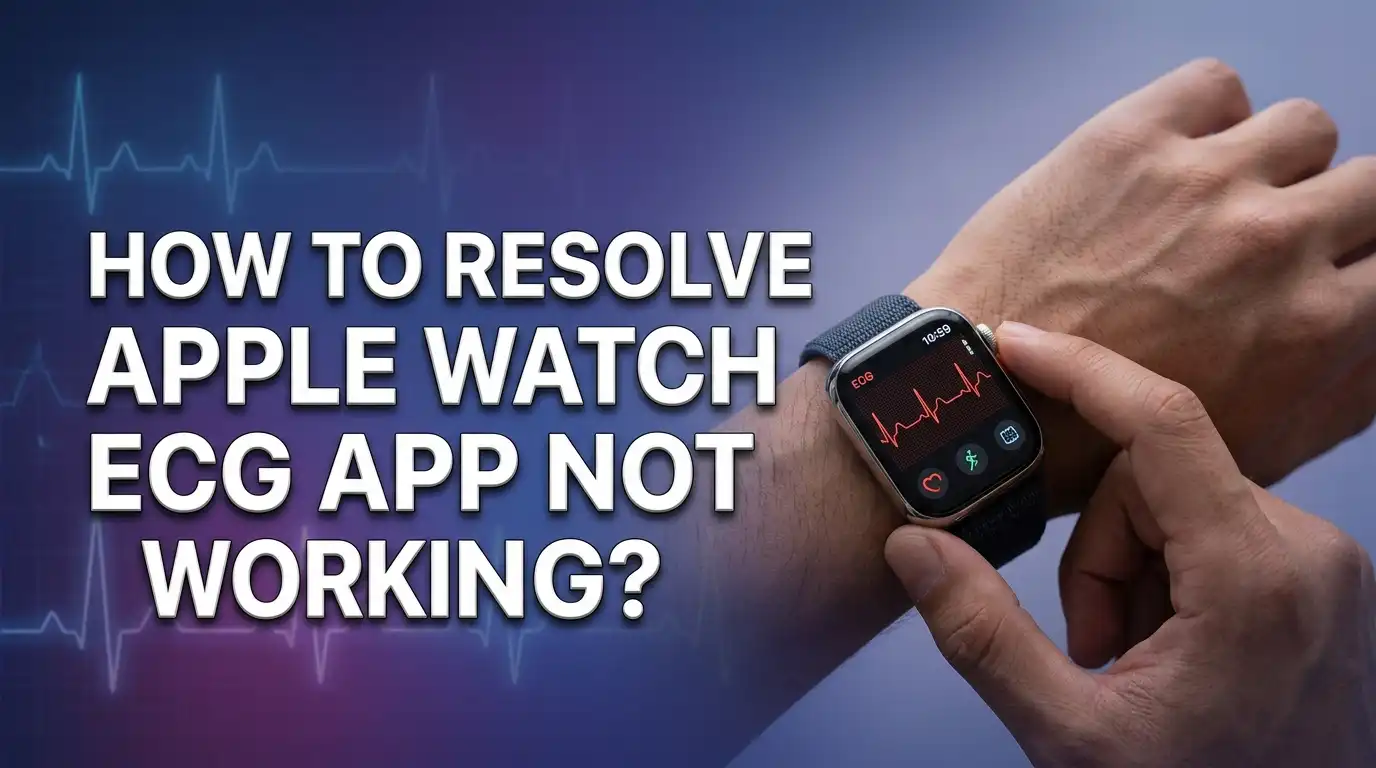
How to Resolve Apple Watch ECG App Not Working?
Your Apple Watch ECG app should give you a clean heart rhythm reading in just 30 seconds. But what happens when the app freezes, resets after a few seconds, or shows a “Poor Recording” result every single time? You are not alone. Thousands of Apple Watch users report the exact same problem across Series 4, 5, 6, 7, 8, 9, 10, and even the Ultra models.
The ECG feature is one of the most important health tools on the Apple Watch. Many people buy the watch specifically for this function. So when it stops working, the frustration is real and understandable. The good news is that most ECG issues have a fix, and you do not need to replace your watch right away.
This guide walks you through every proven solution to get your Apple Watch ECG app working again. Whether your recording keeps resetting, you get inconclusive results, or the app will not even open, you will find your answer here. Let us start with a quick summary and then dive into the details.
In a Nutshell
- A dirty Digital Crown is the most common cause of ECG failures. Sweat, oil, salt, and tiny debris particles build up in the gap between the crown and the watch case. This blocks the electrical signal the ECG sensor needs to read your heart rhythm.
- Restarting your Apple Watch by holding the side button and Digital Crown until the Apple logo appears fixes many software glitches that cause the ECG app to freeze or reset mid recording.
- Your region and Apple Watch model matter. The ECG app requires Apple Watch Series 4 or later, an iPhone paired with the latest iOS, and your device must be set up in a supported country or region. Without these, the app will not appear or function.
- Skin contact and moisture levels affect readings. Wet skin causes poor recordings, and extremely dry skin can weaken the electrical signal. Clean, slightly moist (but not wet) skin provides the best conductivity for accurate readings.
- Toggling the Assistive Touch setting in your watch’s Accessibility menu has fixed the ECG for many users. This unusual workaround resolves an apparent software conflict that prevents the ECG sensor from maintaining a stable connection.
- If all troubleshooting fails, the issue may be hardware related. A degraded Digital Crown sensor or back crystal sensor will require Apple Support or a warranty replacement to resolve.
Check If Your Apple Watch Model Supports ECG
Not every Apple Watch can run the ECG app. This is the first thing you need to verify before trying any other fix. The ECG app requires Apple Watch Series 4 or later, and it also works on all Apple Watch Ultra models. If you own an Apple Watch Series 3 or earlier, the ECG app is simply not available for your device.
The Apple Watch SE does not support the ECG app either, regardless of the generation. Apple designed the SE line without the electrical heart sensor required for electrocardiogram readings. So if you own an SE model, this is the reason the app is missing from your watch.
You also need a compatible iPhone paired with your watch. Apple requires an iPhone XS or later running the most recent version of iOS. Your Apple Watch must also run the latest watchOS. Outdated software on either device can prevent the ECG app from appearing, setting up, or working correctly.
To check your watch model, open the Watch app on your iPhone, tap “General,” then tap “About.” Your model name will be listed there. If your hardware qualifies, the next step is to check your software versions and your region settings.
Verify Your Region Supports the ECG Feature
Apple has rolled out the ECG feature to many countries, but it is still not available everywhere. Regulatory approvals vary by country, and Apple must receive medical device clearance in each region before enabling the feature. If your Apple Watch was originally set up in an unsupported country, the ECG app will not appear on your device.
You can check the full list of supported regions on Apple’s official watchOS Feature Availability page. The ECG app is available in the United States, Canada, the United Kingdom, most European Union countries, Japan, South Korea, India, Australia, and many more. However, several countries in Africa, the Middle East, and parts of Asia still lack support.
Here is the important part. The region setting is determined by where your Apple ID and iPhone were configured, not just where you physically are right now. If you purchased your Apple Watch in the US but set up your iPhone with a region that does not support ECG, the feature may be blocked.
To check your region, go to Settings on your iPhone, tap “General,” then “Language & Region.” Make sure your region matches a supported country. If you recently moved to a supported region, you may need to update your region setting and then re-pair your Apple Watch to activate the ECG feature.
Clean the Digital Crown Thoroughly
This is the fix that works for the largest number of users. The Digital Crown on your Apple Watch serves as one of two electrodes the ECG app uses. The other electrode sits on the back crystal of the watch against your wrist. When dirt, sweat, salt, or oil builds up around the Digital Crown, the electrical conductivity drops. The ECG app then cannot maintain a stable signal.
Many users report that their ECG recordings reset after just one or two seconds. This start and stop behavior almost always points to a dirty or obstructed Digital Crown. Here is how to clean it properly.
First, turn on Water Lock mode on your watch to prevent accidental taps. Then hold the Digital Crown area under lightly running warm, fresh water from a faucet. Rotate and press the crown repeatedly while the water flows over it. This helps flush out debris trapped in the gap between the crown and the watch case.
For a deeper clean, soak a piece of dental floss in 99% isopropyl alcohol and gently run it between the Digital Crown and the watch case. Multiple users have confirmed this method restored their ECG functionality after months of failure. You can also use a soft toothbrush with a small amount of soap to scrub around the crown area. Rinse thoroughly and dry the watch completely before testing the ECG again.
Clean the Back Sensors and Your Wrist
The back of your Apple Watch contains the optical and electrical heart sensors. These sensors must make clean, direct contact with your skin for the ECG to work. Any residue on the sensors or on your wrist will interfere with the reading.
Use a soft, lint free cloth dampened lightly with isopropyl alcohol to wipe down the entire back surface of the watch. Pay extra attention to the raised sensor area in the center. Some users have found that a small amount of rubbing alcohol on a cotton ball, applied directly to the back sensors, was the only thing that restored their ECG function.
Your wrist matters just as much. Make sure your wrist is clean and dry before taking an ECG. Lotions, sunscreen, sweat, and water on your skin all interfere with the electrical signal. Apple specifically states that liquid free contact is required for the ECG app to work properly.
However, extremely dry skin can also cause problems. If your skin is very dry, try lightly moistening your fingertip with a tiny amount of water before touching the Digital Crown. This can improve electrical conductivity enough to get a stable reading. The key is finding the right balance: clean skin that is not too wet and not too dry.
Restart Your Apple Watch and iPhone
A simple restart solves more ECG problems than most people expect. Software glitches, frozen background processes, and minor system errors can all cause the ECG app to malfunction. Restarting both your watch and iPhone clears these issues.
To restart your Apple Watch, press and hold both the side button and Digital Crown at the same time. Keep holding until you see the Apple logo appear on the screen. Release both buttons and let the watch boot up completely. This is a force restart that clears temporary memory and reloads all system processes.
To restart your iPhone, the method depends on your model. On most modern iPhones, press and quickly release the volume up button, press and quickly release the volume down button, then press and hold the side button until you see the Apple logo. Let the phone restart fully.
After both devices have restarted, open the ECG app and try a recording. Many users on Apple’s support forums and Reddit have confirmed that a simple restart fixed their ECG issues after weeks or months of failed recordings. If this does not work on the first try, give it a second attempt after waiting a few minutes.
Close All Open Apps on Your Apple Watch
Background apps can sometimes conflict with the ECG app’s ability to access the heart sensor. Closing all open apps before taking a recording is a quick fix that several users have reported as effective.
To see your open apps, double press the Digital Crown. This brings up the app switcher, which shows all currently running apps in a card view. Swipe up on each app card to close it. Close every single open app until the app switcher is empty.
Now open the ECG app fresh. With no other apps competing for sensor access or system resources, the ECG app has full priority over the hardware it needs. One user reported that their ECG had not worked for six months, and simply closing all background apps restored the feature instantly.
This fix is especially relevant if you use apps that also access the heart rate sensor, such as workout apps, heart rate monitors, or meditation apps. These apps may hold partial control of the sensor and prevent the ECG app from getting a clean connection. Closing them releases the sensor for the ECG app to use exclusively.
Toggle Assistive Touch in Accessibility Settings
This is one of the most unusual but effective fixes reported by Apple Watch users. Toggling the Assistive Touch setting has resolved ECG issues for many people, even when every other solution failed. The exact reason it works is unclear, but the pattern is consistent across multiple user reports.
Here is how to do it. On your Apple Watch, open Settings, then tap Accessibility, then tap Assistive Touch. If it is currently off, turn it on. Wait a few seconds, then try the ECG app. If your ECG works now, you can turn Assistive Touch back off and the fix often persists.
If Assistive Touch was already off, enable it, restart your watch, then try the ECG. After confirming the ECG works, disable Assistive Touch again. Some users also found that turning off Hand Gestures within the Assistive Touch menu was the specific change that fixed their ECG.
One user on the Apple Support Community reported that Apple had sent a replacement watch for the ECG issue, but the replacement had the same problem. Toggling Assistive Touch was the only thing that fixed both the original and the replacement watch. This strongly suggests a software level conflict rather than a hardware defect.
Ensure Proper Watch Fit and Body Position
The way you wear your watch and position your body during a recording directly affects ECG accuracy. Apple provides specific guidance on this, and ignoring these details causes many failed recordings.
Your Apple Watch band should be snug but comfortable on your wrist. The back of the watch must sit flat against your skin with no gaps. If the band is too loose, the back sensor loses contact with your skin and the reading fails. Tighten the band one notch more than you usually wear it before taking an ECG.
Your body position matters too. Rest your arms on a table or in your lap while recording. Keep your body still and relaxed. Movement creates electrical noise that the ECG sensor picks up as interference. Even small hand tremors or fidgeting can produce a “Poor Recording” result.
Also confirm that your watch is on the correct wrist as configured in your settings. Open the Watch app on your iPhone, tap “My Watch,” then go to General and Watch Orientation. The wrist selection and crown orientation must match your actual wearing position. An incorrect setting confuses the sensor calibration and leads to failed readings.
Update watchOS and iOS to the Latest Versions
Outdated software is a silent cause of many ECG failures. Apple regularly releases updates that fix bugs, improve sensor algorithms, and refine the ECG app’s functionality. Running old software means you miss these critical fixes.
To update your Apple Watch, open the Watch app on your iPhone, tap “General,” then tap “Software Update.” If an update is available, follow the prompts to download and install it. Your watch needs at least 50% battery and must be placed on its charger during the update process.
To update your iPhone, go to Settings, tap “General,” then tap “Software Update.” Download and install any available update. Apple requires both devices to run the latest software for the ECG feature to function at its best.
There have been specific watchOS updates that broke and then fixed the ECG feature for certain users. Multiple reports show ECG failures appearing right after a major OS update, with a subsequent patch resolving the issue. Staying current with updates ensures you benefit from these fixes as soon as Apple releases them.
Reinstall the ECG App
If the ECG app is behaving erratically, crashing, or refusing to start recordings, reinstalling the app can clear corrupted data and restore normal function.
To uninstall the ECG app, find it on your Apple Watch home screen. Press and hold the app icon until a menu appears, then tap the “X” or “Delete App” option. Confirm the deletion. The app will be removed from your watch.
To reinstall it, open the App Store on your Apple Watch and search for “ECG.” Download and install the app. Alternatively, you can set it up again through the Health app on your iPhone. Open the Health app, tap the Search tab, then tap Heart, then Electrocardiograms (ECG), and follow the setup prompts.
After reinstalling, you will need to go through the initial ECG setup process again. This includes accepting the terms and reviewing the health information. Once setup is complete, try taking a recording. A fresh installation clears any corrupted files or settings that may have been causing the app to malfunction.
Unpair and Re-pair Your Apple Watch
When simpler fixes do not work, unpairing and re-pairing your Apple Watch is the next logical step. This process creates a fresh connection between your watch and iPhone and can resolve deep software conflicts.
Before you unpair, know that your iPhone will automatically create a backup of your Apple Watch during the unpairing process. Open the Watch app on your iPhone, tap “All Watches” at the top, tap the info icon next to your watch, then tap “Unpair Apple Watch.” Confirm your choice. The watch will reset to factory settings.
To pair it again, bring your watch close to your iPhone and follow the onscreen pairing instructions. You can choose to restore from backup or set up as a new watch. If you restore from backup and the ECG still does not work, try the process again but select “Set Up as New Apple Watch” instead. This eliminates the possibility that a corrupted backup file is carrying the problem forward.
Setting up as new means you lose your customized settings and app layouts. But it gives the ECG app a completely clean slate. Many users report that this was the definitive fix that resolved persistent ECG problems.
Try the ECG on a Different Body Position
Some people have a physiological condition that prevents the standard wrist position from producing a strong enough electrical signal. This is not a health problem. It is a normal anatomical variation related to how the heart is oriented in the chest.
Thin or tall individuals often have a more vertically oriented heart. This means the electrical signals travel in a direction that produces very low voltage on a standard Lead I ECG, which is what the Apple Watch measures. The result is a weak, noisy signal that the app cannot classify.
A cardiologist known as the Skeptical Cardiologist documented a proven workaround for this issue. Place the back of your Apple Watch against the top of your left knee instead of your wrist. Then touch the Digital Crown with the tip of your right index finger. In clinical testing, this method increased signal amplitude from 2mm to 16mm, turning consistently inconclusive recordings into clear, classifiable results.
This is not a standard Apple recommendation, but it has helped people who could never get a clean reading from their wrist. If you are tall, thin, or consistently get inconclusive results despite a clean watch and proper technique, this body position change may be the solution you need.
Move Away From Electronic Interference
Electronic devices plugged into a wall outlet can create electromagnetic interference that disrupts your ECG recording. This is a subtle cause that many users overlook.
Apple specifically recommends moving away from electronics that are plugged into an outlet when you take an ECG. Devices like laptops, desktop computers, monitors, lamps, chargers, and kitchen appliances all emit low level electromagnetic fields. These fields can introduce noise into the ECG signal and cause poor recording results or inconclusive classifications.
Find a quiet spot away from large electronics. Sit in a chair away from your desk. Unplug nearby devices if you cannot move to another location. Even your iPhone charger can create enough interference to affect the recording if it is very close to your watch.
Take the recording with your arms resting comfortably, away from any power cables or plugged in devices. Many users who consistently got poor recordings at their desk found that moving to a different room solved the problem entirely. This is an easy fix worth trying before assuming your watch is defective.
Contact Apple Support or Visit an Apple Store
If you have tried every solution in this guide and your ECG still does not work, the problem may be hardware related. The electrical heart sensor, the Digital Crown’s conductive surface, or the back crystal sensor may have degraded or failed.
Contact Apple Support through the Apple Support app, the Apple website, or by calling directly. Explain the troubleshooting steps you have already taken. Apple support agents have diagnostic tools that can remotely test your watch’s sensors and identify hardware faults.
If your watch is still under warranty or covered by AppleCare+, Apple will typically replace the watch at no cost for confirmed hardware defects. If your watch is out of warranty, ask about repair pricing. Apple sometimes offers replacement units at a reduced cost for known issues.
You can also visit an Apple Store in person. Genius Bar technicians can run hardware diagnostics on the spot and observe the ECG failure directly. Bring documentation of your troubleshooting efforts. Several users report that Apple replaced their watch after seeing the ECG reset repeatedly during an in store demonstration.
Frequently Asked Questions
Why does my Apple Watch ECG keep resetting after a few seconds?
The most common cause is a dirty Digital Crown. Oil, sweat, salt, and micro debris accumulate in the narrow gap between the crown and the watch case. This blocks the electrical connection the ECG sensor requires. Clean the Digital Crown with warm running water, rotate it while rinsing, and try using dental floss dipped in isopropyl alcohol between the crown and the case. A force restart of your watch can also resolve this if it is a software glitch.
Can I use the Apple Watch ECG app if I live in an unsupported country?
The ECG app is only available in regions where Apple has received regulatory approval. Your Apple ID region and iPhone settings determine availability, not just your physical location. If you move to a supported country, update your region settings and re-pair your Apple Watch. Check Apple’s watchOS Feature Availability page for the current list of supported countries and regions.
Does the Apple Watch SE have the ECG feature?
No. The Apple Watch SE does not include the electrical heart sensor required for ECG recordings. This applies to all generations of the SE. The ECG app requires Apple Watch Series 4 or later or any Apple Watch Ultra model. If you specifically need the ECG feature, you must use one of these compatible models.
Why does my Apple Watch ECG always show inconclusive results?
Consistently inconclusive results can indicate low lead voltage, which is a normal anatomical variation. Thin or tall people often have a vertically oriented heart that produces weaker signals at the wrist. Try placing the watch on your left knee and touching the Digital Crown with your right index finger. Also ensure your watch is clean, your skin is dry, and you are sitting still away from electronic devices.
How often should I clean my Apple Watch to keep the ECG working?
Apple recommends cleaning your watch regularly, especially after workouts, swimming, or heavy sweating. For reliable ECG function, clean the Digital Crown and back sensors at least once a week if you use the ECG feature frequently. Use warm water, a soft cloth, and occasionally isopropyl alcohol to remove buildup that can interfere with the electrical signal.

Hi, I’m Suzy — the voice behind RapidGenLab. I’m a tech enthusiast who loves breaking down complex products into simple, honest reviews and comparisons. Got a question? Feel free to reach out!